TABLE OF CONTENTS
1. Package List................................................................................................................................................................. 1
2. The introduction of camera's whole structure...........................................................................................................2
2.1 The structure of the Camera.............................................................................................................................2
3. Notice.......................................................................................................................................................................... 3
4. User Guide for Smart Phone App................................................................................................................................4
4.1. Download and register.....................................................................................................................................4
4.1.1. Download the app................................................................................................................................ 4
4.1.2. register.................................................................................................................................................. 4
4.1.3. Add and manage...................................................................................................................................4
4.2. Wi-Fi camera.................................................................................................................................................... 4
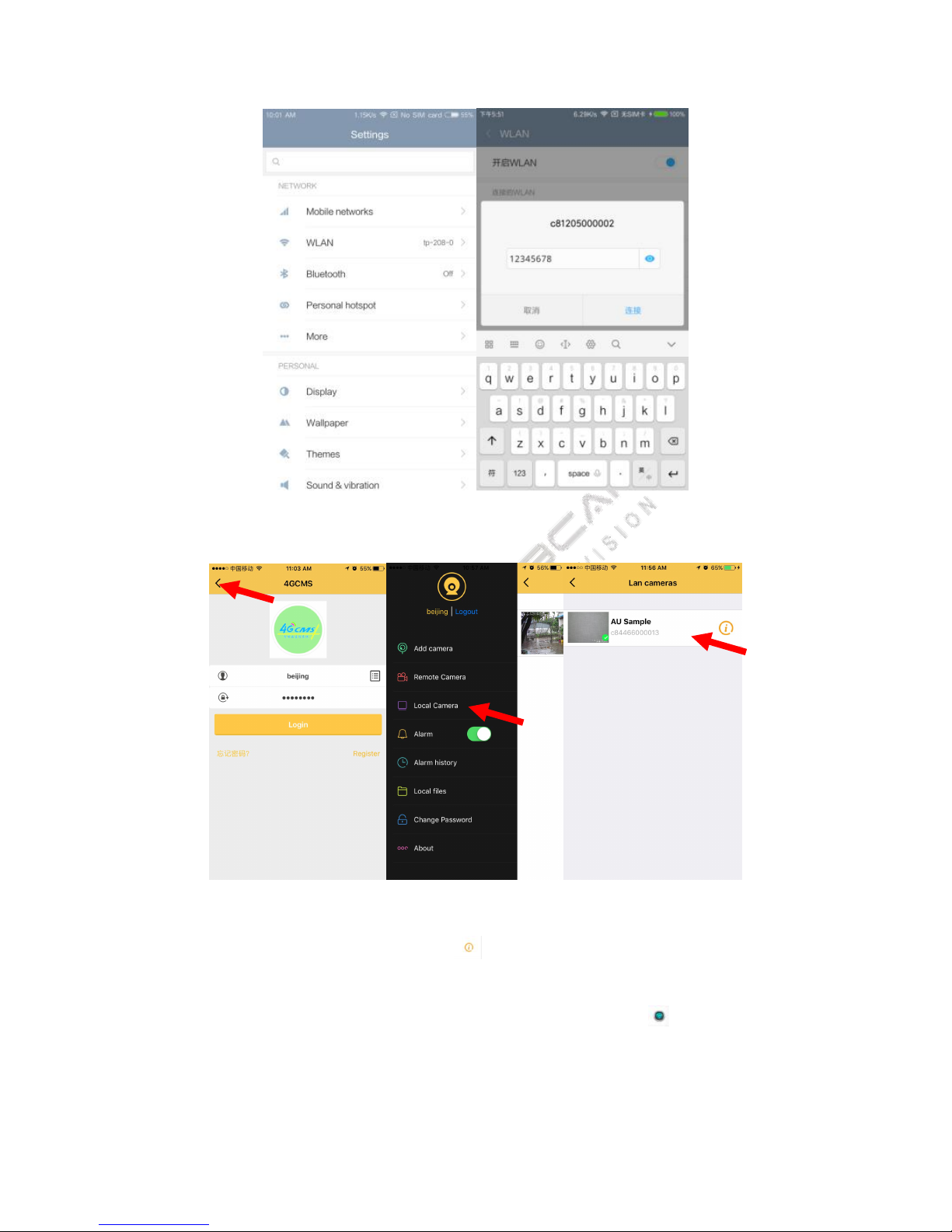
4.2.1. Connect the Wi-Fi of cameras.............................................................................................................. 4
4.2.2. Local Camera.........................................................................................................................................5
4.2.3. Set the camera to connect to the router..............................................................................................5
4.2.4. Add camera to account.........................................................................................................................6
4.3. 4G camera........................................................................................................................................................ 7
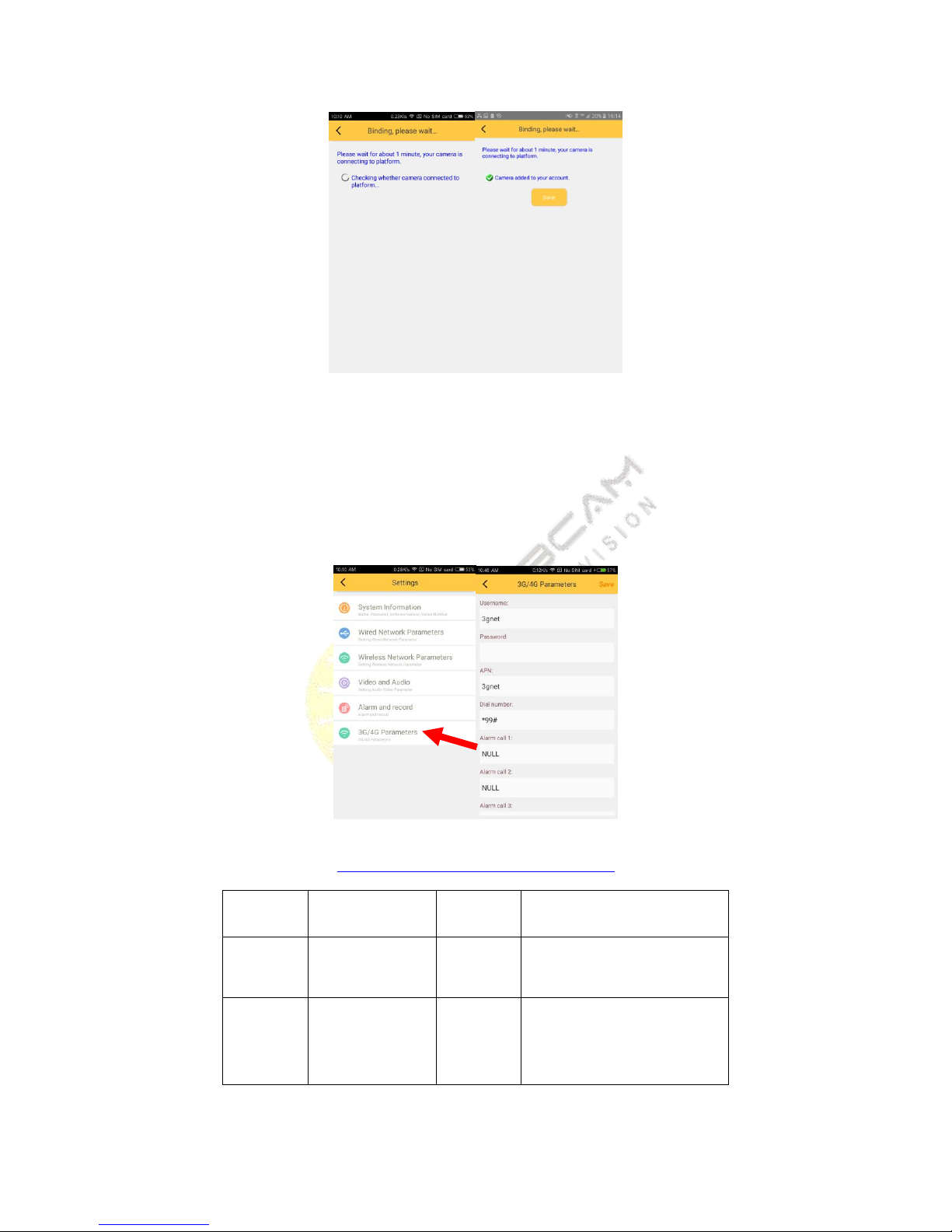
4.3.1. 3G/4G Parameters setting.................................................................................................................... 7
4.4. Ethernet camera.............................................................................................................................................. 8
4.5. List of cameras and Operation.........................................................................................................................8
4.5.1. Interface................................................................................................................................................8
4.5.2. RTMP push flow Settings...................................................................................................................... 9
4.5.3. Add RF devices....................................................................................................................................10
4.5.4. SD / Cloud Record............................................................................................................................... 10
4.5.5. Locate Camera.................................................................................................................................... 11
5. User Guide for PC Client............................................................................................................................................11
5.1. Preparations required before installation..................................................................................................... 11
5.2. Detailed introductions for installation process............................................................................................. 11
5.2.1. Installation process preview...............................................................................................................11
5.2.2. Detailed introductions for basic installation process.........................................................................11
5.3. Installation of RFID accessories (optional).................................................................................................... 16
5.4. Camera advanced parameter setting............................................................................................................ 16
5.4.1. The parameter settings for 3G, 4G version........................................................................................ 16
5.4.2. Audio and video parameters settings.................................................................................................17
5.4.3. Video recording parameters settings................................................................................................. 18
5.4.4. Motion Zone....................................................................................................................................... 19
5.4.5. FTP recording (support TI program)................................................................................................... 19
5.4.6. Cloud Storage Settings........................................................................................................................21
5.4.7. Other important settings, including RS485 baud rate and IR lighting control mode........................ 21
5.4.8. System Information.............................................................................................................................22
6. Advanced function introduction of 51 See PC clients.............................................................................................. 23
6.1. Advanced setting............................................................................................................................................23
6.2. Browsing cloud video.....................................................................................................................................23
6.3. Alarming PUSH Notification and remote SD card video recording linkage...................................................25
7. How to set up the product........................................................................................................................................25
7.1. Assembly of solar panel.................................................................................................................................25