
TECOM AW4038 Bedienungsanleitung

AW4038
ADSL 11g AP Router
User’s Manual
Version1.0
Copyright © 2005 by TECOM CO., LTD.
TECOM CO., LTD.
23, R&D ROAD 2
SCIENCE-BASED INDUSTRIAL PARK
HSIN-CHU TAIWAN R.O.C.

Manual Ver1.0
Table of Contents
1. INTRODUCTION..................................................................................................................................................... 4
1.1 FEATURES......................................................................................................................................................... 4
1.2 SYSTEM REQUIREMENTS .................................................................................................................................. 4
2. INSTALLATION....................................................................................................................................................... 5
FRONT PANEL ................................................................................................................................................................. 5
REAR PANEL ................................................................................................................................................................... 5
CONNECTING THE HARDWARE ........................................................................................................................................ 6
Step 1. Connect the ADSL cable and optional telephone....................................................... 6
Step 2. Connect the Ethernet cable...................................................................................................... 6
Step 3. Attach the power connector..................................................................................................... 6
Step 4. Turn on AW4038 and power up your systems............................................................... 6
Step 5. Configure AW4038 through the WEB interface........................................................... 7
Step 6. Save the configurations and Reboot................................................................................... 7
3. CONFIGURATION .................................................................................................................................................. 8
3.1 SETUP............................................................................................................................................................... 8
3.2 ESTABLISH THE CONNECTION .......................................................................................................................... 8
4. QUICK SETUP ....................................................................................................................................................... 10
4.1 PPP OVER ETHERNET (PPPOE) CONFIGURATION ........................................................................................... 10
4.2 IP OVER ATM ( I P OA) CONFIGURATION ......................................................................................................... 15
4.3 BRIDGE CONFIGURATION................................................................................................................................20
4.4 MAC ENCAPSULATION ROUTING (MER) CONFIGURATION............................................................................ 23
4.5 PPP OVER ATM ( P PP OA) CONFIGURATION ................................................................................................... 24
5. ADVANCED SETUP .............................................................................................................................................. 25
5.1 WAN.............................................................................................................................................................. 25
5.2 LAN............................................................................................................................................................... 25
5.3 NAT ............................................................................................................................................................... 25
5.4 FIREWALL....................................................................................................................................................... 29
5.5 QUALITY OF SERVICE ..................................................................................................................................... 33
5.6 ROUTING ........................................................................................................................................................ 34
5.7 DNS ............................................................................................................................................................... 36
6. WIRELESS SETUP ................................................................................................................................................ 39
6.1 BASIC ............................................................................................................................................................. 39
-2-

Manual Ver1.0
6.2 SECURITY ....................................................................................................................................................... 39
6.3 MAC FILTER .................................................................................................................................................. 43
6.4 WIRELESS BRIDGE.......................................................................................................................................... 43
6.5 ADVANCED ..................................................................................................................................................... 44
6.6 STATION INFO ................................................................................................................................................. 46
7. DIAGNOSTICS....................................................................................................................................................... 47
8. MANAGEMENT .................................................................................................................................................... 48
8.1 SETTINGS........................................................................................................................................................ 48
8.2 SYSTEM LOG .................................................................................................................................................. 50
8.3 SNMP AGENT ................................................................................................................................................ 51
8.4 INTERNET TIME .............................................................................................................................................. 52
8.5 ACCESS CONTROL .......................................................................................................................................... 52
8.6 UPDATE SOFTWARE ........................................................................................................................................ 54
8.7 SAV E /REBOOT ................................................................................................................................................ 55
9. DEVICE INFO ........................................................................................................................................................ 56
9.1 SUMMARY ...................................................................................................................................................... 56
9.2 WAN.............................................................................................................................................................. 56
9.3 STATISTIC S ..................................................................................................................................................... 56
9.4 ROUTE............................................................................................................................................................ 59
9.5 ARP ............................................................................................................................................................... 59
-3-

Manual Ver1.0
1. Introduction
Congratulations on becoming the owner of AW4038 4-port ADSL AP router. You will now be
able to access the Internet using your high-speed ADSL connection. AW4038 has the following
major features.
1.1 Features
x Built-in ADSL modem for high speed Internet access
x Network Address Translation (NAT) and IP filtering functions to provide
network sharing and firewall protection for your computers
x 4-port switch to build your own local network
x Easy configuration via a web browser
x IEEE 802.11g 54Mbps Access Point
This User’s Manual will guide you to install and configure your AW4038.
1.2 System Requirements
Before installing your AW4038, make sure that you have the following:
x ADSL service up and running on your telephone line, with at least one public Internet
address for your LAN
x One or more computers each containing an Ethernet 10Base-T/100Base-T network
interface card (NIC) or wireless network adapter.
For system configuration, use the supplied web-based program.
Note: Make sure that your computer has a web browser such as Internet Explorer v5.0 or
later, or Netscape v4.7 or later.
-4-
Notice : The changes or modifications not expressly approved by the party responsible for compliance
could void the user’s authority to operate the equipment.
IMPORTANT NOTE: To comply with the FCC RF exposure compliance requirements, no change to
the antenna or the device is permitted. Any change to the antenna or the device could result in the
device exceedin
g
the RF ex
p
osure re
q
uirements and void user’s authorit
y
to o
p
erate the device.
The antenna used for this transmitter must be installed to provide a separation distance of at least 20
cm from all persons and must not be co-located or operating in conjunction with any other antenna or
transmitter.

Manual Ver1.0
2. Installation
In addition to this document, your AW4038 should arrive with the following:
x One standalone desktop AW4038
x One power adapter and power cord
x One Ethernet cable with RJ-45 connector
x One telephone cable with RJ-11 connector
Front Panel
The front panel LEDs indicate the status of the unit.
Label Color Function
PWR Green On: Power on
Off: Power off
LAN1~4 Green On: LAN link established and active
Off: No LAN link
Flashes during data transfer
DSL Green Flashes during the training mode.
On: ADSL link established and active
Tx/Rx Green On: Router is active
Flashes during data transfer through ADSL line
WLAN Green On: WLAN enabled
Off: WLAN disabled
Flashes during data transfer
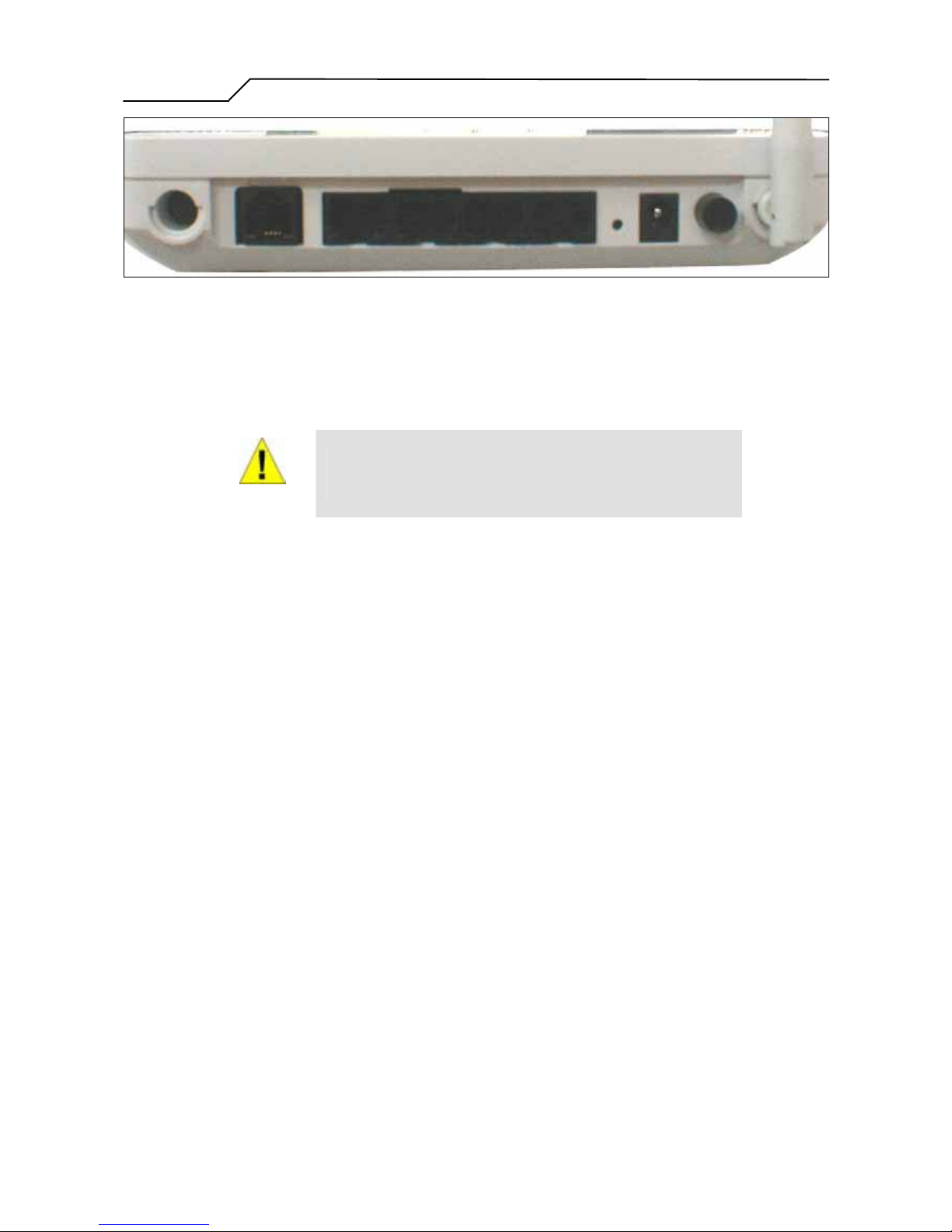
Rear Panel
The connectors located at the rear panel have the following functions.
Interface Function
Botton Power switch on/off
Power (SNG 1- tec) Connects to the power adapter cable
Reset Resets unit’s configuration to factory default
LAN1~4 RJ-45 connector: Connects AW4038 to your PC's
Ethernet port, or to the uplink port on your LAN's hub
ADSL RJ-11 connector: Connects AW4038 to ADSL line
-5-
Manual Ver1.0
Figure 1. Rear view of AW4038
Connecting the Hardware
Connect AW4038 to the phone jack, the power outlet, and your computer or network.
WARNING
Before you begin, turn the power off for all devices. These include your
computer(s), your LAN hub/switch (if applicable), and AW4038.
Step 1. Connect the ADSL cable and optional telephone
Connect one end of the phone cable to the RJ-11 connector on the rear panel of AW4038. Connect
the other end to the ADSL outlet provided by your service provider (normally MODEM port of the
attached splitter).
Step 2. Connect the Ethernet cable
Connect one end of the Ethernet cable to the one of the four RJ-45 connectors on the rear panel of
AW4038 and connect the other end to your PC’s network adaptor (NIC). If you are connecting a
LAN to AW4038, attach one end of the Ethernet cable to a regular hub port and the other end to the
LAN port on AW4038.
Step 3. Attach the power connector
Connect the AC power adapter to the power connector on AW4038 and plug in the adapter to a wall
outlet or power extension.
Step 4. Turn on AW4038 and power up your systems
Press the Power switch on the back panel of AW4038 to the ON (Low) position.
Turn on and boot up your computer(s) and any LAN devices such as hubs or switches.
-6-

Manual Ver1.0
Step 5. Configure AW4038 through the WEB interface
Please refer to chapter 3.
Step 6. Save the configurations and Reboot
Save the changes you made on AW4038.
-7-

Manual Ver1.0
3. Configuration
3.1 Setup
zConnect AW4038 and PC with an RJ-45 Ethernet cable.
zTurn on AW4038.
zThe default IP address of AW4038 is 192.168.1.1.
3.2 Establish The Connection
zEnter the IP address (default: 192.168.1.1) of AW4038 in the address line of Web
Browser
zA Dialogue Box will pop up to request the user to login. (Figure 1)
Figure 2. Authentication
zPlease enter the management username/password into the fields then click on the
OK button (default username/password is admin/admin).
z If the authentication is valid, the home page “Device Info - Summary” will be
displayed on the screen. (Figure 3)
-8-

Manual Ver1.0
Figure 3. AW4038 Home Page
-9-

Manual Ver1.0
4. Quick Setup
The system administrator can configure AW4038 remotely or locally via a Web
Browser. Network configuration needs to be planned and decided before starting the
configuration procedure.
Quick Setup allows system administrator to select the appropriate operation mode and
configure the corresponding settings step by step to create a connection. The following
five operation modes are supported:
z PPP over Ethernet (PPPoE)
z IP over ATM (IPoA)
z Bridging
z MAC Encapsulation Routing (MER)
z PPP over ATM (PPPoA)
4.1 PPP over Ethernet (PPPoE) Configuration
Click on “Quick Setup” in the left frame, and follow the steps below to create a PPP
over Ethernet (PPPoE) connection.
4.1.1 ATM PVC Configuration
Figure 4. Quick Setup – ATM PVC Configuration
-10-
Inhaltsverzeichnis
Andere TECOM Netzwerk-Router Handbücher


Beliebte Netzwerk-Router Handbücher anderer Marken


NETGEAR
NETGEAR FS526T - Switch Bedienungsanleitung

Korenix
Korenix JetNet 5710G Series Bedienungsanleitung

Automated Logic
Automated Logic ZN551 Betriebsanleitung

Cisco
Cisco ASR 1000 Series Bedienerhandbuch

EnGenius
EnGenius ESR-9710 Bedienungsanleitung

Cisco
Cisco 805 Series Bedienungs- und Sicherheitshinweise