
Tenvis iprobot 3 Bedienungsanleitung


TENVIS Technology Co., Ltd.
TENVIS End User Agreement
TENVIS IP Camera is designed to serve as a supplement to existing
residential and business security systems. This home monitor is intended
as an aid. It is not a substitute for home security supervision and should not
be used as such.
Application involving live radio listening and video streaming will require
WiFi usage or mobile network usage, such as 3G/LTE or Edge. If you are
on a remote Wi-Fi network or 3G connection, 10 seconds to 15 seconds
delay in video and audio streaming to your smartphone may occur. This
may incur data fee charged by your telecommunication services, please
check with your service provider for details. TENVIS does not warrant that
the functions contained in the service will be uninterrupted or error-free,
that defects will be corrected, or that this service or the server that makes it
available are free of viruses or other harmful components. TENVIS does
not warrant or make any representations regarding the use or the results of
the use of the materials in this service in terms of their correctness,
accuracy, reliability, or otherwise. You (and not TENVIS) assume the entire
cost of all necessary servicing, repair, or correction.
All trade names are registered trademarks of respective manufacturers
listed. To get the latest camera update or to learn more about TENVIS IP
Camera, please visit www.tenvis.com.

TENVIS Technology Co., Ltd.
Table of Contents
Quick Installation Guide.................................................................................1
What’s In the Box............................................................................................2
Quick Start Guide............................................................................................2
Operation Guide for iPhone...........................................................................3
Live Video..............................................................................................3
Wi-Fi Setup............................................................................................7
Alarm Setup...........................................................................................8
Other Settings.....................................................................................10
Operation Guide for iPad.............................................................................12
Live Video............................................................................................12
Wi-Fi Setup..........................................................................................15
Alarm Setup.........................................................................................16
Other Settings.....................................................................................18
Operation Guide for Android Device...........................................................20
Live Video............................................................................................20
Wi-Fi Setup..........................................................................................23
Alarm Setup.........................................................................................24
Other Settings.....................................................................................27
Operation Guide for Windows Web Browser.............................................28
Operationn Guide for Mac Web Browser...................................................33
Setup Wi-Fi using WPS................................................................................36
What is WPS?.....................................................................................36
Set up Wi-Fi using WPS....................................................................36
Camera Reset ...............................................................................................38
FCC Statements............................................................................................39
Frequently Asked Questions........................................................................40
Warranty.........................................................................................................41
Contact us......................................................................................................43

TENVIS Technology Co., Ltd.
1
Quick Installation Guide
Hardware Installation
Software Installation
Live Video
Wireless Connection Setting
Alarm Setup

TENVIS Technology Co., Ltd.
2
1. IP Camera IPROBOT 3 with IR-Cut x1
2. DC Power Adapter (5V-2.0A) x1
3. Network Cable x1
4. Mounting Bracket x1
5. Quick Installation Guide x1
6. CD-ROM with Setup Software x1
Connect the power cable and wait for the camera to initialize itself.
Connect the camera to your router by using the included network cable.
1
2 3
4
5 6
LAN Port
1
4
LAN
Router
What’s In the Box
Quick Start Guide

TENVIS Technology Co., Ltd.
3
1. Download NEW TENVIS from App Store
2. Tap on Sign up if you do not already have an account with New
TENVIS. Fill in the required information to register for a New TENVIS
user account.
3. After signing up, please log on to your account.
4. Tap on to add your new camera to your account; find the camera
by matching UID code in the list to the UID code displayed at the
bottom of the camera. If your new camera resides in the same LAN
(Local Area Network), its UID code will show up in the list.
Operation Guide for iPhone
Live Video

TENVIS Technology Co., Ltd.
4
5. You can choose to add you camera manually:
Click button and select your camera model and enter
camera’s UID code (displayed at the bottom of the camera) and
password. You can scan camera’s UID from Camera's QR code by
tapping QR Code Icon to initiate the scan.
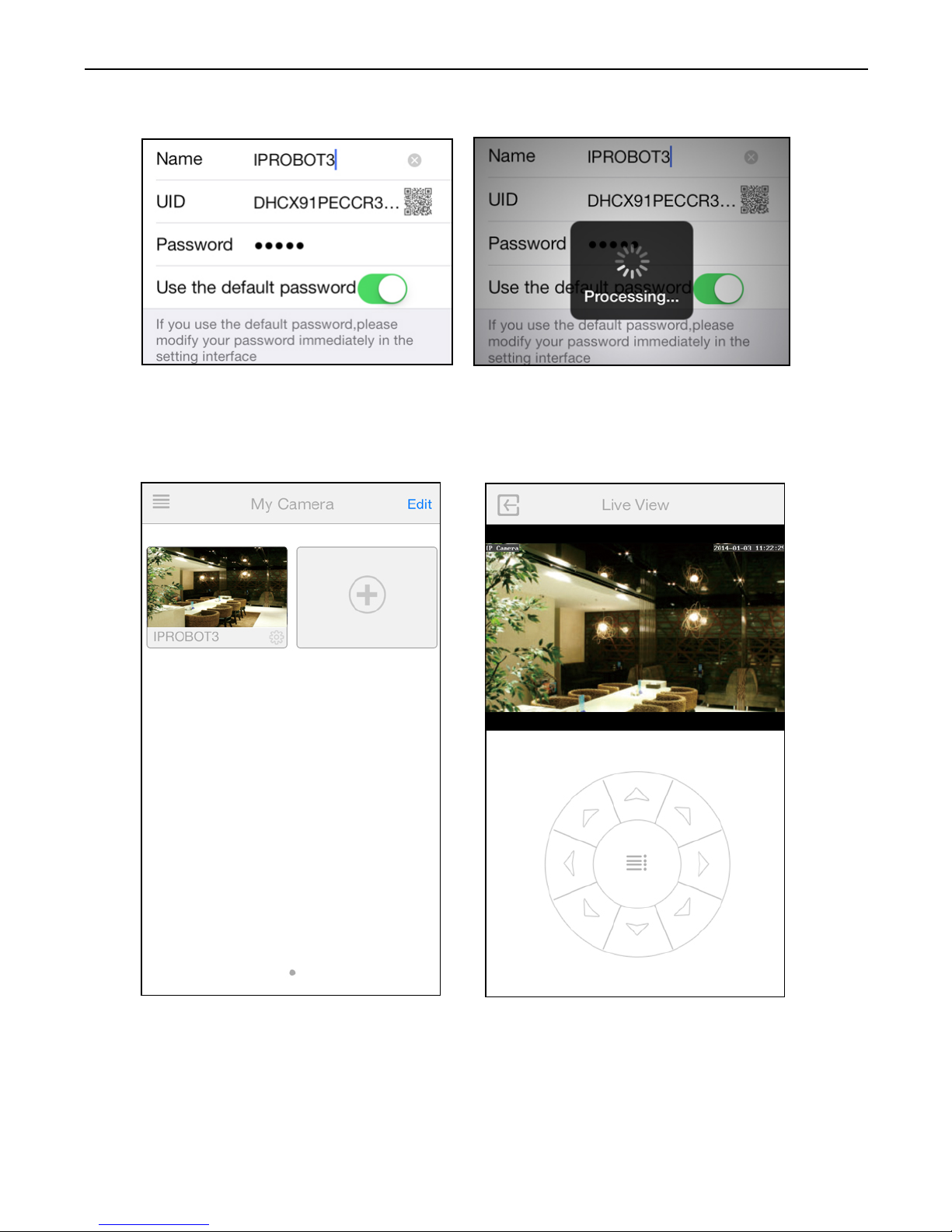
6. Enter the camera's name and password. By default the password is
admin.
TENVIS Technology Co., Ltd.
5
7. Select the camera you've just added to start viewing live video.

TENVIS Technology Co., Ltd.
6
8. Tap on to display additional functions:
Pan/tilt control: 8 directions pan/tilt control.
Talk: Allows user to talk to the camera from NEW TENVIS App.
Alarm Events: Setup alarm events;
Snapshot: Take a snapshot picture from current camera feed;
Albums: View the snapshots taken.
Audio: Allows user to listen to the camera’s audio feed.
*Notice: To check alarm events, Insert a micro SD card and enable record
by micro SD first, then enable motion detection. TENVIS IP Camera is
designed to only supplement existing residential and business security
systems.

TENVIS Technology Co., Ltd.
7
1. Click to start configuring your camera for wireless operation.
2. The camera will start scanning for Wi-Fi connections. Select your
Wi-Fi connection or network ID (SSID). Enter the password for your
Wi-Fi connection.
Wi-Fi Setup
Andere Handbücher für iprobot 3
1
Inhaltsverzeichnis
Andere Tenvis Sicherheitskamera Handbücher


