
V-tech My Zone Bedienungsanleitung

User’s Manual
My Zone Laptop
© 2017 VTech
All rights reserved
Printed in China
91-003296-005 UK
91-003296-005.indd 191-003296-005.indd 1 2021/6/21 16:31:462021/6/21 16:31:46

C
M
Y
CM
MY
CY
CMY
K
Grow with VTech(101x127)bw1P-V2.pdf 1 08/18/2014 9:29:01
91-003296-005.indd 291-003296-005.indd 2 2021/6/21 16:31:482021/6/21 16:31:48

A
2
INTRODUCTION
Thank you for purchasing the VTech®My Zone Laptop.
This laptop offers progressive, age-appropriate curriculum through 30
exciting activities. A friendly penguin character encourages children as
they learn capital and small letters, phonics, spelling, maths, shapes,
animals, food, logic, music and more! You can also customise your
experience by entering your child’s name, age, favourite food, and
selecting a tune to play when the laptop powers on.
Introduction
10 Number
Buttons
Category
Selector
Music On/
Off Button
26 Letter
Buttons
Direction
Keys
Enter
Button
All About Me
Button
Help
Button
Settings
Button
On/Off
Button
91-003296-005.indd 291-003296-005.indd 2 2021/6/21 16:31:492021/6/21 16:31:49

A
3
INCLUDED IN THIS PACKAGE
• One VTech®My Zone Laptop
• One User’s Manual
WARNING:
All packing materials, such as tape, plastic sheets, packaging locks
and tags are not part of this toy, and should be discarded for your
child’s safety.
NOTE:
Please keep user’s manual as it contains important information.
Unlock the packaging locks:
NOTE:
The cord located on the front cover is not a part of this toy. This
cord should be removed and discarded for your child’s safety.
DEMO STRIP REMOVAL
When the product is taken out of the packaging, please remove the
demo strip on the back of the unit to activate normal play mode.
Rotate the packaging lock 90 degrees
anticlockwise.
Pull out the packaging locks.
Included in this Package
91-003296-005.indd 391-003296-005.indd 3 2021/6/21 16:31:492021/6/21 16:31:49

A
4
GETTING STARTED
BATTERY INSTALLATION
1. Make sure the unit is OFF.
2. Locate the battery cover on the back of the
unit.
3. Install 2 new AA Size (AM-3/LR6) batteries
following the diagram inside the battery
box. (The use of new alkaline batteries is
recommended for maximum performance.)
4. Replace the battery cover.
Note:
When the batteries are changed, all information stored in the activity
ALL ABOUT ME will be erased.
BATTERY NOTICE
• Use new alkaline batteries for maximum performance.
• Use only batteries of the same or equivalent type as recommended.
• Do not mix different types of batteries: alkaline, standard (carbon-
zinc) or rechargeable (Ni-Cd, Ni-MH), or new and used batteries.
• Do not use damaged batteries.
• Insert batteries with the correct polarity.
• Do not short-circuit the battery terminals.
• Remove exhausted batteries from the toy.
• Remove batteries during long periods of non-use.
• Do not dispose of batteries in fire.
• Do not charge non-rechargeable batteries.
• Remove rechargeable batteries from the toy before charging (if
removable).
• Rechargeable batteries are only to be charged under adult supervision.
Getting Started
91-003296-005.indd 491-003296-005.indd 4 2021/6/21 16:31:492021/6/21 16:31:49

A
5
Disposal of batteries and product
The crossed-out wheelie bin symbols on products and
batteries, or on their respective packaging, indicates they
must not be disposed of in domestic waste as they contain
substances that can be damaging to the environment and
human health.
The chemical symbols Hg, Cd or Pb, where marked,
indicate that the battery contains more than the specified
value of mercury (Hg), cadmium (Cd) or lead (Pb) set out in
Battery Directive (2006/66/EC).
The solid bar indicates that the product was placed on the
market after 13th August, 2005.
Help protect the environment by disposing of your product
or batteries responsibly.
For more information, please visit:
www.recycle-more.co.uk
www.recyclenow.com
Getting Started
91-003296-005.indd 591-003296-005.indd 5 2021/6/21 16:31:492021/6/21 16:31:49

A
6
PRODUCT FEATURES
1. ON/OFF BUTTON
Press the On/Off Button to turn the unit ON and press it again to
turn the unit OFF.
2. SETTINGS BUTTON
Press the Settings Button to adjust the volume and screen contrast.
Press the Direction Keys left and right to choose which item to
adjust and then press the Enter Button to confirm.
3. HELP BUTTON
Press the Help Button to hear an instruction or question repeated.
4. CATEGORY SELECTOR
Slide the Category Selector to choose one of the five categories.
Your child can explore words, phonics, numbers, shapes, animals,
vegetables, fruit, logic, instruments, music and more!
5. ALL ABOUT ME BUTTON
Press the All About Me Button to customise your name, age,
favourite food, wallpaper, opening tune and create your own avatar.
6. DIRECTION KEYS
Press the Direction Keys up or down, left or right to make
selections.
7. ENTER BUTTON
Press the Enter Button to confirm.
8.BACKGROUND MUSIC ON/OFF BUTTON
Press the Background Music On/Off Button to turn the background
music off, press this button again to turn the background music on.
Product Features
91-003296-005.indd 691-003296-005.indd 6 2021/6/21 16:31:492021/6/21 16:31:49

A
7
9. LETTER BUTTONS
Press the Letter Buttons to learn letters or to answer letter related
questions.
10. NUMBER BUTTONS
Press the NUMBER BUTTONS to learn numbers or to answer
number related questions.
11. AUTO-LEVELLING FEATURE
In some activities, after answering 2 or 3 questions correctly, the
game automatically advances to the next level of difficulty. There are
3 challenging levels to explore.
12. AUTOMATIC SHUT-OFF
To preserve battery life, the unit will automatically turn off after several
minutes without input. The unit can be turned on again by pressing
the On/Off Button.The unit will also automatically turn off when the
batteries are very low. A warning will be displayed on the screen as a
reminder to change the batteries.
Product Features
91-003296-005.indd 791-003296-005.indd 7 2021/6/21 16:31:492021/6/21 16:31:49

A
8
ACTIVITIES:
The VTech®My Zone Laptop offers a total of 30 fun activities in 6
categories.
LETTERS AND WORDS CATEGORY
1: Exploring Letters
The penguin is going fishing. There are many
fish swimming in the sea. Press the Letter
Buttons to see letter fish. Explore each letter,
the sound it makes and corresponding words.
2: Letter Order
The penguin needs to use the letter bridge to
get to the other side of the river. Some letters
on the bridge are shown in the correct letter
order. There is one block that is out of order.
Help the penguin complete the correct letter
order. Press the Direction Keys up or down
to select the letter and then press the Enter
Button to confirm.
3: Letter Quiz
There are 4 letters on the screen. Follow the
instructions to find the capital or small letters.
Press the Direction Keys up or down, left
or right to find the correct letter within 30
seconds.
4: Missing Letter
Help the penguin find the correct missing letter.
A word is shown on the screen with one letter
missing. The player can select from among
three letter choices. Press the Direction Keys
left or right to select the letter and then press
the Enter Button to confirm.
Activities
91-003296-005.indd 891-003296-005.indd 8 2021/6/21 16:31:492021/6/21 16:31:49

A
9
5: Where Is It?
Play hide-and-seek with the penguin and learn
spatial skills. Let’s see where the penguin is.
Press the Direction Keys left or right to scroll
the picture and then press the Enter Button to
pick a picture to learn.
6: Capital & Small Letter Explorer
Help penguin learn all about capital and small
letters by pressing the Letter Buttons.
7: Beginning Letters
Help the penguin find the correct beginning
letter. A word is shown on the screen with the
beginning letter missing. The player can select
from among three letter choices. Press the
Direction Keys left or right to select the letter
and then press the Enter Button to confirm.
8: Phonics Quiz
Listen to sounds coming from Penguin’s cave,
then find the letter that makes that sound.
Press the Direction Keys to choose and
press the Enter Button to confirm.
NUMBERS AND SHAPES CATEGORY
9: Exploring Numbers
The penguin is going fishing. There are many
fish swimming in the sea. Press the number
buttons to explore each Number Button and
count the fish together.
10: Exploring Shapes
The penguin is using the laptop to learn about
shapes. Press the Direction Keys left or right
to choose and then press the Enter Button
to learn about a shape and its related object.
Activities
91-003296-005.indd 991-003296-005.indd 9 2021/6/21 16:31:492021/6/21 16:31:49
Inhaltsverzeichnis
Andere V-tech Laptop Handbücher

V-tech
V-tech Genio Montageanleitung
V-tech
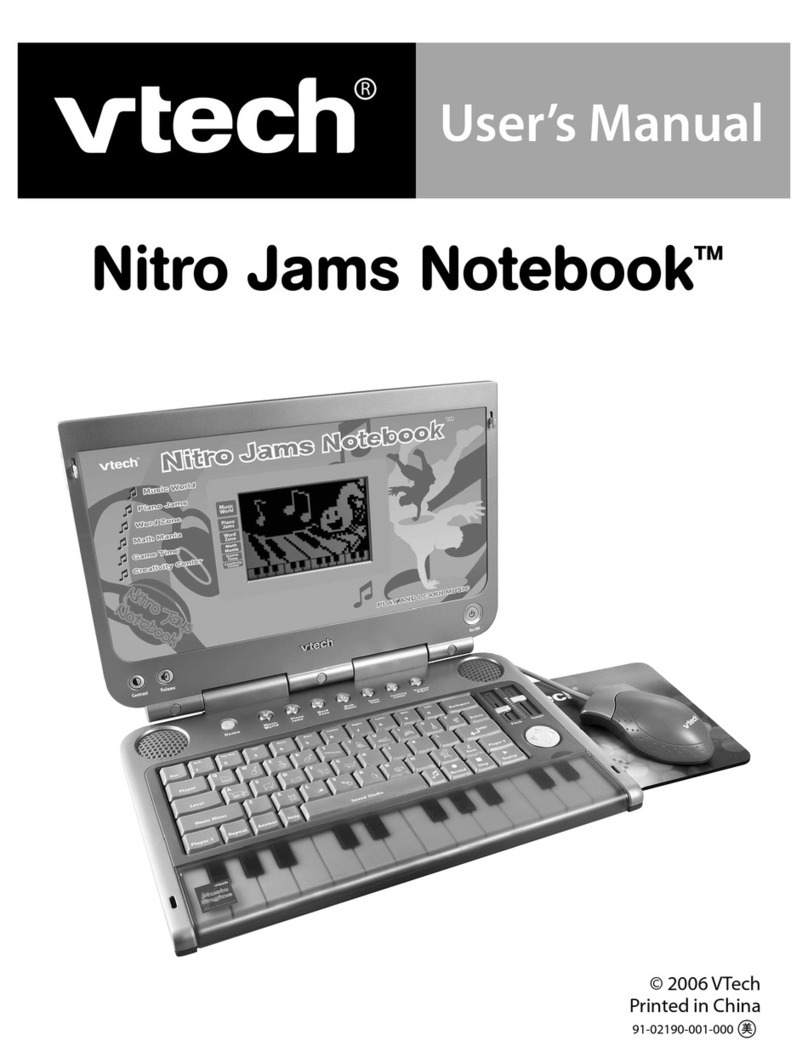
V-tech Nitro Jams Notebook Bedienungsanleitung
V-tech
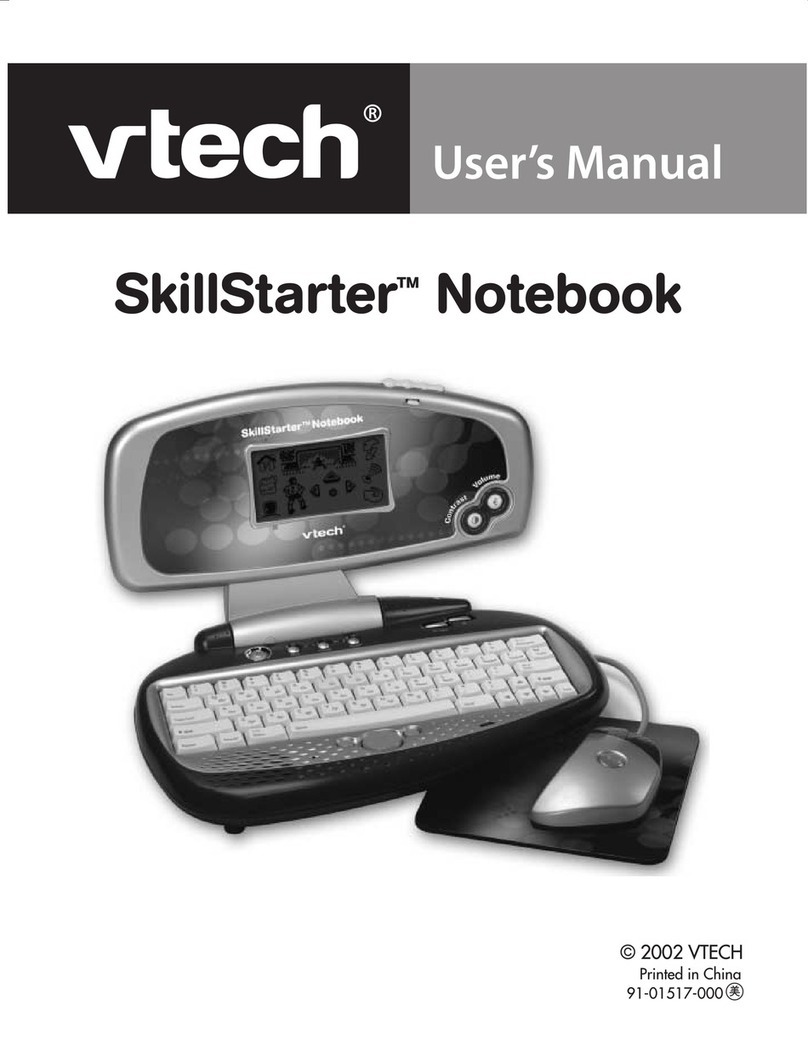
V-tech SkillStarter SkillStarter Notebook Bedienungsanleitung

V-tech
V-tech XL Series Bedienungsanleitung

V-tech
V-tech Cinderella Magic Wand Laptop Bedienungsanleitung

V-tech
V-tech Magical Music Laptop Bedienungsanleitung

V-tech
V-tech Challenger Laptop Bedienungsanleitung

V-tech
V-tech Color Blast Notebook Bedienungsanleitung

V-tech
V-tech CHALLENGER 91-002136-014-000 Bedienungsanleitung

V-tech
V-tech Xtra Pro Bedienungsanleitung


