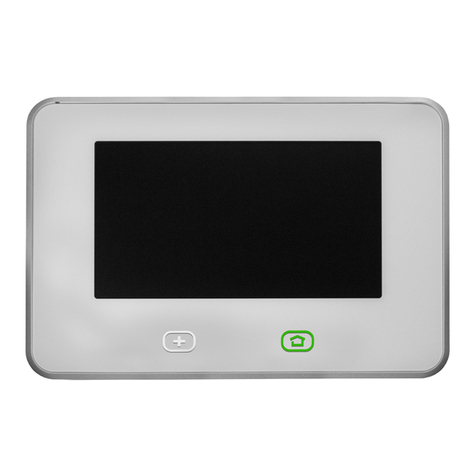
Vivint SkyControl Bedienungsanleitung

SkyControl
Panel
Getting Started

© 2015 Vivint, Inc. All rights reserved.
Vivint and its respective logos are either registered trademarks or trademarks of
Vivint, Inc. in the United States and other countries. All other trademarks are the
property of their respective owners.
Designed by Vivint. Printed in China.
Document P/N: 77-600000-002 — Rev A.0
Panel M/N: CP01

Getting
Started Guide
Welcome to Vivint SkyControl 4
Getting to Know the Panel 5
Arming the Security System 6
Disarming the System 7
Emergency and Fire Protection 8
Home Automation Services 9
Users 10
Remote Access and Control 11
Acknowledging and Clearing Alerts 12
Customizing Panel Settings 13
Frequently Asked Questions (FAQs) 14
Regulatory, Service, and Warranty Information 15

4Welcome to
Vivint SkyControl
Thank you for your purchase and welcome to Vivint®
SkyControl™, our latest innovation in security and
automation for your home.
To quickly get to know and start using your SkyControl
panel and services, please read this introductory Getting
Started Guide that covers the basics and then make sure
to keep the guide in a handy location.
Get Support
To nd additional support, including how-to videos, step-by-step instructions, and a
complete User Guide, visit support.vivint.com.
To chat with a Vivint representative—click the chat icon at vivint.com.
To contact Vivint Customer Care—call 1.800.216.5232.
For faster assistance:
1. Be ready to provide your account number.
2. Be ready to provide any relevant error messages.
3. Be in front of your panel.
Stay Connected
Follow Vivint at twitter.com/vivinthome
Join Vivint at facebook.com/vivinthome
Follow Vivint at instagram.com/letsneighbor
Visit the Vivint Neighborhood at neighborhood.vivint.com

5Getting to
Know the Panel
Vivint SkyControl monitors your protected security
zones (interior and perimeter) as well as overall system
status. The control panel displays critical monitoring
and alert information and provides touchscreen access
to system operation and conguration.
Touchscreen Display
The status bar at the top of the touchscreen shows system information.
Home Button Display
When the Home button is green your security system is disarmed (ready to arm).
When the Home button is red your system is armed.
The bottom of the screen indicates the arming mode and provides device access.
Microphone
Speaker Alarm Siren
Emergency Button Home Button
Panel Camera Touchscreen Display
Date and Time Sound
Power
Thermostat Lighting Controls
Weather
Security Cameras Menu
Messages

6Arming the
Security System
Arming your system activates monitoring of the security
sensors*(doors, windows, motion). If a sensor is triggered
when the system is armed, an alarm will result and a
monitoring representative will contact you through Vivint
Live™, the two-way voice communication on the panel.
When the panel's Home button is green , press the Arming icon, and
Arm your system in Staying mode by dragging the icon to the left. The Exit Delay
timer will count down after 60 seconds. Do this when you want to be able to stay
inside your home. This activates all perimeter sensors but not interior sensors and
motion detectors.
OR
Arm your system in Leaving mode by dragging the icon to the right. The Exit
Delay timer will count down after 60 seconds. Do this when you want to leave
your home unoccupied. This activates all sensors including interior sensors and
motion detectors.
Sensor Bypass—Use this option if you want to arm your system without
monitoring a specic sensor. For example, you can leave a window open
while your system is armed.
Silent Exit—Use this option to mute all sounds during your exit this time.
Note that more detailed instructions can be found at support.vivint.com.
*Some 24-hour sensors such as smoke detectors, panic pendants, ood sensors, and CO detectors are always
active and monitored and can trigger an alarm 24×7×365.

7Disarming
the System
Disarming the system deactivates monitoring of
all the sensors that are not monitored 24x7x365*.
Disarming your system will also shut o any alarm
currently in process.
Press the Arming icon and disarm your system (from either Staying or Leaving
mode) by dragging the icon down,
and entering your PIN.
Quick Exit—Use this option (when armed in Staying mode) to allow
someone to exit without having to disarm the entire system.

8Emergency and
Fire Protection
The Emergency button is located at the bottom left
of the panel. Use this button in case of an emergency.
Just pressing the button does not trigger an alarm.
When you press the button, the Emergency screen appears with three options:
Using the Emergency Buttons
1. Press and hold the type of Emergency button you need for at least
2-3 seconds.
2. Vivint will receive your signal immediately and a monitoring
representative will conrm the emergency through Vivint Live.
If no one at your home responds via Vivint Live, the representative will
call your emergency contacts. If the rst emergency contact cannot be
reached, Vivint will dispatch authorities and continue trying to reach
your emergency contacts.
Understanding Fire and Carbon Monoxide Alarms
Your home may be installed with re and CO detectors as part of Vivint’s overall home
protection system. This protection is enabled 24 hours a day, 365 days a year.
In the event of a re or CO gas emergency, the installed detectors automatically
activate your security system. The detectors will emit a loud alarm, and the panel will
also emit loud intermittent alarms to warn you. The panel alarm continues for four
minutes or until you enter your PIN at the panel. (NOTE: See the complete User Guide
at support.vivint.com for more information about re and CO alarms.)

9Home Automation
Services
Vivint SkyControl oers several home automation
features with devices that can be controlled at the
panel or remotely with your smartphone, tablet, or
computer. Access and control your devices from the
bottom bar on the touchscreen display.
Locking and Unlocking Doors
At the Security screen, press a door
lock to see its status and to lock or
unlock it.
Adjusting Thermostat Settings
Press the temperature icon to view
thermostats, adjust settings, and create
schedules.
Viewing device status
To see the status of each device that’s connected to your home, press the Menu
button > Settings > and then Devices.
Watching Camera Views and Videos
Press the camera icon to access your
cameras, view live and recorded video
feeds, and congure settings such as mo-
tion detection, night vision, and more.
Controlling Lights and Small Appliances
Press the lighting control icon to access
the modules and turn on/o or dim the
lights.
*Note that home automation features and services vary depending on your installation.

10Users
The Primary Admin User can add other users who can
access and control your Vivint system directly at the
panel or remotely with the Vivint Sky™apps, as well as
access your home with unique door lock PINs.
Inviting Users to Control Your System Remotely
You can grant (or revoke) remote access privileges to users so they can control your
system remotely via the web and mobile apps. Once you have sent an invitation by
email or text or both, users have 48 hours to accept.
Adding Users and Conguring Permissions
Add a new user by pressing the Menu button > Settings > Users and
Permissions > and then Add User. Once added, you can go to any User page
to grant or revoke permissions, change PINs, and remove the user.
Andere Handbücher für SkyControl
3
Inhaltsverzeichnis
Andere Vivint Bedienfeld Handbücher