X-Micro XWL-11GUZX Bedienungsanleitung
WLAN 11g USB Adapter
User Manual

2
Contents
Compliancy statements....................................................................... 2
FCC radiation exposure statement........................................... 2
Regulatory information............................................................. 2
USA- Federal Communications Commission (FCC)................. 3
Europe - R&TTE directive........................................................ 3
Channel identifiers, center frequencies, domains.................... 3
1. Product information......................................................................... 4
2. Package contents.............................................................................. 4
3. System requirements........................................................................ 4
4. Driver installation.............................................................................. 5
5. TheX-MicroWLAN 11g US B Adapter utility...................................... 9
5.1 Configuration.......................................................................... 9
5.2 More settings.......................................................................... 10
5.3 WEP key settings ................................................................... 11
5.4 Advanced settings.................................................................. 11
5.5 System information ................................................................ 12
6. Glossary................................................................................................ 12

X-Micro WLAN 11g USB Adapter
XWL-11GUZX
Compliancy statements
FCC Radiation Exposure Statement
This equipment complies with FCC radiation exposure limits set forth for an un-
controlled environment. This equipment should be installed and operated with
minimum distance 20cm between the radiator & your body. This transmitter must not
be co-located or operating in conjunction with any other antenna or transmitter. The
equipment has been tested and found to comply with the limits for a Class B Digital
Device, pursuant to part 15 of the FCC Rules. These limits are designed to provide
reasonable protection against harmful interference in a residential installation. This
equipment generates, uses and can radiate radio frequency energy and, if not installed
and used in accordance with the instruction, may cause harmful interference to radio
communication. However, there is no guarantee that interference will not occur in a
particular installation. If this equipment does cause harmful interference to radio or
television reception, which can be determined by turning the equipment off and on, the
user is encouraged to try to correct the interference by one or more of the following
measures:
-Reorient or relocate the receiving antenna.
-Increase the separation between the equipment and receiver.
-Connect the equipment into an outlet on a circuit different from that to which the
receiver is connected.
-Consult the dealer or an experienced radio/TV technician for help.
Notice: The Part 15 radio device operates on a non-interference basis with other
devices operating at this frequency. Any changes or modification not expressly
approved by the party responsible could void the user's authority to operate the
device.
Regulatory information
X-Micro WLAN 11g USB Adapter must be installed and used in strict accordance with
the manufacturer's instructions. This device complies with the following radio
frequency and safety standards:
3
USA - Federal Communications Commission (FCC) This device complies with Part
15 of FCC Rules. Operation is subject to the following two conditions:
1. This device may not cause harmful interference.
2. This device must accept any interference that may cause undesired operation.
Europe - R&TTE Directive
This device complies with the specifications listed below
• ETS 300-826 General EMC requirements for Radio equipment.
• ETS 300-328 Technical requirements for Radio equipment
• EN60950 Safety Requirements for Radio equipment
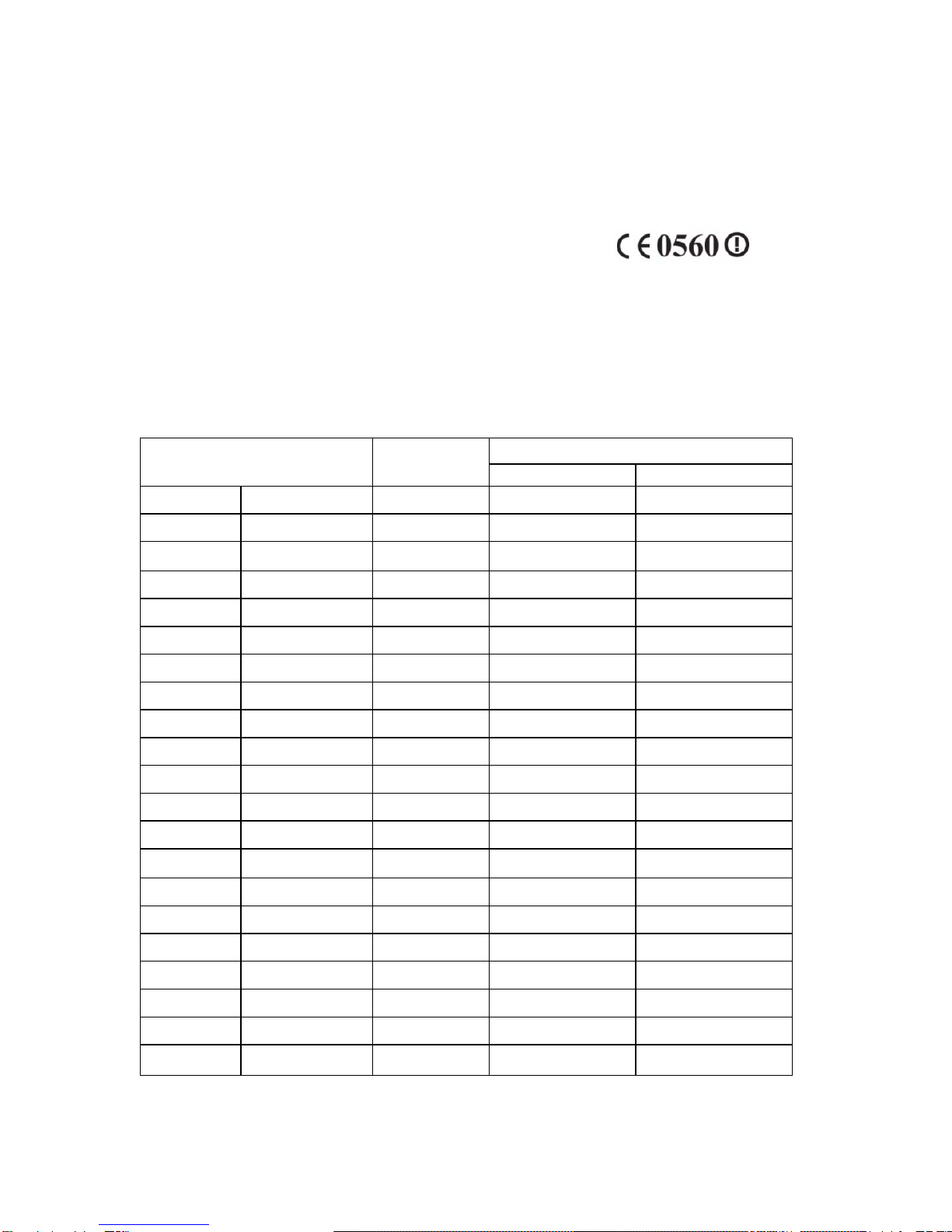
The channel identifiers, channel center frequencies, and regulatory domains of
each 22-MHz-wide channel are shown in following table:
MAX. OUT POWERCOUNTRY
CHANNELS
INDOOR OUTDOOR
Spain 2400-2483.5 MHz 1-13 <100mWEIRP <100mWEIRP
France 2400-2454 MHz 1-8 <100mWElRP <100mWEIRP
France 2454-2483.5 MHz 9-13 <100mWEIRP <10mWEIRP
Italy 2400-2483.5 MHz 1-13 <100mWElRP <100mWEIRP
UK 2400-2483.5 MHz 1-13 <100mWEIRP <100mWEIRP
Netherlands 2400-2483.5 MHz 1-13 <100mWEIRP <100mWEIRP
Germany 2400-2483.5 MHz 1-13 <100mWEIRP <100mWEIRP
Austria 2400-2483.5 MHz 1-13 <100mWEIRP <100mWEIRP
Belgium 2400-2483.5 MHz 1-13 <100mWEIRP <100mWElRP
Switzerland 2400-2483.5 MHz 1-13 <100mWElRP <100mWEIRP
Luxemburg 2400-2483.5 MHz 1-13 <100mWEIRP <100mWEIRP
Russia 2400-2483.5 MHz 1-13 <10mWEIRP <10mWEIRP
Ireland 2400-2483.5 MHz 1-13 <100mWEIRP <100mWEIRP
Portugal 2400-2483.5 MHz 1-13 <100mWEIRP <100mWEIRP
Norway 2400-2483.5 MHz 1-13 <100mWEIRP <100mWEIRP
Denmark 2400-2483,5 MHz 1-13 <100mWElRP <100mWEIRP
Finland 2400-2483.5 MHz 1-13 <100mWEIRP <100mWEIRP
Iceland 2400-2483.5 MHz 1-13 <100mWEIRP <100mWEIRP
Greece 2400-2483.5 MHz 1-13 <100mWEIRP <100mWEIRP
Uchtenstein 2400-2483.5 MHz 1-13 <100mWEIRP <100mWEIRP
Sweden 2400-2483.5 MHz 1-13 <100mWEIRP <100mWEIRP
4

5
1. Product introduction
The X-Micro WLAN 11g USB Adapter provides high-speed wireless link and networking
capabilities for desktops or notebooks. Users can have wireless connectivity simply by
plugging the device into a USB port and installing the driver / utility on a desktop or
notebook. When used with a WLAN Access Point or WLAN Router, mobile workers can
move freely, while maintaining seamlessly linked to the wired LAN.
2. Package contents
Item: Location:
X-Micro WLAN 11g USB Adapter Box
X-Micro WLAN 11g USB Adapter Quick Installation Guide Box
X-Micro WLAN 11g USB Adapter drivers/utility CD-ROM
X-Micro WLAN 11g USB Adapter User Manual CD-ROM
X-Micro WLAN 11g USB Adapter Quick Installation Guide CD-ROM
If an item is missing, please contact your product provider.
3. System Requirements
- Notebook PC or desktop PC with one free USB port
- 32MB memory or greater
- 300MHz processor or higher
- Microsoft Windows XP / 2000 / Me / 98SE
4. Driver Installation
Important: Please do not connect your X-Micro WLAN 11g USB Adapter to the USB
port of your computer before installing the X-Micro WLAN utility and driver.
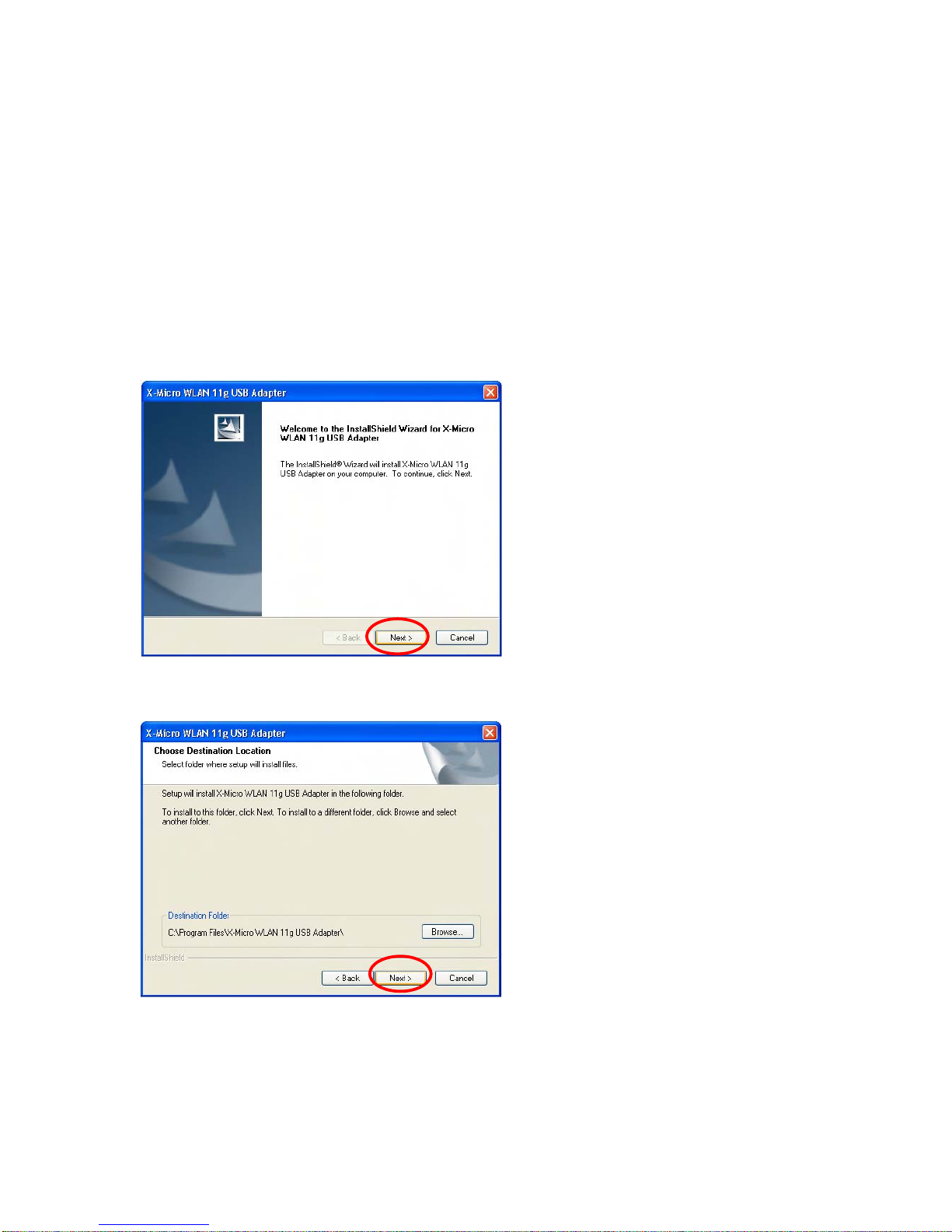
4.1. Insert the X-Micro WLAN 11g USB Adapter CD in the CD-ROM drive. In the main
menu that appears on your screen, click [Driver Install], and wait until the following
welcome screen appears. Click [Next].
Note: In case the main menu does not automatically appear, in Windows Explorer
browse to your CD-ROM and double-click the Install.exe file.
4.2.Click [Next] to accept, or [Browse] to change the default destination folder.
6
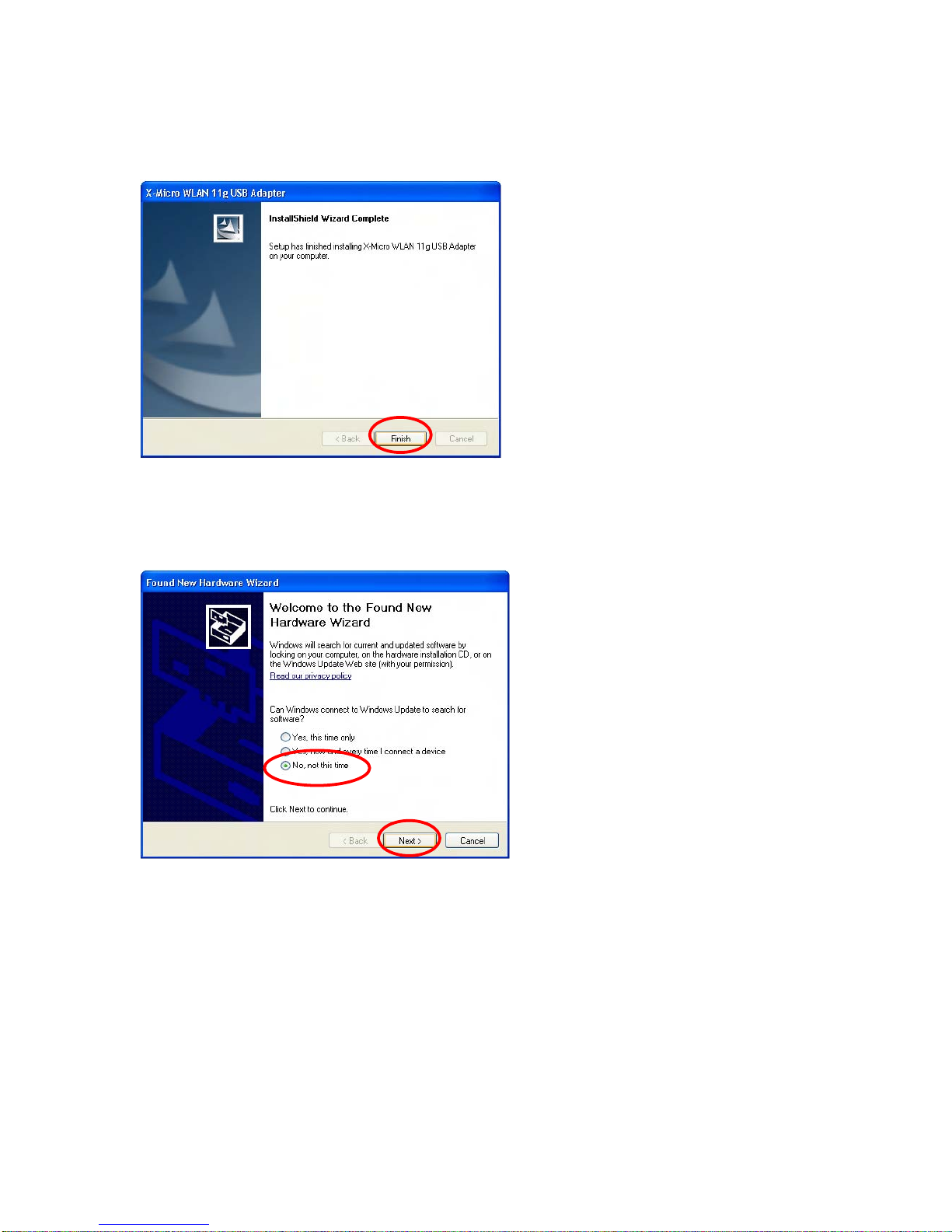
4.3. After the installation files are copied onto your hard disk, click [Finish].
4.4. Now connect your X-Micro WLAN 11g USB Adapter to the USB port of your
computer. In the Find New Hardware Wizard that appears on your screen select [No,
not this time], and click [Next].
7
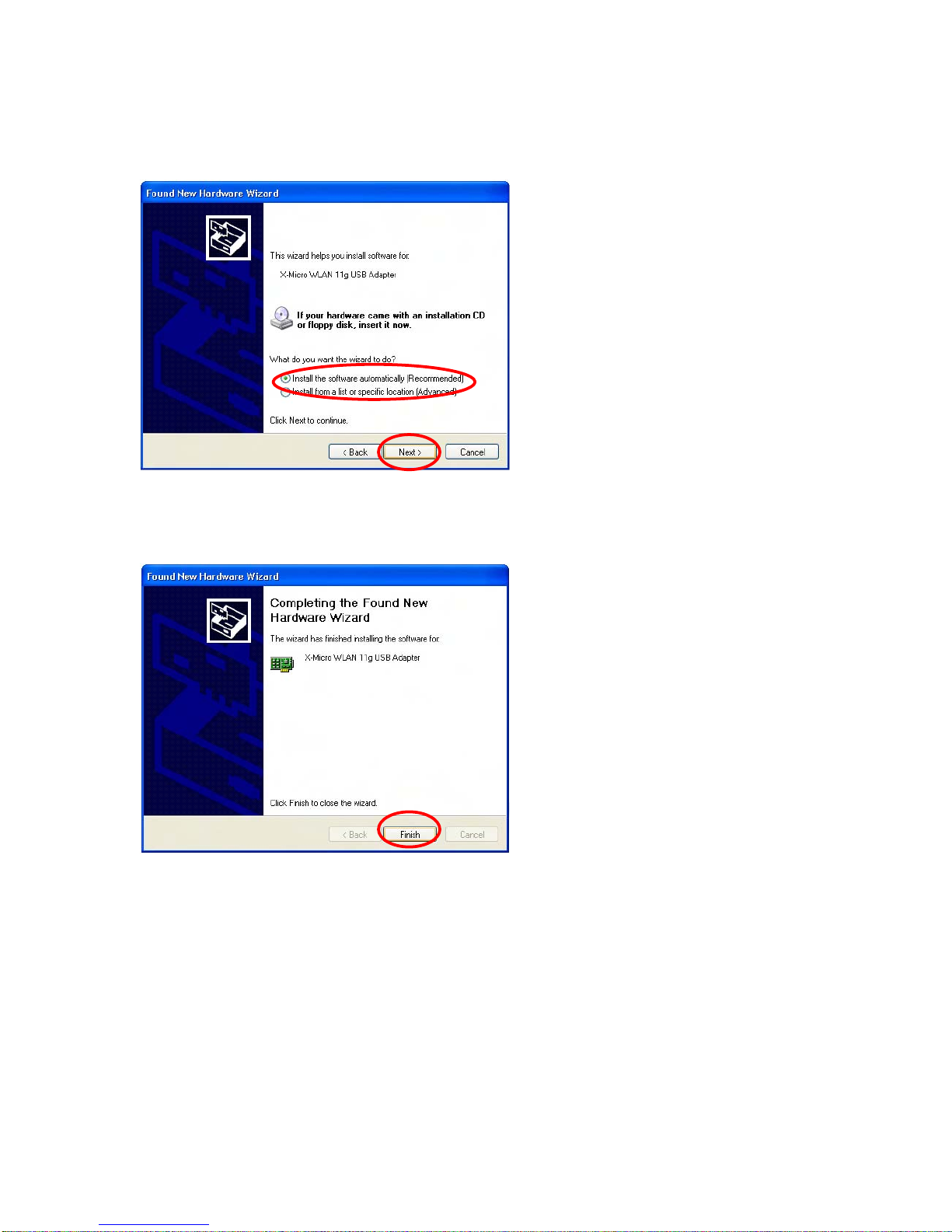
4.5. Select [Install the software automatically (Recommended)], and click [Next]
4.6. Click [Finish] to finalize the installation. Your X-Micro WLAN 11g USB Adapter is
now ready for use.
8
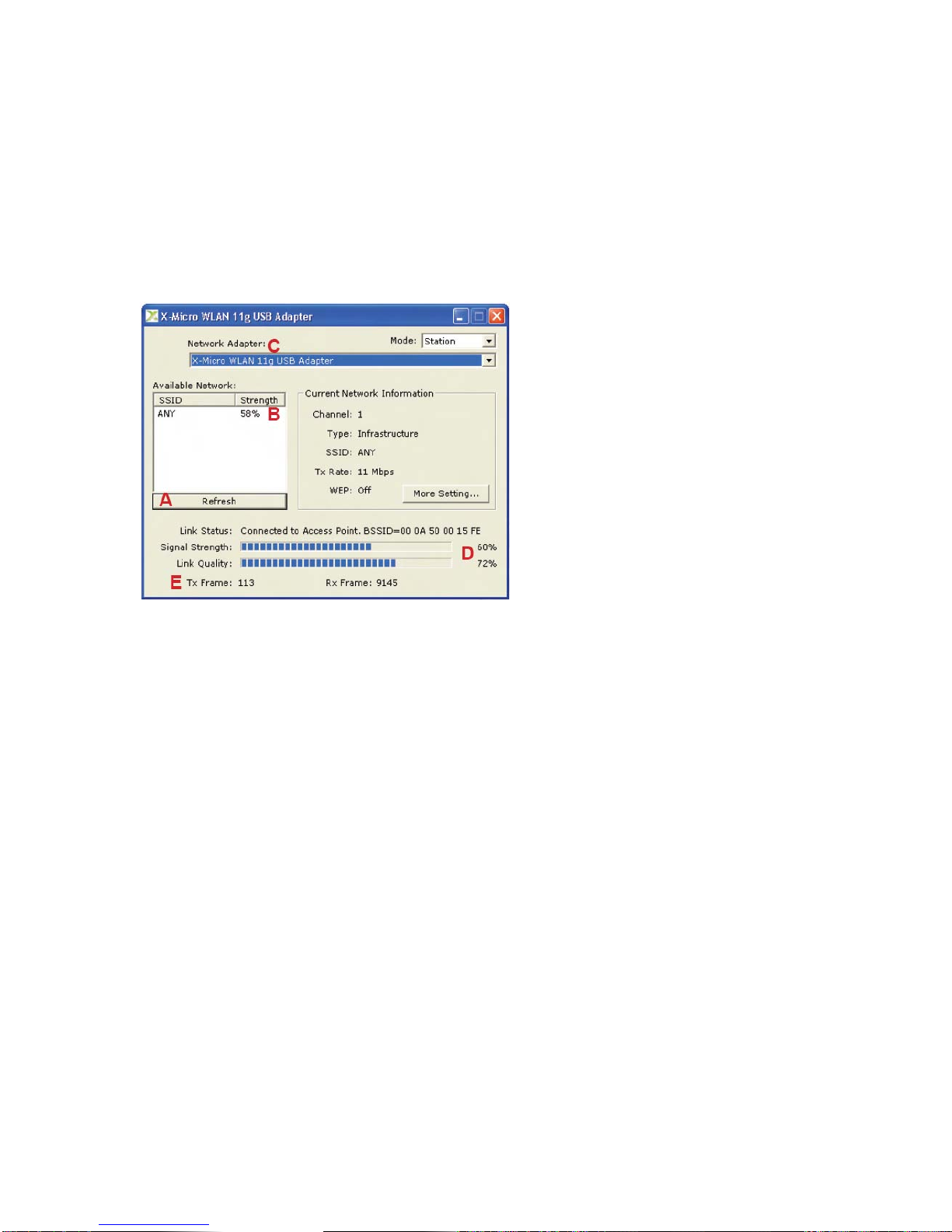
5. The X-Micro WLAN 11g USB Adapter utility
Open the X-Micro WLAN 11 g USB Adapter utility by double-clicking the X-Micro icon in
the system tray at the lower right comer of your screen, or by clicking [Start] >
[Programs] > [X-Micro WLAN 11g Adapter].
Note: In Windows XP, please disable the Zero Configuration feature when prompted to
do so.
A. Click on the Refresh button to see all available SSID networks.
B. You can select an SSID network by clicking on its name in the Available Net-
work field. Details will then be shown in the Current Network Information field.
C. The Network Adapter field shows the name of the wireless network adapter.
D. The Signal Strength and Link Quality values are shown in block diagrams as
well as in percentages.
E. At the lower end of this screen you can see the number of transmitted and
received frames.
9
More settings
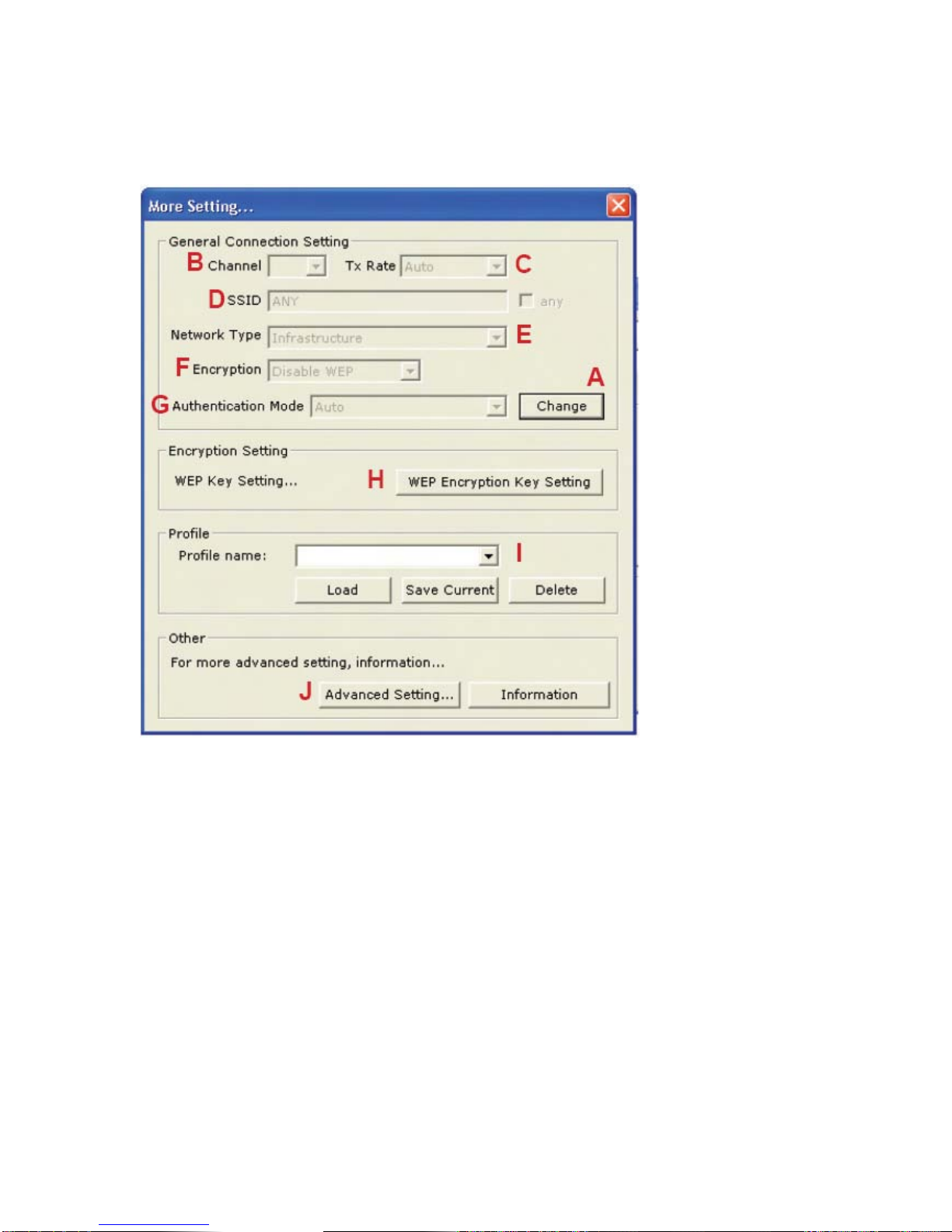
A. Click on the Change/Apply button to modify the settings in the General Connection
Setting field.
B.Select the channelin ad-hoc mode from the Channel drop-down menu.
C.Select the transmission speed from the Tx Rate drop-down menu.
D.Untick the Any box to select another network SS/D.
E.Select Infrastructure or Ad-hoc mode from the Network Type drop-down menu.
F. Select Enable WEP or Disable WEP from the Encryption drop-down menu.
G.Select Open System, Shared Key, or Auto from the Authenticication Mode
drop-down menu.
H.Click on the WEP Encryption Key Setting button to modify the WEP key settings. A
new screen will appear (see hereafter).
I.Select a previously saved profile from the Profile Name drop-down menu, and click on
the Load button to load the profile into memory. Alternatively, key in the profile name
and click on the Save Current or Delete button to respectively save or remove the
profile.
J.For advanced settings or information about the software, click on the Advanced
Settings or the Information button.
10
Andere Handbücher für XWL-11GUZX
1
Inhaltsverzeichnis
Andere X-Micro Adapter Handbücher

X-Micro
X-Micro FireWire 1394 Bedienungsanleitung

X-Micro
X-Micro WLAN 11g Gebrauchsanweisung

X-Micro
X-Micro XWL-11GUAR Bedienungsanleitung

X-Micro
X-Micro XWL-11GUZX Bedienungsanleitung

X-Micro
X-Micro XBT-PACX Bedienungsanleitung

X-Micro
X-Micro XWL-11GFZX Bedienungsanleitung

X-Micro
X-Micro XWL-11BUSX Bedienungsanleitung

X-Micro
X-Micro XBT-PACX Bedienungsanleitung

X-Micro
X-Micro XWL-11GUAR Bedienungsanleitung

X-Micro
X-Micro XBT-PACX Bedienungsanleitung