Yealink ZVC830 Bedienungsanleitung

Yealink Network Technology CO., LTD
Yealink ZVC830 for Zoom Rooms Kit
Quick Start Guide(V1.0)
English | 简体中文


1
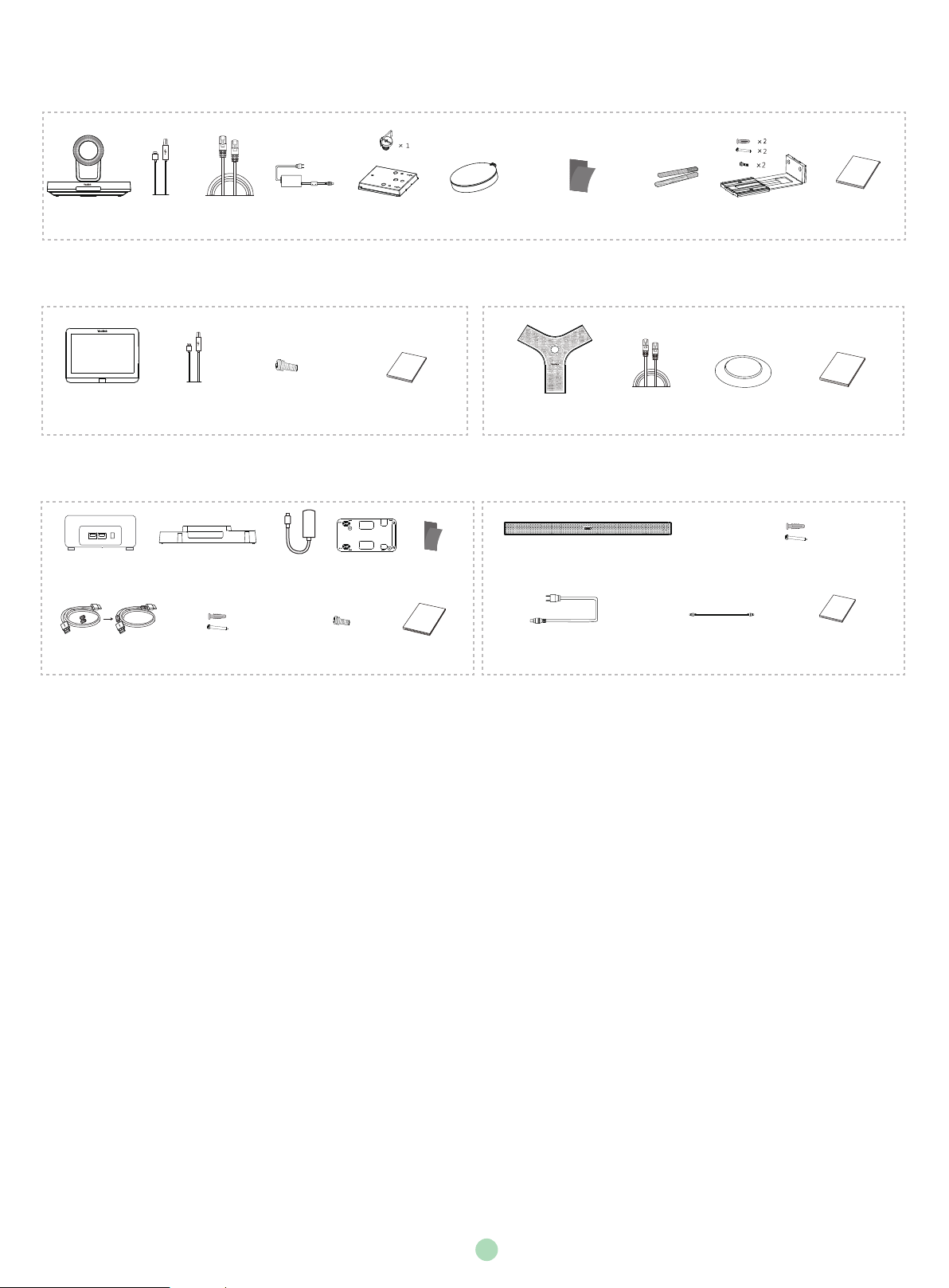
Package Contents
UVC80 2.5m
USB Cable
Power Adapter
48V/0.7A
Mounting Bracket
and Accessories
UVC80
Quick Start Guide
Cable Tie×5
VESA Accessory
(1/4”-20 UNC screw)
(T4×30 screw)
(M3×8 screw)
7.5m
Ethernet Cable
Velcro×2
UVC80 Package (Camera)
Machine Screw×2
7m USB CableMTouch
MSpeaker
MSpeaker
Quick Start Guide
Expansion screws and Self-tapping screws
2m AUX Cable
+
+
2
2
Power Cable
VCM34 Silicone Pad VCM34
Quick Start Guide
3m
Ethernet Cable
MTouch
Quick Start Guide
MTouch Package (Touch Console) VCM34 Package×3 (Microphone)
MSpeaker Package (Soundbar)
(One Velcro is on the bracket)
Mini-PC Package (Mini-PC and Mini-PC Box)
Mini-PC Upper Cover Bracket
1.8M
HDMI Cable×2
Velcro×2
Machine Screw×6
Expansion screws and
Self-tapping screws
+
+
2
2
Mini-PC
Quick Start
Guide
USB to
HDMI Adapter
Camera Lens
Privacy cover

2
ZVC830 Connection
For more information about the installation and deleployment of accessories (for example, the installation of mini-PC
or UVC80 camera), refer to the Quick Start Guide of corresponding accessory.
UVC80
MShare
The Back of Mini-PC
The Front of Mini-PC
DisplayDisplay USB2.0
USB2.0
Type-B
HDMI
HDMI
USB Type-C
HDMI
USB
USB to HDMI Adapter
3.5mm
MSpeaker
MTouch
USB2.0
VCM34 VCM34 VCM34
Ethernet Cable
After the mini-PC is powered on, the system will be started automatically. You need to finish the initial
configuration first before using Yealink ZVC830 for Zoom Rooms solution.
Starting the mini-PC for the first time may take a long time to configure the Windows system, and you
need to connect the wireless keyboard and mouse to complete the initial configuration.
(Optional)

3
Controlling UVC80 Camera Position
1. Tap Camera Control during a meeting.
2. Tap or to zoom camera in/out.
3. Tap the navigation keys to pan/tilt the camera.
Procedure
Setting UVC80 as Default Microphone, Speaker and Camera
1. Tap Settings on the touch screen.
2. Disable Lock Settings.
You need to enter the room password to change the setting.
3. Tap the Microphone field and then select Echo Cancelling Speakerphone (Yealink UVC80 Audio)
as your audio input device from the SOURCE field.
4. Tap the Speaker field and then select Echo Cancelling Speakerphone (Yealink UVC80 Audio)
as your audio output device from the SOURCE field.
5. Tap the Camera field and then select Yealink UVC80 Camera as your default camera from the
SOURCE field.
Procedure
Signing Into Your Zoom Rooms Account
Procedure
1. Tap Sign In on the Meet Now screen.
2. Enter the email and password.
3. Tap Sign In.
Signing Out of Your Zoom Rooms Account
Procedure
1. Tap Settings on the touch screen.
2. Navigate to Room->Sign Out.
3. If the Lock Settings is enabled, enter the room password and then tap OK.
Wireless Sharing
You can use MShare and Yealink WPP20 wireless presentation pod for wireless content sharing.
WPP20 and MShare needs to be purchased separately.
Make sure the MShare is connected to the mini-PC.
Procedure
1. Connect the WPP20 to the USB port of the MShare.
2. Wait for about 3 seconds, the WPP20 LED indicator glows
solid green.
The WPP20 is paired with the MShare successfully.
3. Connect the WPP20 to the PC.
WPP20
Wireless Presentation Pod
PC

4
Upgrading System Software through Windows Update
Enabling Automatically Windows Update
Procedure
1. Click the Start button, and then go to Settings->Upgrade & Security->Windows Update, and
select Advanced options.
2. Enable Automatically download updates, even over metered data connection(charge may
apply).
Manually Windows Update
Procedure
1. Do one of the following:
Click the Start button to open the Power User Menu.
Click Device Manager.
Right click the desired device and then select Update driver.
Select a desired way to update.
Click the Start button, and then go to Settings->Upgrade & Security->Windows Update, and
select Check for updates.
Select the device and then complete the installation.
Switching to the ZoomRoomsAdmin Account
Procedure
1. Press Ctrl+Alt+Delete and then select Sign out.
2. Click the ZoomRoomsAdmin account from the bottom-left corner and then enter the password
(default: zoom123) to return to the desktop of the mini-PC.
The default password required to switch back to the ZoomRooms account is zoom123.
Enabling Windows Update Service
Procedure
1. Open a command prompt Windows on your mini-PC.
2. Type services.msc, and press Enter.
3. Find Windows Update service, and double-tap to open Properties.
4. Enable Windows Update service from the Startup type field.
5. Click OK.
Update the Devices
The devices can be upgraded manually or can be automatically upgraded if you enable automatical
Windows Update.
ZoomRooms account is the default account from which the Zoom Rooms app runs. Only the
ZoomRoomsAdmin account has access to return to the desktop of the mini-PC to manage the
devices (including the Windows, the UVC80, the MTouch and the MShare). After switching the
user account to ZoomRoomsAdmin, you can enable Windows Update service to update the
devices.
We recommend using the wireless mouse and keyboard to complete the Windows configuration.

包装清单
Mini-PC套件 (Mini-PC 和Mini-PC Box)
(1/4”-20 UNC screw)
(T4×30 screw)
(M3×8 screw)
UVC80套件(摄像机)
MTouch
MSpeaker
+
+
2
2
MTouch
快速入门指南
MTouch套件 (触控平板) VCM34套件×3 (麦克风)
MSpeaker套件 (音箱)
2.5m
USB 线
电源适配器
48V/0.7A VESA 配件UVC80 7.5m 网线 UVC80
快速入门指南
(一套已贴在支架上)
魔术贴x2
束线带x 5 支架配件
(用于安装主机)
7米USB线 机械螺丝×2 VCM34 硅胶垫 VCM34
快速入门指南
3m网线
膨胀螺丝和自攻螺丝
MSpeaker
快速入门指南
2米 AUX 线电源线
5
+
+
2
2
Mini-PC 上盖 挂架板
1.8M
HDMI 线×2 机械螺丝×6
膨胀螺丝和自攻螺丝
魔术贴x2
Mini-PC
快速入门指南
USB转
HDMI适配器
镜头隐私盖

Mini-PC
背面
6
连接ZVC830
更多关于如何安装和部署配件(例如安装mini-PC或UVC80摄像机),请参阅相应配件的快速入门指南。
MSpeaker
网线
1.2米Mini-DP线 1.2米HMDI线
或
UVC80
MShare
DisplayDisplay USB2.0
USB2.0
Type-B
HDMI
HDMI
USB Type-C
HDMI
USB
USB to HDMI Adapter
3.5mm
MTouch
USB2.0
VCM34 VCM34 VCM34
Mini-PC正面
启动mini-PC后, 系统会自动启动。完成初始化设置后,你可以开始使用亿联ZVC830 Zoom Rooms解决
方案。
主机第一次启动可能会花费较长时间进行Windows系统配置,你需要连接无线键鼠完成初始配置。
(可选)

7
设置UVC80为默认麦克风, 扬声器和摄像头
1. 在空闲界面按设置。
2. 关闭锁定设置。
你需要输入会议室密码才能更改该配置。
3. 选择麦克风,在 设备列表区域选择Echo Cancelling Speakerphone (Yealink UVC80 Audio)
作为音频输入设备。
4. 选择扬声器,在 设备列表区域选择Echo Cancelling Speakerphone (Yealink UVC80 Audio)
作为音频输出设备。
5. 选择摄像头,在 设备列表区域选择 Yealink UVC80 Camera作为默认摄像头。
过程
控制UVC80摄像头位置
1. 在会议中按控制摄像头。
2. 按 或 调整摄像机的焦距。
3. 按方向键调整摄像机角度。
过程
登录Zoom Rooms账号
过程
1. 在开始会议界面按登录。
2. 输入电子邮件地址和密码。
3. 按登录。
登出Zoom Rooms账号
过程
1. 在空闲界面按设置。
2. 按会议室->退出登录。
3. 如果锁定设置处于开启状态,输入会议室密码,然后按确定退出登录。
无线辅流分享内容
WPP20
无线传屏助手
PC
你可以使用MShare和WPP20无线传屏助手进行无线辅流分享内容。MShare和WPP20需要单独购买。
分享内容前,确保MShare已正确连接在mini-PC上。
过程
1. 将WPP20连接到MShare的USB口。
2. 约3秒后,WPP20指示灯显示绿色常亮。
WPP20与MShare配对成功。
3. 将WPP20连接到电脑上。

通过Windows更新系统
Zoom Rooms会议系统默认使用ZoomRoom帐户,只有ZoomRoomsAdmin帐户才有权限返回桌面操作
mini-PC。 切换到管理员帐户并开启Windows Update服务后,你可以手动升级设备( 包括Windows,
UVC80,MTouch和MShare),或开启自动Windows更新升级设备。
8
开启Windows Update服务
过程
1. 在mini-PC桌面打开命令窗口。
2. 输入services.msc,按 Enter键。
3. 找到Windows Update服务,双击打开属性。
4. 在启动类型区域,开启Windows Update服务。
5. 点击确定。
切换到ZoomRoomsAdmin帐户
1. 按Ctrl+Alt+Delete,选 择 注销。
2. 在界面左下角选择ZoomRoomsAdmin帐户,输入密码(默认:zoom123)返回桌面。
重新切换回ZoomRooms帐户的密码默认也为zoom123。
过程
我们推荐使用无线键鼠完成Windows相关配置。
1. 执行以下任一操作:
按Windows+X或者右击开始菜单打开
用户高级菜单, 选择设备管理器。
选择并右击需要更新的设备,并选择
更新驱动程序。
选择需要更新的方式。
点击开始菜单,选择设置->更新和安全->Windows更新, 选择检查更新。
选择需要更新的设备,并完成安装。
手动更新升级设备
开启Windows自动更新
过程
1. 点击开始菜单,选择
设置->更新和安全->Windows更新, 再按高级选项。
2. 开启
自动下载更新,即使通过按流量计费的数据连续也是如此(可能会收费)。
更新设备
你可以通过Windows Update手动更新设备,也可以开启自动Windows更新功能自动升级设备。
过程
Andere Handbücher für ZVC830
1
Inhaltsverzeichnis
Andere Yealink Desktop Handbücher