Yealink VC210 Teams Edition Bedienungsanleitung


| Contents | ii
Contents
About This Guide........................................................................................ 4
Related Documentations..................................................................................................................... 4
Summary of Changes......................................................................................................................... 4
Changes for Guide Version 15.47............................................................................................ 4
Getting Started.............................................................................................4
Hardware of VC210.............................................................................................................................5
Front Panel of VC210...............................................................................................................5
Rear Panel of VC210............................................................................................................... 5
LED Instructions of VC210................................................................................................................. 6
The Home Screen............................................................................................................................... 6
Interactive Mode.................................................................................................................................. 7
Touch Control............................................................................................................................8
Remote Control.........................................................................................................................8
Signing into Microsoft Teams.................................................................... 9
Signing into Your Device..................................................................................................................... 9
Signing into Microsoft Teams on Your Device........................................................................10
Signing into Microsoft Teams via Web Sign-in.......................................................................10
Signing out of Your Device................................................................................................................11
Using the Teams Meeting Feature........................................................... 11
Creating a Meeting............................................................................................................................12
Joining a Scheduled Meeting............................................................................................................12
Joining a Meeting.............................................................................................................................. 13
One-button/One-touch Join.....................................................................................................13
Proximity Join..........................................................................................................................14
Call Meeting Number Join......................................................................................................16
Managing a Meeting..........................................................................................................................17
Adding Participants................................................................................................................. 17
Managing Audio......................................................................................................................17
Managing Video......................................................................................................................18
Recording a Meeting......................................................................................................................... 19
Sharing Whiteboard...........................................................................................................................19
Introduction of the Whiteboard............................................................................................... 19
Using and Viewing the Whiteboard........................................................................................20
Raising Hand..................................................................................................................................... 20
Setting the Screen Layout.................................................................................................................20
Turning on Live Captions.................................................................................................................. 21
Leaving a Meeting.............................................................................................................................21
Camera Settings........................................................................................ 21
Controlling Camera Position..............................................................................................................21
Configuring the Exposure Settings................................................................................................... 22
Configuring the White Balance Setting............................................................................................. 22

| Contents | iii
Adjusting Display Image of the Camera........................................................................................... 22
Enabling Auto-framing for Camera....................................................................................................23
Adjusting Hangup Mode and Camera Pan Direction........................................................................ 23
Resetting the Camera....................................................................................................................... 23
Teams Device Settings..............................................................................23
Setting the Language........................................................................................................................ 24
Time and Date Display......................................................................................................................24
Setting the Time and Date Manually......................................................................................24
Changing the Time and Date Format.................................................................................... 24
Maximizing Monitor Video Display.................................................................................................... 25
Changing the Backlight Time............................................................................................................ 25
Bluetooth............................................................................................................................................25
Activating the Bluetooth Mode................................................................................................25
Editing Your Device Name......................................................................................................26
Disabling Your Device Discovery............................................................................................26
Disconnecting the Bluetooth Device.......................................................................................26
Deactivating the Bluetooth Mode........................................................................................... 26
Accessibility Features........................................................................................................................ 26
Large Text............................................................................................................................... 27
High Contrast Mode................................................................................................................27
Color Correction......................................................................................................................27
Screen Reader........................................................................................................................27
Wireless Network....................................................................................... 27
Activating the Wi-Fi Mode................................................................................................................28
Connecting to the Wireless Network.................................................................................................28
Connecting to an Available Wireless Network Manually........................................................ 28
Adding a Wireless Network manually.....................................................................................28
Viewing the Wireless Network Information....................................................................................... 29
Disconnecting the Wireless Network Connection............................................................................. 29
Deactivating the Wi-Fi Mode............................................................................................................. 29
Getting More Information About Microsoft Teams................................. 29
Viewing More Information About Microsoft Teams............................................................................30
Company Portal................................................................................................................................. 30
Sending Feedback.............................................................................................................................30
Maintaining Teams Devices......................................................................30
Rebooting Your Device......................................................................................................................31
Viewing Device Status.......................................................................................................................31
Resetting Your Device....................................................................................................................... 31
Troubleshooting......................................................................................... 31
Why does the device display “Network unavailable”?.......................................................................32
Why does the device display time and date incorrectly?.................................................................. 32
How can I obtain the MAC address of a device when the device is not powered on?...................... 32
Checking the IP Address of Device.................................................................................................. 32


| About This Guide | 4
About This Guide
Thank you for choosing Yealink VC210 video collaboration bar, which is mainly designed to work with the
Microsoft Teams client. This guide provides everything you need to quickly use your new device. Firstly,
verify with your system administrator that the IP network is ready for device configuration. Also, be sure to
read the Quick Start Guide in the product package.
•Related Documentations
•Summary of Changes
Related Documentations
You can find the following types of documents from each product support page on Yealink Support:
• Release Notes: This guide describes what’s new for a new device firmware.
• Quick Start Guide: This guide describes the contents of your package, how to assemble the device or
accessory. This guide is also included in your device package.
• Administrator Guide: This guide provides detailed information about setting up your network and
configuring features.
Summary of Changes
•Changes for Guide Version 15.47
Changes for Guide Version 15.47
The following sections are new for this version:
•Recording a meeting
•Sharing Whiteboard
•Raising Hand
•Setting Screen Layout
•Turning on Live Captions
•Screen Reader
Major updates have occurred to the following sections:
• Due to Teams APP is updated, the interface displayed on the device has changed.
The following features are be cancelled:
• The feature of screen savers.
• The feature of connecting to the wireless network using WPS.
Getting Started
This chapter aims to make you familiar with the device.
Note: As you read this guide, keep in mind that some features are configurable by your system
administrator or determined by your device environment. As a result, some features may not be

| Getting Started | 5
enabled or may be operated differently on your device. Additionally, the examples and graphics in
this guide may not directly reflect what is displayed or is available on your device.
•Hardware of VC210
•LED Instructions of VC210
•The Home Screen
•Interactive Mode
Hardware of VC210
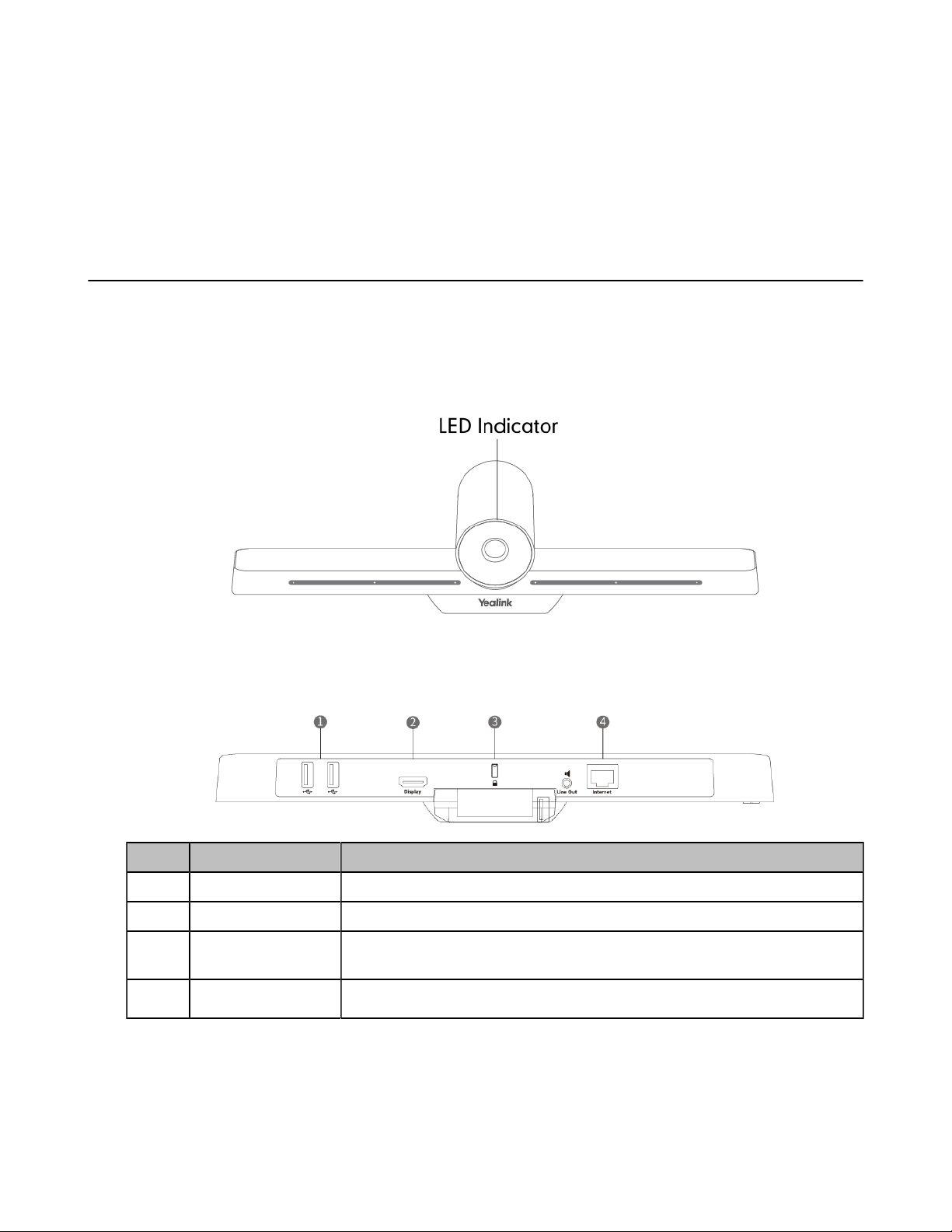
•Front Panel of VC210
•Rear Panel of VC210
Front Panel of VC210
The LED indicator in front of the camera indicates different camera statuses.
Related information
LED Instructions of VC210
Rear Panel of VC210
No. Port Name Description
1 USB Allow you to connect the USB accessories.
2 Display-HDMI Connect to a monitor for video images output.
3 Security Slot Allow you to connect a universal security cable to the device, so you can
lock the device down. The device cannot be removed when locked.
4 Internet Connect to the PoE via the network cable.

| Getting Started | 6
LED Instructions of VC210
LED Status Description
Off The device is powered off.
Solid green The device is initializing.
The device is idle.
The device is working.
Solid red The device is in sleep mode.
Flashing red The device is upgrading firmware.
Solid orange System exception.
The Home Screen
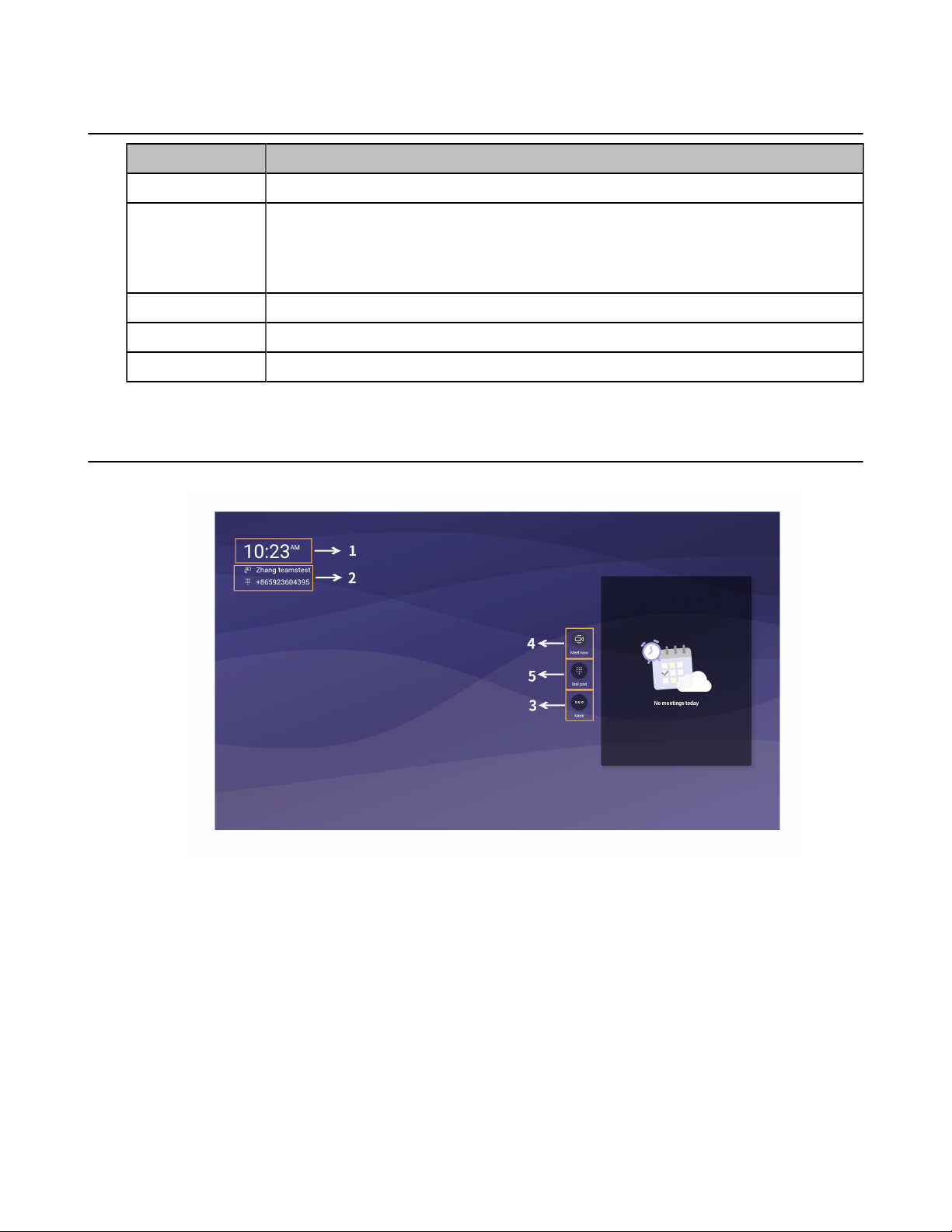
If the system has a Teams account logged in, the monitor idle screen is shown as below:
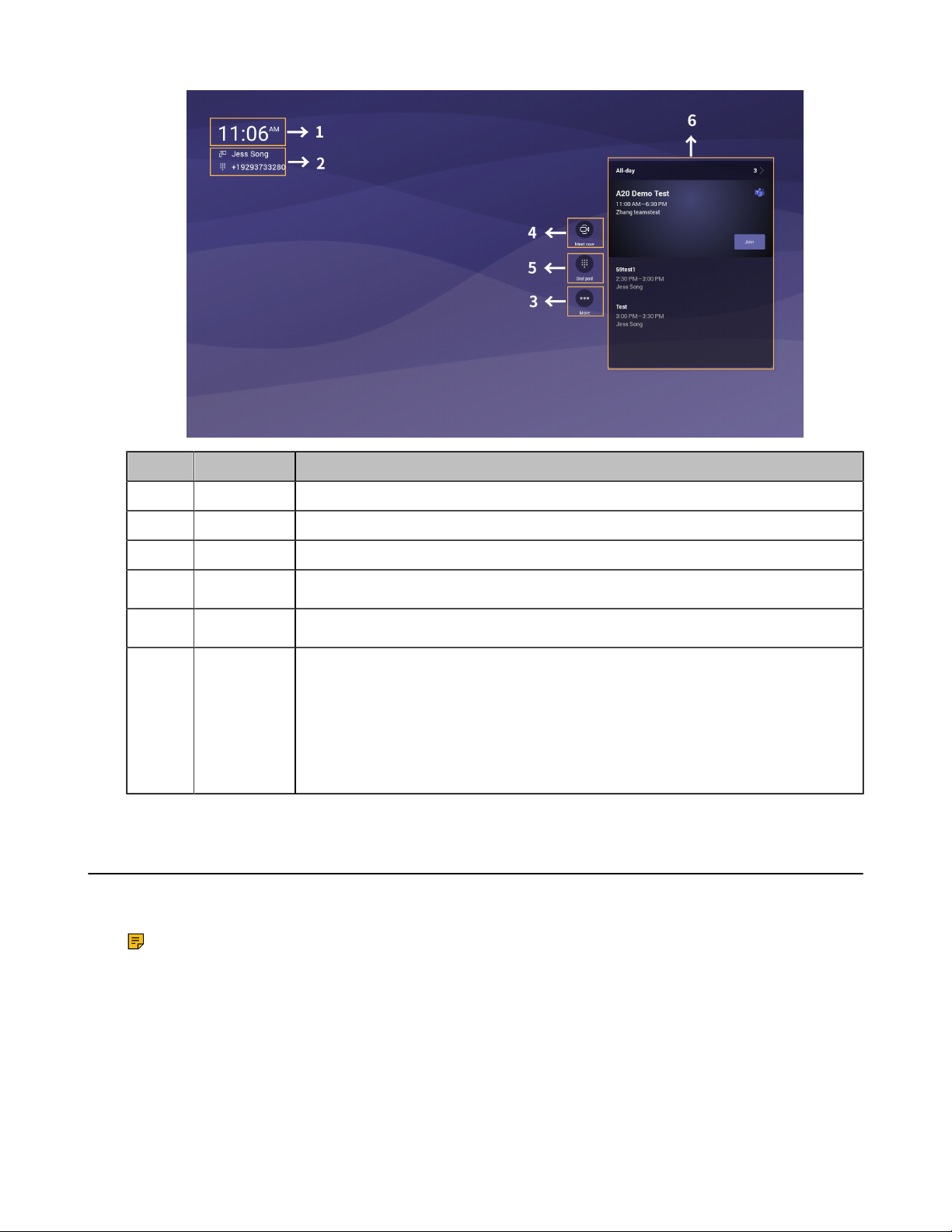
If you have scheduled meetings, the monitor idle screen is shown as below:

| Getting Started | 7
No. Item Description
1 Time The current time of the system.
2 Profile The current account name and account number.
3 More Configure the video conferencing device.
4Meet now Initiate a Meet Now conference at any time, without any reservation.
5Dial pad Join the meeting by calling a meeting number.
6 Schedule When you log into your Teams account, you can view the conference schedule.
In the example:
Meeting theme: A20 Demo Test
Meeting time: 11:00 AM - 6:30 PM
Moderator: Zhang teamstest
Interactive Mode
If you connect a touch display device, you can operate the VC210 either by remote control or touch control.
If you connect a non-touch display device, you can use the remote control, or mouse.
Note: For more inforamtion about how to use CTP18 control the device, please refer to Yealink
Teams CTP18 User Guide.
•Touch Control
•Remote Control

| Getting Started | 8
Touch Control
Touch Monitor
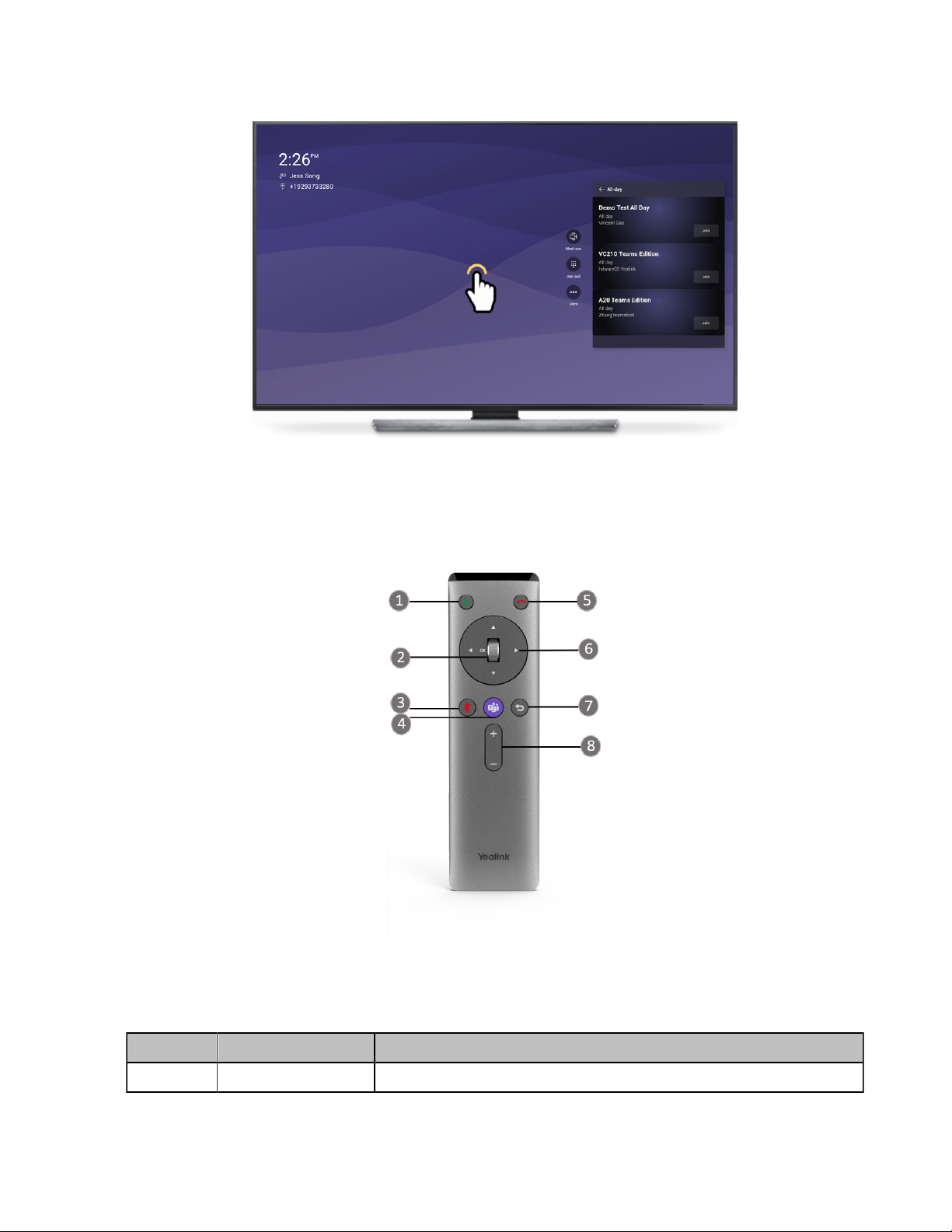
Remote Control
Remote Controller
The following table introduces the keys on the remote control:
No. Name Description
1 Answer Key Press to answer a call.

| Signing into Microsoft Teams | 9
No. Name Description
2 Scroll Wheel/OK Key • Scroll up to increase the focal length of the camera.
• Scroll down to decrease the focal length of the camera.
• Press to confirm the action.
3 Mute Key Press to mute or unmute the microphone.
4 Teams Key Press to join a meeting.
5 End Call Key Press to leave a meeting.
6 Navigation Key Navigate through menu items.
7Back Key Press to return to the previous menu.
8 Volume Up/Down
Key
Press to increase/decrease the volume.
Signing into Microsoft Teams
You can sign into the device with your Microsoft online account.
•Signing into Your Device
•Signing out of Your Device
Signing into Your Device
You can sign into your Microsoft online account directly on your device or sign into your device via a web
sign-in, which includes your sign-in address and password.
About this task
Contact your system administrator to get your sign-in account.
Note: We recommend that you sign in via the web.
•Signing into Microsoft Teams on Your Device
•Signing into Microsoft Teams via Web Sign-in

| Signing into Microsoft Teams | 10
Signing into Microsoft Teams on Your Device
Procedure
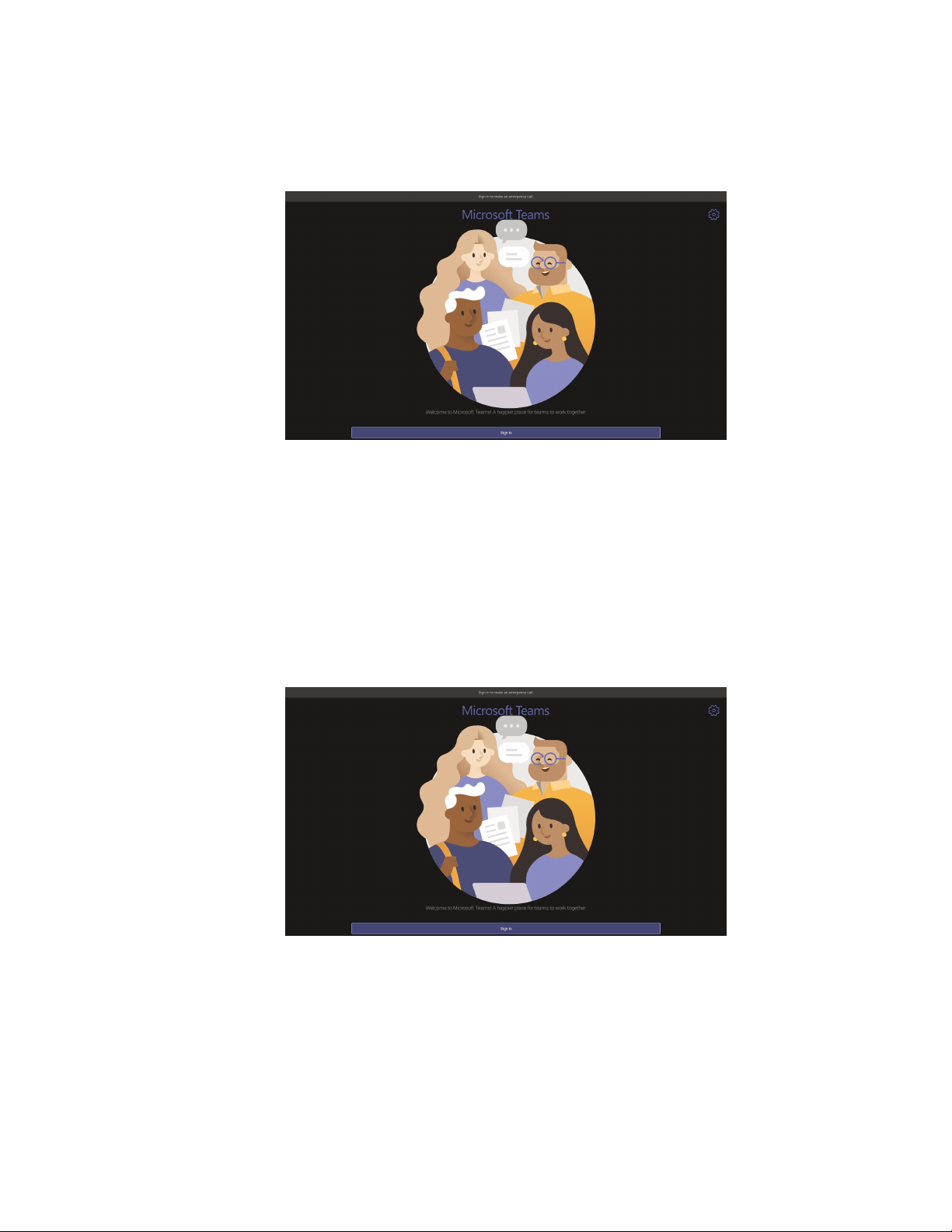
1. Select Sign in.
You will be connected to the Company Portal automatically.
2. Enter your user credentials.
3. After the device signs in successfully, select Got it.
Related information
The Home Screen
Signing into Microsoft Teams via Web Sign-in
Procedure
1. Select Sign in.
You will be connected to the Company Portal automatically.
Andere Handbücher für VC210 Teams Edition
2
Inhaltsverzeichnis
Andere Yealink IP-Kamera Handbücher