
Zalip CDE570AM-002 Bedienungsanleitung

1
User Manual
CDE570AM-002
WiFi Broadband Router

2
Copyright
The contents of this publication may not be reproduced in any part or as a whole, stored,
transcribed in an information retrieval system, translated into any language, or transmitted in
any form or by any means, mechanical, magnetic, electronic, optical, photocopying, manual,
or otherwise, without the prior written permission.
Trademarks
All products, company, brand names are trademarks or registered trademarks of their
respective companies. They are used for identification purpose only. Specifications are subject
to be changed without prior notice.
FCC Interference Statement
This equipment has been tested and found to comply with the limits for a Class B digital device
pursuant to Part 15 of the FCC Rules. These limits are designed to provide reasonable
protection against radio interference in a commercial environment. This equipment can
generate, use and radiate radio frequency energy and, if not installed and used in accordance
with the instructions in this manual, may cause harmful interference to radio communications.
Operation of this equipment in a residential area is likely to cause interference, in which case
the user, at his own expense, will be required to take whatever measures are necessary to
correct the interference.
CE Declaration of Conformity
This equipment complies with the requirements relating to electromagnetic compatibility, EN
55022/A1 Class B.
The specification is subject to change without notice.

3
Table of Contents
Chapter 1 Introduction ........................................................................... 4
1.1 Packing List ................................................................................. 4
1.2 Spec Summary Table ................................................................. 5
1.3 Hardware Configuration............................................................. 7
1.4 LED indicators............................................................................. 8
1.5 Button Definition ......................................................................... 9
1.6 Procedure for Hardware Installation........................................ 9
Chapter 2 Making Configuration ........................................................ 11
2.1 Login to Configure from Wizard ............................................. 12
2.2 System Status ........................................................................... 16
2.3 Advanced ................................................................................... 17
Appendix A FAQ and Troubleshooting ............................................. 67
What can I do when I have some trouble at the first time? ...... 67
How do I connect router by using wireless? ............................... 69
4
C
C
Ch
h
ha
a
ap
p
pt
t
te
e
er
r
r
1
1
1
I
I
In
n
nt
t
tr
r
ro
o
od
d
du
u
uc
c
ct
t
ti
i
io
o
on
n
n
Congratulations on your purchase of this outstanding Wireless Broadband Router. This
product is specifically designed for Small Office and Home Office needs. It provides a
complete SOHO solution for Internet surfing, and is easy to configure and operate even for
non-technical users. Instructions for installing and configuring this product can be found in this
manual. Before you install and use this product, please read this manual carefully for fully
exploiting the functions of this product.
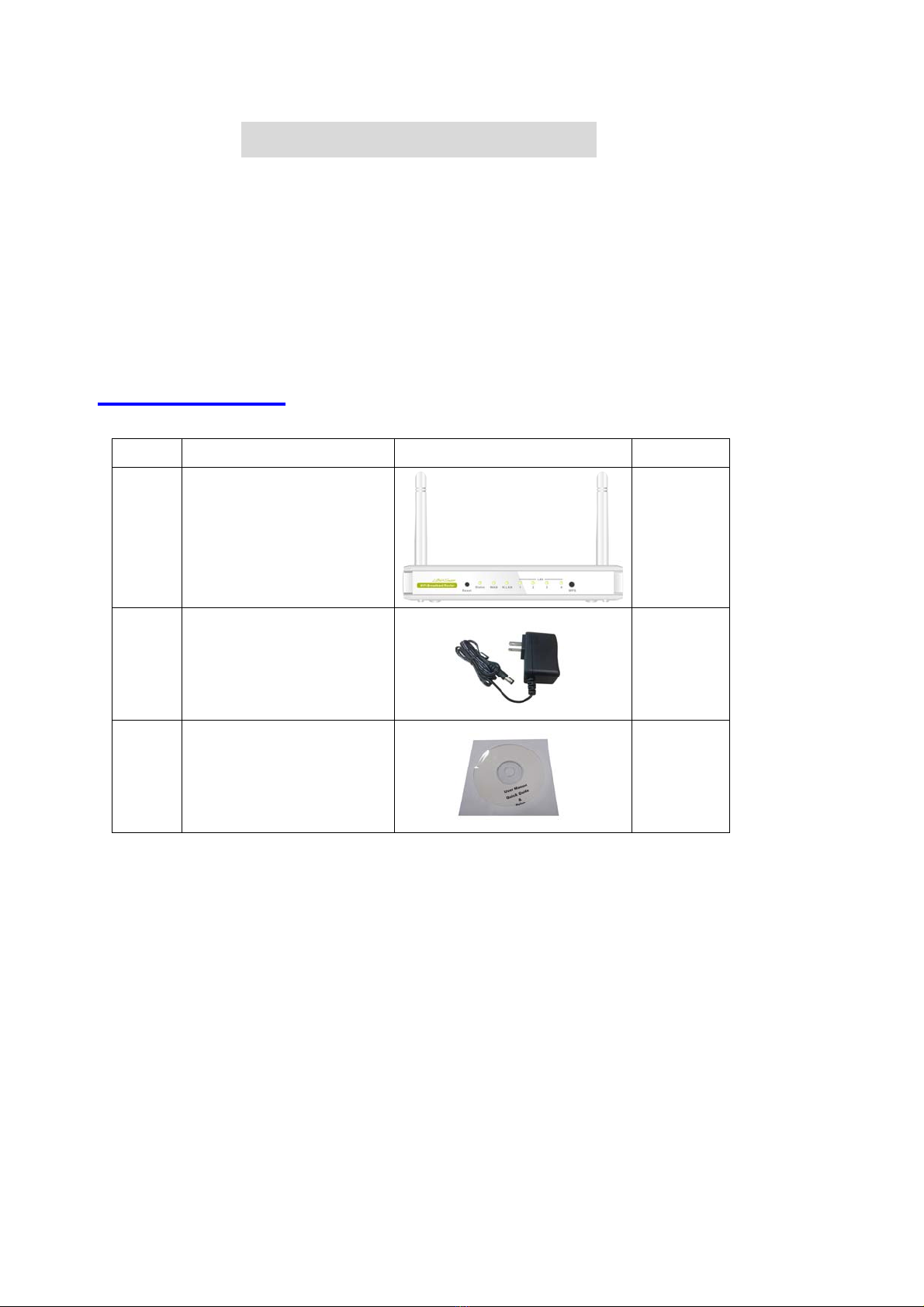
1.1 Packing List
items Description Contents Quantity
1 WiFi Broadband Router 1
2 Power adapter 5V 1.2A
1
3 CD
1
zWireless broadband router unit
zInstallation CD-ROM
zPower adapter

5
1.2 Spec Summary Table
Device Interface CDE570AM-002
Ethernet WAN RJ-45 port, 10/100/1000Mbps,
auto-MDI/MDIX 1
Ethernet LAN RJ-45 port, 10/100/1000Mbps,
auto-MDI/MDIX 4
Antenna 1.8 dBi Fixed antenna 2
WPS Button For WPS connection 1
Reset Button Reset router setting to factory default
1
LED Indication Power/Status / WAN / LAN1 ~ LAN4/
WiFi
●
Power Jack DC Power Jack, powered via external
DC 5V/1.2A switching power adapter 1
Wireless LAN (WiFi)
Standard IEEE 802.11b/g/n compliance ●
SSID SSID broadcast or in stealth mode ●
Channel Auto-selection, manually ●
Security WEP, WPA, WPA-PSK, WPA2,
WPA2-PSK
●
WPS WPS (Wi-Fi Protected Setup) ●
WMM WMM (Wi-Fi Multimedia) ●
Functionality
Ethernet WAN PPPoE, DHCP client, Static IP ●
WAN Connection Auto-reconnect, dial-on-demand,
manually
●
One-to-Many NAT Virtual server, special application,
DMZ, Super DMZ(IP pass-through)
●
NAT Session Support NAT session 20000
SPI Firewall IP/Service filter, URL blocking,
Internet Access Control
●
DoS Protection DoS (Deny of Service) detection and
protection
●
Routing Protocol Static route, dynamic route (RIP
v1/v2)
●
Management SNMP, UPnP IGD, syslog, DDNS ●

6
Administration Web-based UI, remote login,
backup/restore setting
●
Performance NAT up to 700Mbps and Wireless up
to150Mbps
Environment & Certification
Package
Information
CDE570AM-002, DC 5V/1.2A power
adapter, Quick Installation Guide
Device dimension (mm) 156x110x22
Package dimension (246x210x62mm)
SP/MP/ZP
●
Package dimension (214x146x69mm)
PP
○
Package
Information
Package dimension
(290x234x100mm) AP
○
Operation Temp. Temp.: 0~40°C, Humidity 10%~90%
non-condensing
●
Storage Temp. Temp.: -10~70°C, Humidity: 0~95%
non-condensing
●
EMI Certification CE/FCC compliance ●
RoHS RoHS compliance ●
*Specifications are subject to change without prior notice.
7
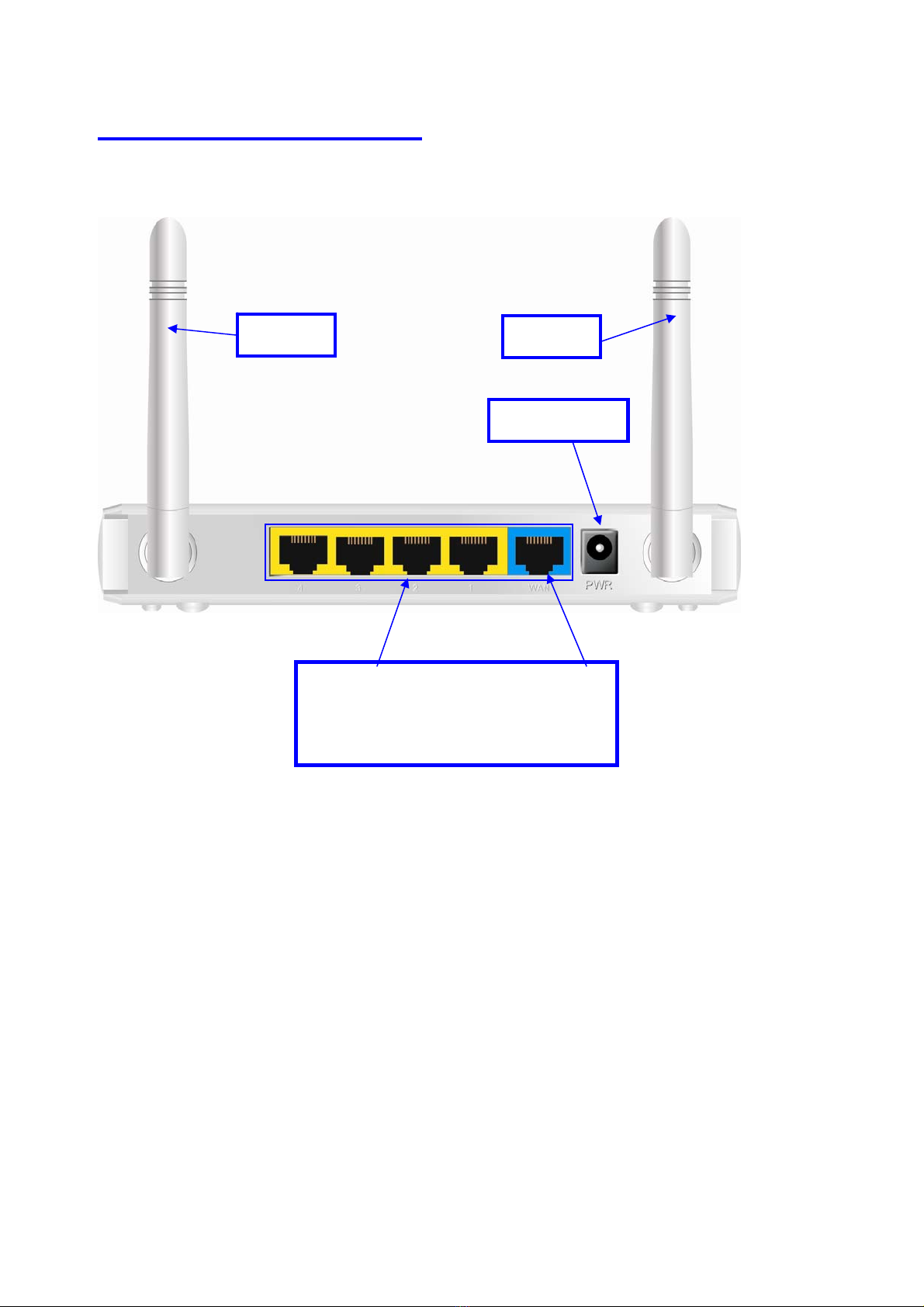
1.3 Hardware Configuration
Auto MDI/MDIX RJ-45 Ports
Automatically sense the types of WAN
and LAN when connecting to Ethernet
Power Jack
Antenna Antenna
8
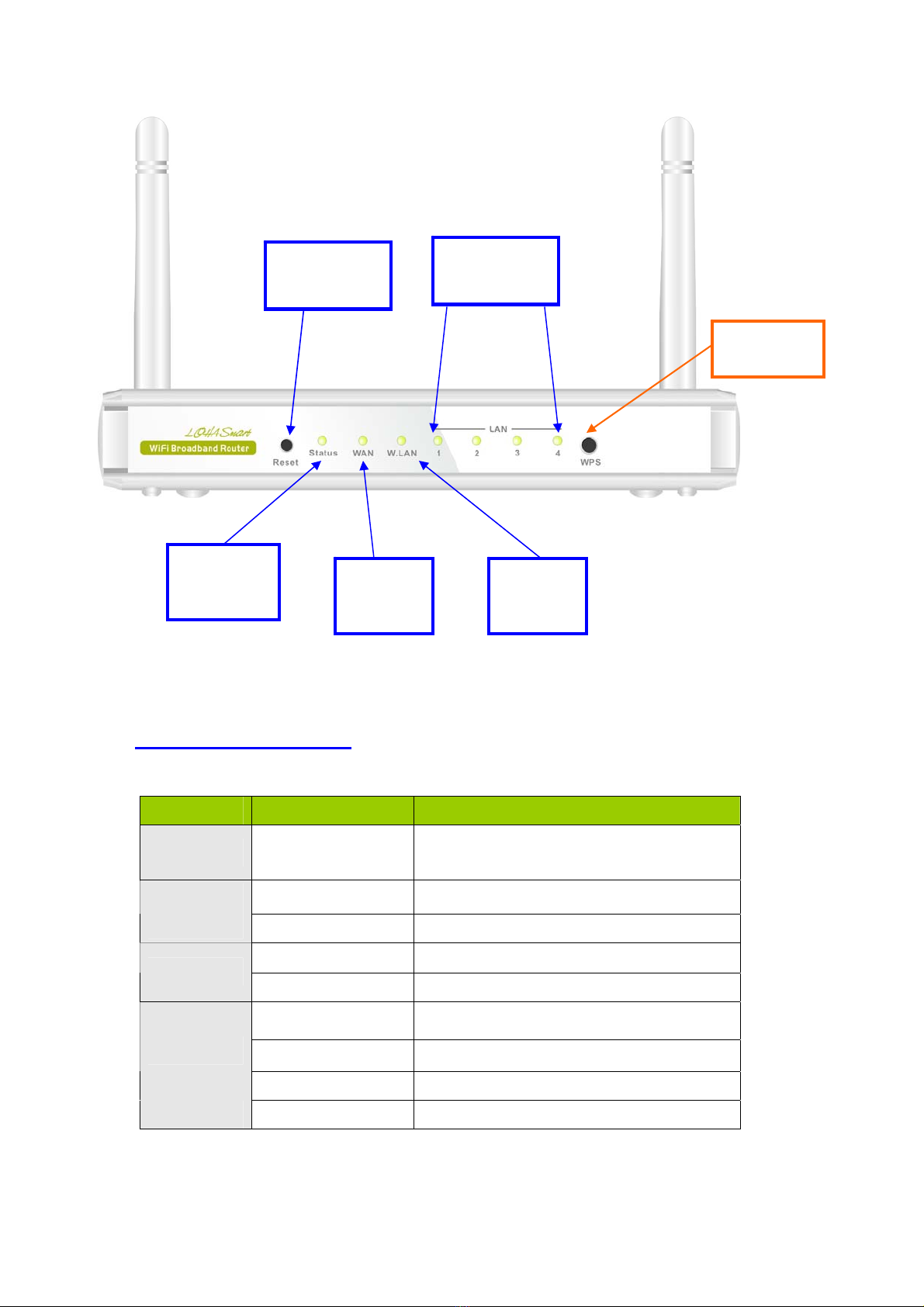
1.4 LED indicators
LED status Description
Status Green in flash Device status is working.
Green RJ45 cable is pluggedWAN LED
Green in flash Data access
Green RJ45 cable is plugged
LAN LED
Green in flash Data access
Green WLAN is on
Green in flash Data access
WiFi LED
Green in fast flash Device is in WPS PBC mode
Green in dark Wi-Fi Radio is disabled
LAN1~LAN4
LEDs
Wi-Fi
LED
WAN
LED
WPS
Status
LED
Reset
9
1.5 Button Definition
Description
WPS
When Wireless is On, press this button (about 1 sec) to execute
WPS function.
Reset
1. Press this button then Power on the device
2. Press about 3~4 second, the device will reset to default then
Status LED flashes per sec in Normal status.
Notice: If Status LED flashes very fast, it means to press this button
too long and please try again.
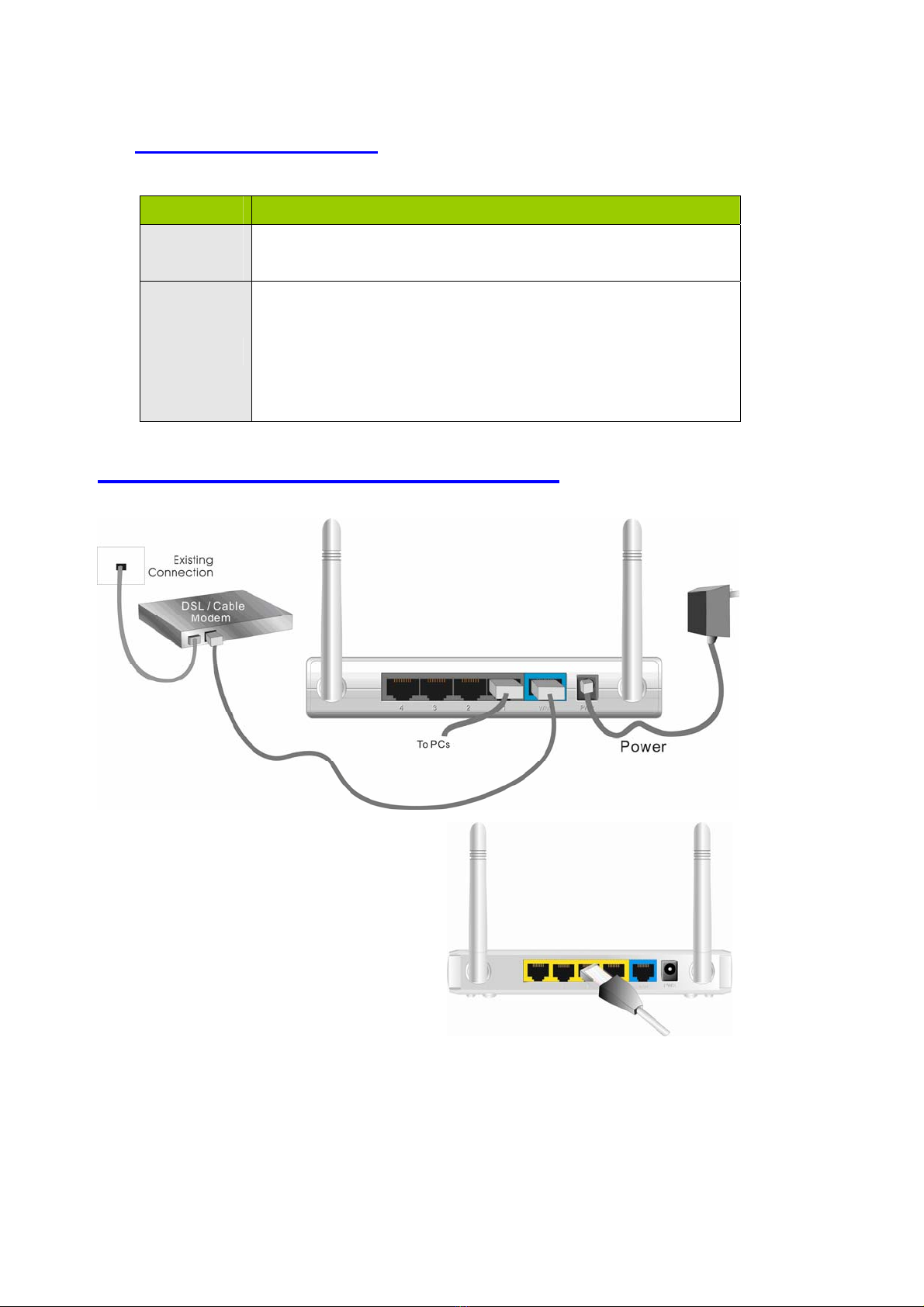
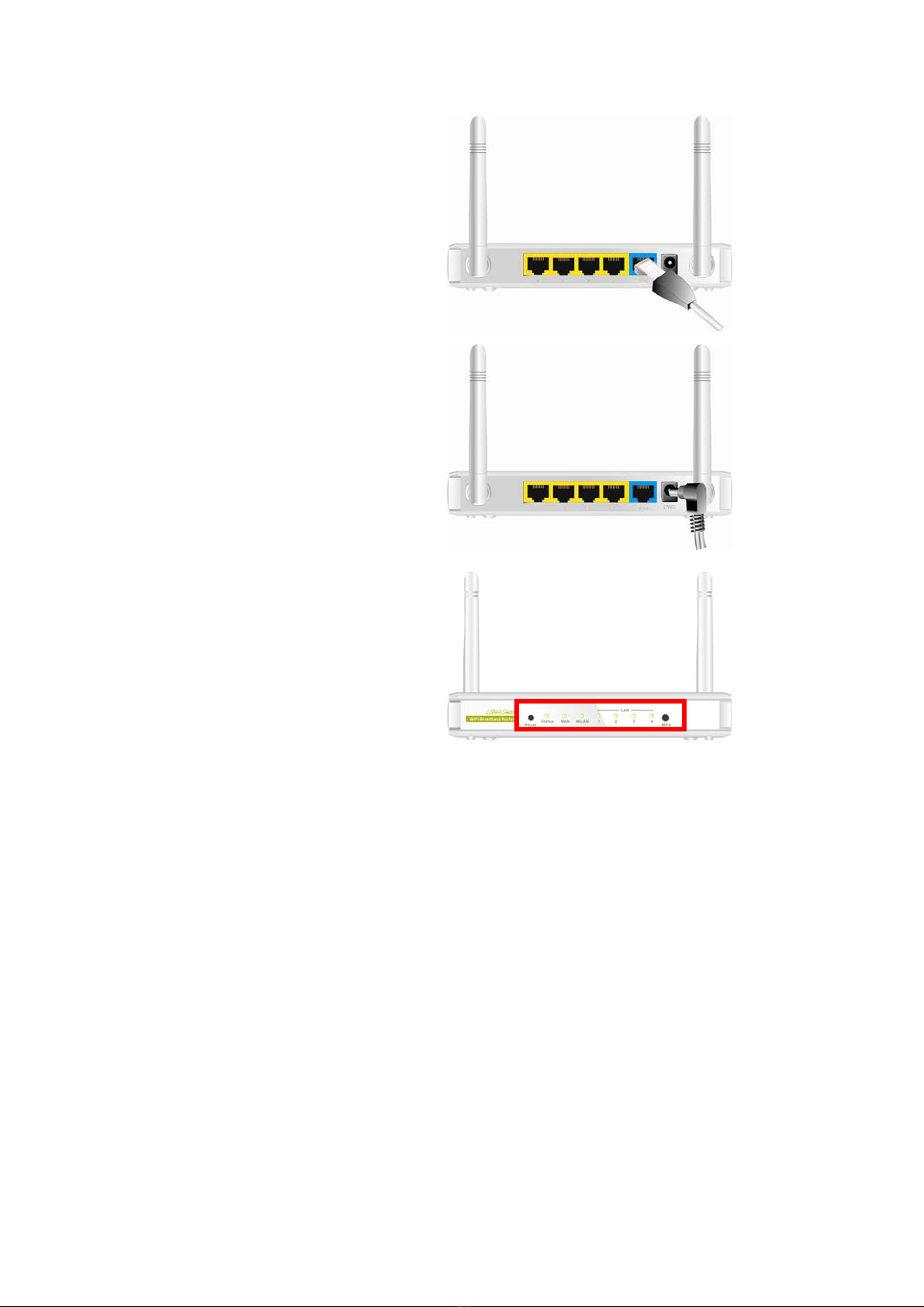
1.6 Procedure for Hardware Installation
Step 1 Insert the Ethernet cable into LAN
Port:
Insert the Ethernet patch cable into LAN port
on the back panel of Router, and an available
Ethernet port on the network adapter in the
computer you will use to configure the unit.
10
Step 2 Insert the Ethernet patch cable into
Wired WAN port:
Insert the Ethernet patch cable form DSL
Modem into Wired WAN port on the back panel
of Router.
Step 3. Power on Router:
Connect the power adapter to the receptor on
the back panel of your Router.
Step 4. Complete the setup.
When complete, the Status LED will flash.
Inhaltsverzeichnis
Andere Zalip Netzwerk-Router Handbücher


Beliebte Netzwerk-Router Handbücher anderer Marken


NETGEAR
NETGEAR FS526T - Switch Bedienungsanleitung

Korenix
Korenix JetNet 5710G Series Bedienungsanleitung

Automated Logic
Automated Logic ZN551 Betriebsanleitung

Cisco
Cisco ASR 1000 Series Bedienerhandbuch

EnGenius
EnGenius ESR-9710 Bedienungsanleitung

Cisco
Cisco 805 Series Bedienungs- und Sicherheitshinweise