
Dish TV S7070PVR Bedienungsanleitung

S7070PVR
USER MANUAL
www.dishtv.co.nz
Welcome
01
This Dish TV Digital Satellite Receiver gives you access to TV and Radio Channels broadcast on Freeview via
Satellite. For more information about Freeview, visit www.freeviewnz.tv
The Adopted Trademarks HDMI, HDMI High-Definition Multimedia Interface, and the HDMI Logo are trademarks
or registered trademarks of HDMI Licensing Administrator, Inc. in the United States and other countries.
Thank you for choosing the Dish TV S7070PVR Satellite Receiver.
The S7070PVR is a Freeview Approved Receiver for use with a Satellite Dish, that tunes
in the entire range of Freeview Channels.
This User Manual will cover the installation, and initial setup of the S7070PVR Receiver,
including the necessary steps to make full use of its various features. This User Manual
will explain the features unique to this Receiver in detail, to allow you to get the most out
of your S7070PVR.
Disclaimers:
© 2021 Dish TV Technologies Ltd. Dish TV is a trademark of Dish TV Technologies Ltd.
The Freeview Logo is a registered trademark, owned by Freeview Limited (NZ).
• Information in this User Manual is subject to change without notice. Images shown in this User Manual are for illustrative purposes only, and may
not be an exact representation of the product.
• Some services require broadband access through an ISP; usage will count towards the data limit of your broadband plan. ISP terms and charges
apply.
• Content, services, channels and apps on this device, including their availability or access, are subject to change at any time without prior notice.
HD programming is subject to HD broadcast availability.
• When recording TWO channels at the same time, channel selection is limited; some combinations might not be available.

Contents
02
Contents.............................................................................................................................
What’s in the Box?..........................................................................................................
Product Overview..............................................................................................................
Front/Back View..................................................................................................................
Remote Control...................................................................................................................
Getting Connected........................................................................................................
Welcome...........................................................................................................................
Daily Use.........................................................................................................................
Changing the Channel........................................................................................................
Audio & Subtitles................................................................................................................
Recording......................................................................................................................
Recording via the TV Guide............................................................................................
Instant Recording................................................................................................................
Time Shifting..................................................................................................................
Main Menu.....................................................................................................................
TV Guide.........................................................................................................................
Apps...............................................................................................................................
Recordings.......................................................................................................................
Network Setup................................................................................................................
Settings..........................................................................................................................
Installation......................................................................................................................
System Info....................................................................................................................
Installation..........................................................................................................................
Satellite...........................................................................................................................
Factory Reset...................................................................................................................
Troubleshooting...............................................................................................................
Placement Tips.............................................................................................................
Contact Us....................................................................................................................
Warranty Information.....................................................................................................
02
03
04
04
05
07
08
10
10
11
13
13
14
15
11
12
13
16
20
21
23
24
23
23
24
25
28
29
30
What’s in the Box?
03
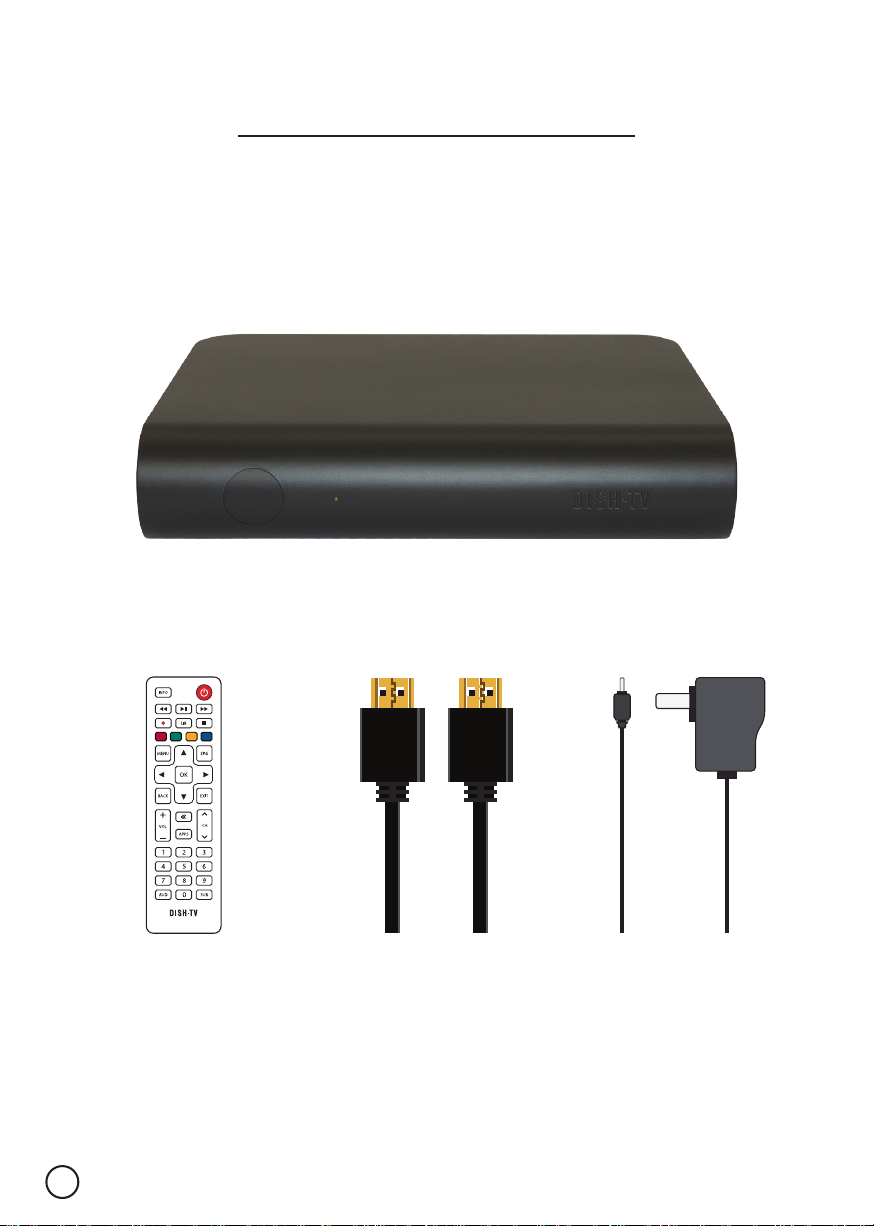
Missing Items? Please contact the Retailer or Store you purchased this Receiver from.
Please check you have all of the following in your box:
Receiver (S7070PVR)
HDMI CableRemote Control Power Supply
Your Receiver
04
¹Since the infrared (IR) Remote uses light, it requires line of sight to operate the Receiver.
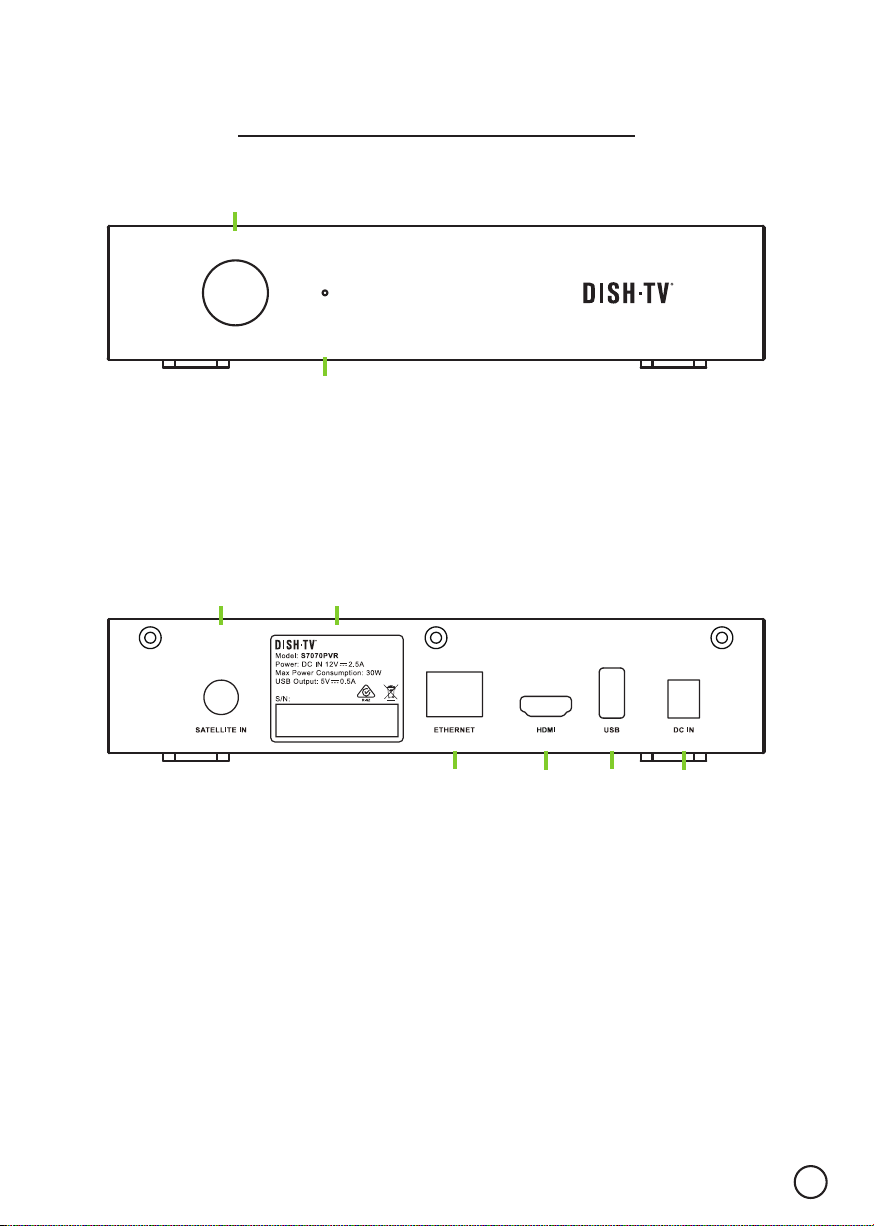
Back Panel
Front Panel
1. SATELLITE IN
Connect to Satellite Dish cable.
2. DETAILS
Model, Power, Serial Number.
3. ETHERNET
Wired Internet Connectivity.
4. HDMI
High Definition output for HDTV.
5. USB
USB Port for Firmware Updates.
6. DC IN
Connect the 12V Power Adapter.
1. LED STATUS
RED: Standby. GREEN: Power On.
01
02
2. IR RECEIVER¹
Receives IR commands from Remote.
04
03 05
01
06
02

Remote Control
05
This Remote requires 2x AAA Batteries to operate. Insert the Batteries, ensuring they
correctly align with the polarity (+/-) markings found inside the Battery Compartment.
04
09
03
12
18
16
15
20
19
14
06
17
07
08
05
13
10
11
01 02

Remote Control
06
Power On/Off
Play/Pause, Fast Forward, Rewind
Main Menu
Freeview TV Guide
Navigation Arrows
Apps
OK/Confirm Selection
Back/Return
Volume Up/Down
Info
Exit
Mute
Channel Up/Down
Stop
Colour Buttons
Library
Record
BUTTONS DESCRIPTION
Subtitles
Numeric Buttons
Audio
02
03
08
09
10
17
11
12
15
01
13
14
16
07
06
05
04

Getting Connected
07
1. Connect the Satellite Dish cable from your wall port to the Receiver.
2. Connect the HDMI cable from the Receiver to an HDMI port on your TV.
3. Plug the Receiver into a power socket and switch on at the wall.
4. Insert the Batteries into the Remote Control.
5. Follow the on-screen instructions displayed on your TV.
TIP: If you have an Ethernet cable handy, connect your Receiver directly to your Modem,
or Router for a reliable broadband connection.
01. 03.02.

First Time Installation
08
Step 01 - Getting Connected
• Ensure the S7070PVR has been correctly connected to the Satellite Dish, and the TV.
See Page 07.
Step 02 - Network Setup
• Either connect an Ethernet Cable from the Router to the S7070PVR, or select Set Up
Wi-Fi. See Page 20 for information on Network Setup.
• Select SKIP to skip the Network Setup, and progess to Region Select / Satellite Scan.
Step 03 - Region Select / Satellite Scan
• Select the Region closest to your location. Press OK to confirm selection and start the
Satellite Scan.
DO NOT press any buttons on the Remote during the Satellite Scan.
¹If the Welcome screen does not appear on the TV, go to Menu → Installation → Factory Reset → Yes. Default PIN is 0000.
This Receiver works with Satellite Dish. The Welcome screen should appear on the TV¹
when the S7070PVR is first turned ON. During the Initial Setup you will be prompted to
connect to the Network, and tune in the Receiver.
09
Channel Buttons
You can use either the CH+ or CH- buttons to scroll through the available Channels, or
use the NUMBER buttons to directly select a Channel.
Changing the Channel
Some options are only available, if the S7070PVR is connected to the Internet.
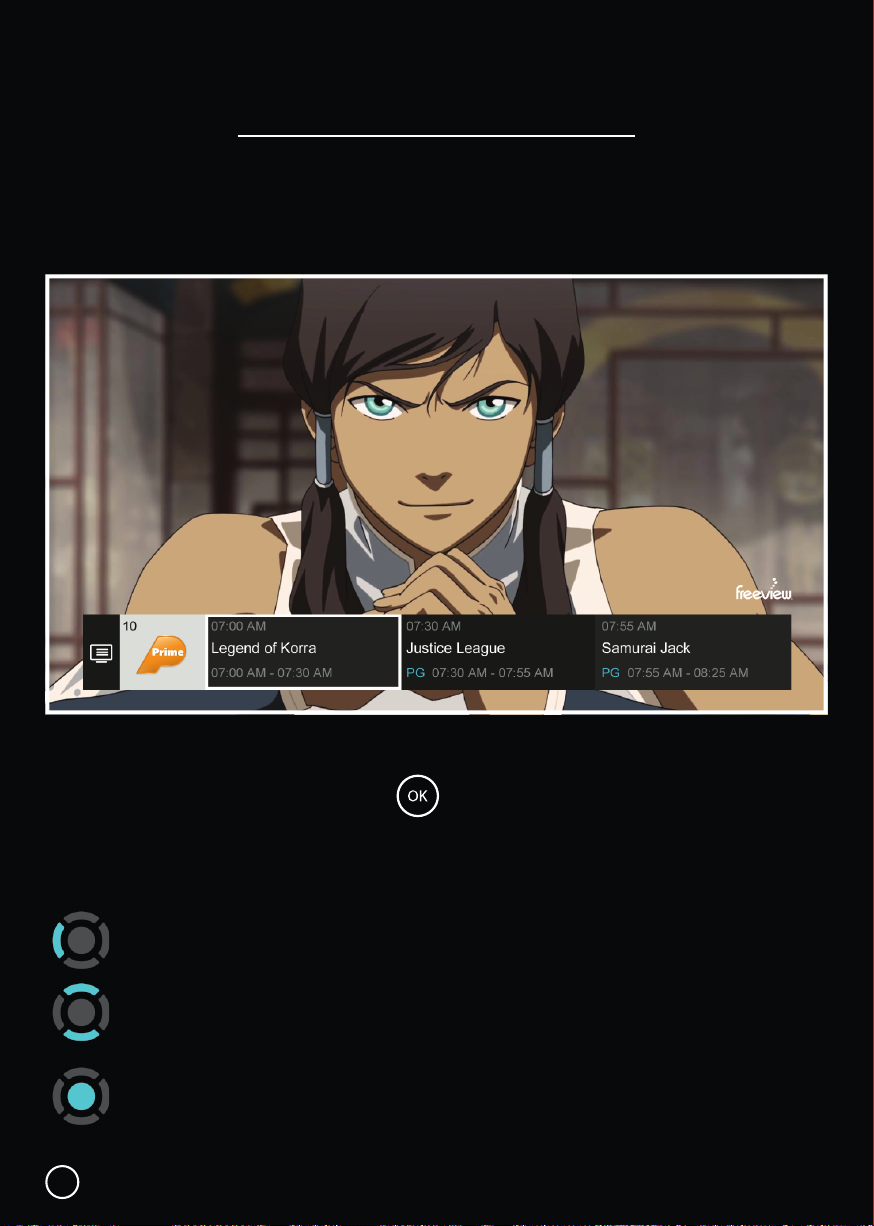
Mini Guide
While watching Live TV, press the OK button to open the Mini Guide, displaying
what’s on now and coming up next.
Use the Mini Guide to quickly browse through channels, or go directly to a Channel.
Press ◄ LEFT for the TV Guide.
Press ▲ UP or ▼ DOWN to explore other Channels.
Select a TV show that’s on now to change the Channel, or one that’s on later
to see more information, and the recording options for that TV show.
Inhaltsverzeichnis
Andere Dish TV Fernsehempfänger Handbücher


