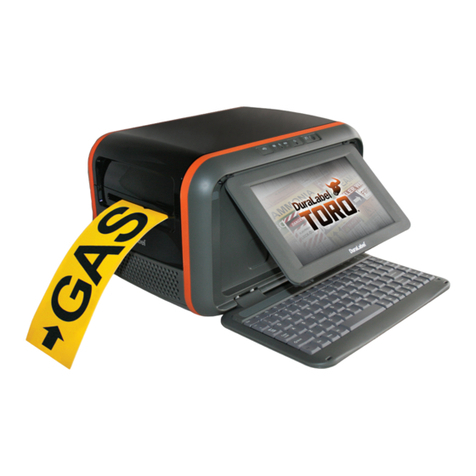
DuraLabel PRO 300 Bedienungsanleitung

800.788.5572
DuraLabel.com
USER GUIDE
PRO/PRO 300

Graphic Products®
, DuraLabel®
, PathFinder®
, Toro®and Lobo®are Registered Trademarks of Graphic Products, Inc.
© 2007, 2015 Graphic Products, Inc.
Minimum System Requirements
Operating System: Windows 2000 SP4, XP SP2, Vista, 7, 8
Memory: 128MB RAM
Hard Drive: 100MB
Additional Requirements: IT Administrator Privileges
Supplies
DuraLabel supplies and DuraLabel®PRO printers have been optimized for compatibility
and print quality. Use only DuraLabel supplies from Graphic Products with your
DuraLabel PRO/PRO 300 printer.
NOTE: The DuraLabel PRO/PRO 300 User Guide includes information for both the
DuraLabel PRO and DuraLabel PRO 300 printers. Reference to “DuraLabel PRO”
implies either the DuraLabel PRO or DuraLabel PRO 300 printer.
Copyright Information
No part of this guide, including the products and software described in it, may be
reproduced, transmitted, transcribed, stored in a retrieval system, or translated into any
language in any form or by any means, except as documentation kept by the purchaser
for backup purposes, without the express written permission of Graphic Products, Inc.
Products and corporate names appearing in this guide may or may not be registered
trademarks or copyrights of their respective companies, and are used only for
identification or explanation and to the owners’ benefit, without intent to infringe.
Specifications and other content contained in this guide are furnished for informational
use only and are subject to change at any time without notice, and should not be
construed as a commitment by Graphic Products. Graphic Products assumes no
responsibility or liability for any errors or inaccuracies that may appear in this guide.

DuraLabel.com | 800.788.5572 Introduction | 1
Introduction
Congratulations on the purchase of your DuraLabel®PRO/PRO 300 Printer.
You’ll be printing pipe markers, arc flash, NFPA Diamond, GHS, right-to-know, barcodes,
and custom labels in no time with your new DuraLabel Printer.
Call us at 800.788.5572 with any questions you may have about your DuraLabel PRO/
PRO 300 printer. We’re here to help with all your labeling needs!

2| Contents DuraLabel.com | 800.788.5572
Contents
1. Warranties 4
1.1 5-Year DuraLabel Printer Warranty 4
1.1.1 Repairs 4
1.1.2 Batteries 4
1.1.3 Warranty Details 4
1.2 5-Year DuraLabel Premium Vinyl Warranty 5
2. Loading the Printer 6
2.1 Printer Parts 6
2.2 Printer Ribbon Parts 7
2.3 Loading Ribbon 8
2.3.1 Loading 4.3" ribbon supply 8
2.3.2 Loading 2.5" ribbon supply 11
2.4 Loading Vinyl Supply 12
2.5 Installing Tape Guides 14
3. Connecting the Printer 17
3.1 Inserting the Installation CD 17
3.2 Using a USB Cable 17
3.3 Using a Parallel Cable 20
3.4 Upgrading a Driver 22
4. Configuring Printer Drivers 23
4.1 Continuous Vinyl Printing Instructions 23
4.2 Die-Cut Label Printing Instructions 24
4.2.1 Label Supply Calibration 24
4.2.2 Driver Settings 25
4.3 B Mark Label Printing Instructions 25
4.3.1 Label Supply Calibration 25
4.3.2 Driver Settings 25
4.4 Cutting Labels in Intervals 26
4.5 Adjusting Print Speed 26
4.6 Adjusting Darkness 26
5. Installing Labeling Software 27
5.1 DuraSuite Labeling Software 27
5.2 LabelForge Labeling Software 27
6. Label Creation 28
6.1 Label Creation with Your Word Processor 28
6.1.1 Using Templates 28
6.1.2 Setting up a Microsoft Word Document 29
7. Label Design 30
7.1 Text Boxes 30
7.1.1 Changing Text Box Size 30
7.1.2 Positioning Text Boxes 31
7.2 Graphics 32
7.3 Merging Information, Sequencing Labels 33
7.3.1 Creating an Excel Spreadsheet 33

DuraLabel.com | 800.788.5572 Contents | 3
CONTENTS
8. Cleaning and General Maintenance 38
8.1 Print Head 39
8.2 Cutter 39
8.2.1 Cleaning Cutter from the Inside 39
8.3 Platen Roller 41
9. Troubleshooting 42
9.1 LED is Solid Red 42
9.2 Printing Suddenly Stops and LED Blinks Red 42
9.3 LED Quickly Blinks Red 42
9.4 Printing Stops While Printing Die-cut Labels and LED Blinks Red 43
9.5 LED Blinks Green after Label is Printed 43
9.6 After Printing a Label, Printer Dispenses Extra Supply and LED Blinks Red 43
9.7 Printing is not Aligned Correctly 43
9.8 Printing is Streaked 44
9.9 LED Blinks Amber and Red 44
9.10 Printer Cuts Labels Off-Center or into Next Label 45
10. Specifications 46
10.1 Printer 46
10.2 Indicators and Buttons 46
10.3 Communication Interface 46
10.4 Power Requirements 46
10.5 Environment 46
10.6 Label Supply 47
10.7 Ribbon Supply 47
10.8 Printer Body 47

4| 1.1 5-Year DuraLabel Printer Warranty DuraLabel.com | 800.788.5572
1. Warranties
1.1 5-Year DuraLabel Printer Warranty
Graphic Products’ DuraLabel printers are warrantied to be free from
defects in materials and workmanship for a period of five (5) years
from the date of purchase. Within this period, Graphic Products, Inc.
will, at its sole option, repair or replace any components which fail in
normal use. Such repairs or replacement will be made at no charge to the purchaser for
parts or labor, provided that the purchaser shall be responsible for any transportation
cost. This warranty does not cover loss, damages from accident, or equipment or parts
which have been misused, altered, neglected, carelessly handled, used for purpose
other than those for which the printer was manufactured, or damages resulting from
unauthorized service.
1.1.1 REPAIRS
Repairs are warrantied for 90 days. If the original warranty is still in effect, repaired
units will remain under their original warranty or for 90 days from the date of service,
whichever is longer.
1.1.2 BATTERIES
The optional battery packs for the DuraLabel Toro and Lobo portable systems are
warrantied for three years from the date of purchase.
The battery for the DuraLabel 2000 PLUS system is warrantied for one year from the
date of purchase.
1.1.3 WARRANTY DETAILS
The warranties and remedies contained herein are exclusive and in lieu of all other
warranties whether express, implied, or statutory, including any liability arising under any
warranty of merchantability or fitness for a particular purpose, statutory or otherwise.
This warranty gives the purchaser specific legal rights, which may vary from state to
state.
In no event shall Graphic Products be liable for any incidental, special, indirect, or
consequential damages, whether resulting from the use, misuse, or inability to use
the product for any reason including defect. Some states do not allow the exclusion of
incidental or consequential damages, so the above limitation may not apply in all areas.
Graphic Products retains the exclusive right within all warranty periods to repair, replace,
or offer a full refund of the purchase price at its sole discretion. Such remedy shall be
the purchaser’s sole and exclusive remedy for any breach of warranty.

DuraLabel.com | 800.788.5572 1.2 5-Year DuraLabel Premium Vinyl Warranty | 5
WARRANTIES
General maintenance and cleaning of the DuraLabel printer is the purchaser’s
responsibility and is not covered by the warranty. Expendable items or parts such as
label supply and ribbon are not covered by this warranty.
NOTE:6SHFLÀFSUHSDUDWLRQPD\EHUHTXLUHGEHIRUHVKLSSLQJ3OHDVHFRQWDFW\RXU
Graphic Products representative to ensure correct return procedure: please call
800.788.5572 for details. Graphic Products, Inc. shall not be responsible for any loss
or damages incurred during shipping.
1.2 5-Year DuraLabel Premium Vinyl Warranty
DuraLabel supplies are tested for durability under various conditions, including UV
exposure, moisture, heating and cooling cycles, abrasion, and chemical exposures.
Graphic Products warranties labels made from its Premium vinyl supplies for a period of
five (5) years.
Within five years of purchase and after proper application, Graphic Products will replace
labels made with DuraLabel Premium Vinyl which become unreadable or fail to maintain
adhesion with the labeled surface. In such instance, Graphic Products, Inc. will provide
a one-time replacement roll of the same supply.

6| 2.1 Printer Parts DuraLabel.com | 800.788.5572
2. Loading the Printer
DuraLabel Ribbon and Vinyl Supplies have been optimized for compatibility and print
quality. Only authorized DuraLabel Supplies from Graphic Products will print correctly in
the DuraLabel PRO/PRO 300 printer.
An instructional video demonstrating how to load DuraLabel Ribbon and Supplies can be
viewed at DuraLabel.com/duralabel-videos.
2.1 Printer Parts
A
B
D
F
G
H
I
C
E
Figure 1 Inside of printer, with ribbon mechanism open in upright position
A. Supply loading diagram
B. Label supply roll
C. Label roll mounts
D. Fixing tabs
E. Teflon bar (white)
F. Adjustable label guides (turquoise)
G. Media sensor/B Mark sensor
(turquoise)
H. Platen roller (black)
I. Printed label opening

DuraLabel.com | 800.788.5572 2.2 Printer Ribbon Parts | 7
LOADING THE PRINTER
2.2 Printer Ribbon Parts
Rear Spring-Loaded Hub
for Ribbon Supply Spindle
Rear Hub for Flange Side of
Ribbon Supply Spindle
Front Hub for Flange Side of
Ribbon Rewind Spindle
Front Spring-Loaded Hub
for Ribbon Rewind Spindle
(with paper core)
Lo
L
ade
dHub
fo
rF
lan
ge
Figure 1
NOTE:6SLQGOHÁDQJHVVKRXOGEHLQVHUWHGRQULJKWVLGHZKHQIDFLQJSULQWHU6HH
diagram under the ribbon supply.
Ribbon Spindle Flange
Ribbon Rewind Spindle
with Paper Core Applied
Ribbon Supply Spindle
Figure 2

8| 2.3 Loading Ribbon DuraLabel.com | 800.788.5572
LOADING THE PRINTER
2.3 Loading Ribbon
IMPORTANT! Always turn the printer OFF when loading supplies. Always wait at least 5
seconds before turning power back ON.
Open the ribbon mechanism cover by pressing down and in to unlatch it, then lift it up
and back to open.
NOTE: To load 4.3" ribbon, follow the instructions in section 2.3.1. To load 2.5" ribbon,
follow instructions in section 2.3.2.
2.3.1 LOADING 4.3" RIBBON SUPPLY
A. With spindle flange on right side, load ribbon onto an empty ribbon supply spindle,
with the ribbon leader extended over the top and toward the back.
B. Slide the ribbon onto the spindle until it touches the spindle flange.
C. Apply the paper core to the other empty ribbon rewind spindle.
D. Apply the ribbon supply spindle to the rear hub, with the ribbon leader dropped
down. Insert the left side of the spindle first, fitting it onto the left hub, then fitting
the right (flanged) side onto the right hub.
Figure 1 Press down and in to unlatch. Figure 2 Lift up and back to open.
Ribbon Leader
Spindle Flange
Figure 3 Correct ribbon application for spindle
Andere Handbücher für PRO 300
1
Dieses Handbuch passt für folgende Modelle
1
Inhaltsverzeichnis
Andere DuraLabel Drucker Handbücher

DuraLabel
DuraLabel 9000 Bedienungsanleitung

DuraLabel
DuraLabel 9000 Bedienungsanleitung

DuraLabel
DuraLabel 9000 Bedienungsanleitung

DuraLabel
DuraLabel 9000 Bedienungsanleitung

DuraLabel
DuraLabel Bronco Bedienungsanleitung

DuraLabel
DuraLabel Catalyst Bedienungsanleitung

DuraLabel
DuraLabel 900 Bedienungsanleitung

DuraLabel
DuraLabel Toro Bedienungsanleitung

DuraLabel
DuraLabel Toro Bedienungsanleitung

DuraLabel
DuraLabel PRO Bedienungsanleitung