
DuraLabel Toro Bedienungsanleitung

USER GUIDE
PORTABLE STANDALONE PRINTER
800.788.5572
DuraLabel.com

Copyright Information
No part of this manual, including the products and software described in it, may be reproduced,
transmitted, transcribed, stored in a retrieval system, or translated into any language in any form
or by any means, except documentation kept by the purchaser for backup purposes, without the
express written permission of Graphic Products, Inc.
Products and corporate names appearing in this manual may or may not be registered trademarks
or copyrights of their respective companies, and are used only for identification or explanation and
to the owners’ benefit, without intent to infringe.
Specifications and information contained in this manual are furnished for informational use
only, and are subject to change at any time without notice, and should not be construed as a
commitment by Graphic Products. Graphic Products assumes no responsibility or liability for any
errors or inaccuracies that may appear in this manual.
Graphic Products®
, DuraLabel®
, PathFinder®
, Toro®and Lobo®are Registered Trademarks of Graphic Products, Inc.
© 2011, 2014 Graphic Products, Inc.

DuraLabel.com | 800.788.5572 Contents | 1
Contents
1. Introduction
3
2. Warranties
4
2.1 5-Year DuraLabel Printer Warranty 4
2.1.1 Repairs 4
2.1.2 Batteries 4
2.1.3 Warranty Details 4
2.2 5-Year DuraLabel Premium Vinyl Warranty 5
3. Safety Instructions 6
4. Getting to Know Your Toro 7
4.1 Operating System 7
4.2 Control Panel 7
4.3 Connection Panel 8
4.4 Keyboard 8
4.4.1 Keyboard Release 8
4.4.2 Keyboard Positions and Toro Modes 8
4.5 Screen 9
5. Loading Ribbon and Label Stock 10
5.1 Loading Ribbon 10
5.2 Loading Label Stock 11
6. Toro Main Screen 12
6.1 Toolbar 12
7. Advanced Functions 14
7.1 Using the USB Drive 14
7.1.1 Windows Systems 14
7.1.2 Linux Systems 14
7.2 Touchscreen Calibration 14
7.3 Installing Programs 15
7.4 Password Protection 15
7.5 Installing an External Pointing Device 15
7.6 Recovering Templates 15
7.6.1 Windows Systems 16
7.6.2 Linux Systems 16
7.7 Sleep Mode 16
7.7.1 Windows Systems 16
7.7.2 Linux Systems 16
8. Battery (Optional) 17
8.1 Battery Loading 17
8.2 Charging the Battery 17
8.3 Battery Maintenance 17

2| Contents DuraLabel.com | 800.788.5572
CONTENTS
9. Cleaning Your Toro 18
10. Troubleshooting 19
11. Specifications 21
11.1 Printer 21
11.2 Indicators & Buttons 21
11.3 Communication Interface 21
11.4 Power Requirements 21
11.5 Capabilities 21
11.6 Environment 22
11.7 Label Stock 22
11.8 Ribbon Supply 22
11.9 Printer Body 22
12. End User License Agreement 23
13. Certifications 27

DuraLabel.com | 800.788.5572 1. Introduction | 3
1. Introduction
With your DuraLabel Toro, producing custom labels and signs is fast and easy. Its
powerful software expands your creative capabilities and simplifies safety compliance.
This versatile, go-anywhere printer comes with a built-in keyboard, mouse and
touchscreen for your convenience.
Because your Toro is a standalone system, you can take it to a remote site, or place it on
a cart and use it anywhere in your facility.
An optional battery provides three hours of continuous printing capability even when
there is no power outlet nearby.
For larger sign projects, Toro can connect to the DuraLabel 9000 sign and label printer.

4| 2.1 5-Year DuraLabel Printer Warranty DuraLabel.com | 800.788.5572
2. Warranties
2.1 5-Year DuraLabel Printer Warranty
Graphic Products’ DuraLabel printers are warrantied to be
free from defects in materials and workmanship for a period
of five (5) years from the date of purchase. Within this period,
Graphic Products, Inc. will, at its sole option, repair or replace
any components which fail in normal use. Such repairs or
replacement will be made at no charge to the purchaser for parts or labor, provided that
the purchaser shall be responsible for any transportation cost. This warranty does not
cover loss, damages from accident, or equipment or parts which have been misused,
altered, neglected, carelessly handled, used for purpose other than those for which the
printer was manufactured, or damages resulting from unauthorized service.
2.1.1 REPAIRS
Repairs are warrantied for 90 days. If the original warranty is still in effect, repaired
units will remain under their original warranty or for 90 days from the date of service,
whichever is longer.
2.1.2 BATTERIES
The optional battery packs for the DuraLabel Toro and Lobo portable systems are
warrantied for three years from the date of purchase.
The battery for the DuraLabel 2000 PLUS system is warrantied for one year from the
date of purchase.
2.1.3 WARRANTY DETAILS
The warranties and remedies contained herein are exclusive and in lieu of all other
warranties whether express, implied, or statutory, including any liability arising under any
warranty of merchantability or fitness for a particular purpose, statutory or otherwise.
This warranty gives the purchaser specific legal rights, which may vary from state to
state.
In no event shall Graphic Products be liable for any incidental, special, indirect, or
consequential damages, whether resulting from the use, misuse, or inability to use
the product for any reason including defect. Some states do not allow the exclusion of
incidental or consequential damages, so the above limitation may not apply in all areas.
Graphic Products retains the exclusive right within all warranty periods to repair, replace,
or offer a full refund of the purchase price at its sole discretion. Such remedy shall be
the purchaser’s sole and exclusive remedy for any breach of warranty.

DuraLabel.com | 800.788.5572 2.2 5-Year DuraLabel Premium Vinyl Warranty | 5
WARRANTIES
General maintenance and cleaning of the DuraLabel printer is the purchaser’s
responsibility and is not covered by the warranty. Expendable items or parts such as
label supply and ribbon are not covered by this warranty.
NOTE: Specic preparation may be required before shipping. Please contact your
Graphic Products representative to ensure correct return procedure: please call
800.788.5572 for details. Graphic Products, Inc. shall not be responsible for any loss
or damages incurred during shipping.
2.2 5-Year DuraLabel Premium Vinyl Warranty
DuraLabel supplies are tested for durability under various conditions, including UV
exposure, moisture, heating and cooling cycles, abrasion, and chemical exposures.
Graphic Products warranties labels made from its Premium vinyl supplies for a period of
five (5) years.
Within five years of purchase and after proper application, Graphic Products will replace
labels made with DuraLabel Premium Vinyl which become unreadable or fail to maintain
adhesion with the labeled surface. In such instance, Graphic Products, Inc. will provide
a one-time replacement roll of the same supply.

6| 3. Safety Instructions DuraLabel.com | 800.788.55726
3. Safety Instructions
Please review the following safety instructions before using the printer:
• Keep printer away from humidity and ultraviolet radiation. Toro is intended for
indoor use only.
• Check power source voltage before connecting printer to power outlet.
• Disconnect printer from power source when not in use.
• DO NOT pour liquid onto the printer or printer parts.
• ONLY qualified service personnel should attempt to repair printer.
• DO NOT repair or adjust energized equipment without supervision. A person
capable of providing first aid must always be present.
• Toro supply may build a small static charge in static-sensitive environments.
DO NOT operate Toro near flammable materials.
• Power outlet should be near printer and easily accessible for quick power
disconnect.
• Use only with power supply model WDS120240.
• Remove Toro’s battery and unplug unit from wall socket to completely disconnect
power.
NOTE: Changes or modications not expressly approved by the party responsible for
compliance could void the user’s authority to operate the equipment.
DuraLabel.com | 800.788.5572 4.2 Control Panel | 7
4. Getting to Know Your Toro
4.1 Operating System
Due to different licensing agreements, some Toro systems use Microsoft Windows XP
Embedded™ software, while others use Ubuntu Linux™ software. The functions of the
two system types are only slightly different, and are described in this User Guide.
To identify the operating system in use on your DuraLabel Toro, press the system
information icon on your toolbar. In the lower right part of this window, you will see
the name of the operating system in place on your Toro. If your DuraLabel Toro uses
Ubuntu Linux the system also includes a list of preferred fonts, which can be found by
pressing the help icon on the toolbar and then pressing the View button for Preferred
Fonts. This list shows which fonts we recommend for use, and similar fonts available on
Windows-based systems.
4.2 Control Panel
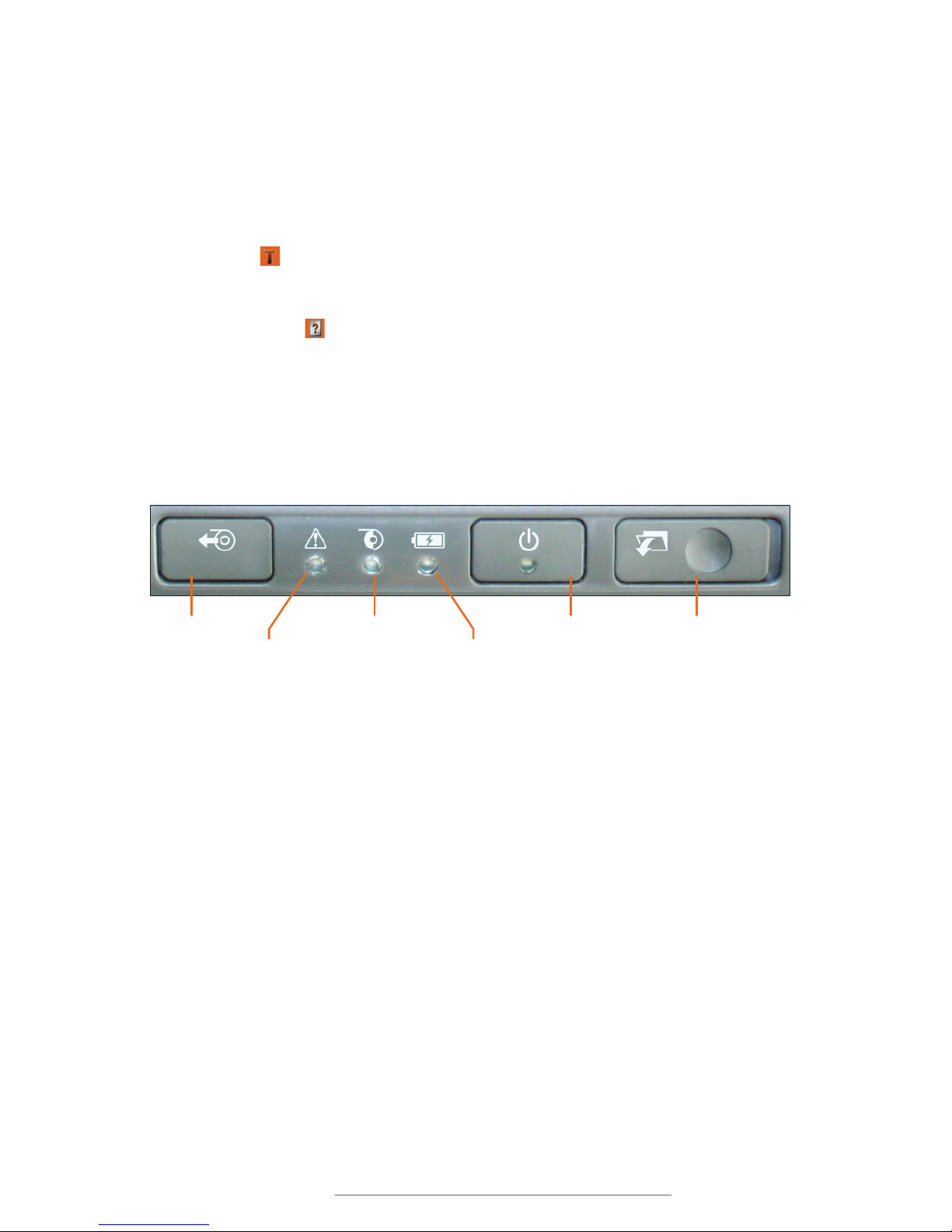
Toro’s control panel is centered at the top of the printer.
Supply Feed Power Button
Printer Status Light
Supply Status Light
Battery Status Light
Keyboard Release
Slider
Supply Feed Button: Press this button to pause or resume a print job. If there is no
current print job, you can hold this button to feed blank supply through the printer.
Printer Status Light: This light glows green to indicate normal operation, and changes
color or blinks to show errors. See the Troubleshooting section for help.
Supply Status Light: If this light is red, supply is low. A blinking red light indicates supply
has almost run out or no supply is loaded.
Battery Status Light: When this light is red, the battery is down to 10% of its charge.
Remaining battery power will last for only a short time. (The Toro battery is an optional
accessory, and is not required when using a standard power outlet.)
Power Button: Press this button to turn your Toro on or off. The indicator light will blink
while Toro is starting up, shutting down, or in sleep mode; it will glow green when Toro is
ready.
Keyboard Release Slider: Slide this to the right to release the keyboard from its locked,
upright position.

8| 4.3 Connection Panel DuraLabel.com | 800.788.5572
GETTING TO KNOW YOUR TORO
4.3 Connection Panel
Contains Toro’s power and data transfer ports.
Ethernet Port USB-A Ports USB-B Port 24-VDC Port
USB-A ports: Connect the mouse here, or plug in your USB flash drive to transfer files.
USB-B port: Use this port to connect Toro to a computer and use the system as a
normal desktop printer.
24-VDC port: Connect the Toro power supply here.
Ethernet Print Server Port (optional): If present, this port allows you to connect Toro to
a network as a shared printer.
4.4 Keyboard
4.4.1 KEYBOARD RELEASE
The Toro keyboard is permanently mounted
to the printer housing. Open the keyboard
by moving the release slider on the control
panel to the right, and pulling the keyboard
down until it rests on your work surface. When
finished with the system, you can raise the
keyboard back into its locked, upright position.
4.4.2 KEYBOARD POSITIONS AND TORO MODES
Your DuraLabel Toro has two different modes:
Standalone Mode: In this mode, Toro’s touchscreen and keyboard can be used to create
label designs.
Desktop Mode: In this mode, Toro will wait for print commands from a connected
computer.
Andere Handbücher für Toro
5
Inhaltsverzeichnis
Andere DuraLabel Drucker Handbücher

DuraLabel
DuraLabel PRO 300 Bedienungsanleitung

DuraLabel
DuraLabel Bronco Bedienungsanleitung

DuraLabel
DuraLabel 9000 Bedienungsanleitung

DuraLabel
DuraLabel Toro Bedienungsanleitung

DuraLabel
DuraLabel 9000 Bedienungsanleitung

DuraLabel
DuraLabel 9000 Bedienungsanleitung

DuraLabel
DuraLabel 900 Bedienungsanleitung

DuraLabel
DuraLabel 4 TTP Bedienungsanleitung
DuraLabel
DuraLabel Toro Bedienungsanleitung

DuraLabel
DuraLabel 9000 Bedienungsanleitung


