
IWILL ZPCsp Bedienungsanleitung

ZPCsp and ZPC64 Barebone
User’s Manual
Version 1.0

IWILL User’s Manual
2 User’s Manual
Contents:
FCC Compliance Statement ………………………….…………………….……………….…….……………………………..........4
Disclaimer, Trademarks and Copyright ………………………….……….……………….………………………………...............5
Welcome ………………………………………………………….………………….……………….………………………...............6
About this manual ..……………………………………………………………………. …….……………….……………….............7
About this guide ….………………………………………………………………….……………….…………….………….............8
Unpacking …….……………………………………………………………….……………….…………….…………......................9
Chapter 1. System Introduction………………………….……………….……………………………………………...11
ZPCsp Front Panel Features …….………………………………………………….……………….…………………………….12
ZPCsp Rear Panel Features …….…………………………………………………………….……………….…………………….13
ZPC64 Front Panel Features …….………………………………………………….……………….…………………………….14
ZPC64 Rear Panel Features …….…………………………………………………………….……………….…………………….15
Internal Features …….……..…………………………………………………………………….……………….………………….16
Chapter 2. Assembling the System…………………………………………….……………….……………………17
Removing the cover …………………………………………………………………………………….……………….…………….18
Removing the front panel ..……………………………………………………………………………….……………….………….19
Open the chassis ………....……………………………………………………………………………….……………….………….20
Remove the gaskets…....……………………………………………………………………………….……………….………….21
Remove the cooling system…………………………………………………………………………….……………….………….22
Installing the processor ……………………………………………………………………………….……………….…….……….23
Installing system memory ……………………………………………………………………………….……………….………….25
Installing mini-PCI card …..……………………………………………………………………………….……………….………….26
Installing hard disk drives ……………………………………………………………………………….…………….……………27
Installing a PCI/ AGP expansion…..…………………………………………………………………….……………….…………28
Chapter 3. Positioning the System….…………………………...………………….…………………….……………33
Positioning the system unit …………………………………………………….……………….…………………………………….34
Connecting with a monitor …………………………………………………….……………….…………………………………….35
Connecting the keyboard and mouse..………………………………………………….……………….………………………….36
Connecting the Ethernet cable……….………………………………………………………….……………….………………….36
Connecting the printer……………..….………………………………………………………………….……………….………….37
Connecting the scanner……………….…………………………………….……………….……………………………………….37
Connecting the power cord..………….……………………………………………….……………….…………………………….38
Arranging your workspace……………………….………………………………………………….……………….……………..38

ZPC Series Hardware Installation Guide
User’s Manual 3
Chapter 4. Mainboard Information………………….……………….………………………………………………..39
Introduction……………………………………………………………………….……………….………………………………...…40
ZPCsp Motherboard photo 1………….………………………………………………….……………….……………………...…41
ZPCsp Motherboard photo 2………….………………………………………………….……………….……………………...…42
ZPC64 Motherboard photo 1……………………………………………………………….……………….……………………...…43
ZPC64 Motherboard photo 2……………………………………………………………….……………….……………………...…44
Rear External Connectors...……………………………………………………………...........…….……………….………….......45
Chapter 5. BIOS Setup………………...……….……………………………………………………………………………..47
Running the BIOS utility………………………….……………….………………………………………………………………..…48
General Configuration…………………………….……………….………………………………………………………………..…49
Smart Setting…………………………………………………….……………….……………………………………………………50
Advanced BIOS Features…………………………………………………….……………….…………………………………..…51
Advanced Chipset Features…………………………………………………………….……………….………………………..…52
Peripherals……………………………………………………………………………….………….……………….……………..….53
Power Management……………………………………………………………………………………….……………….…………54
PCI & PnP………………………………………………………………………………………………….……………….…………55
PC Health Status…………………………………………………………………………………………….………….…………..…55
Load Optimized Defaults………………………………………………………………………………….……………….……….…56
Save to CMOS and Exit……………………………………………………………………………….……………….…………..…56
Chapter 6. Drivers and Utilities……………………………………….……………….………………………………..57
Drivers and Utilities, Software….………………………………………………………….……………….…………………………58
Chapter 7. Specification…………………….…………………………….………………………………………………..59
Federal Communications Commission (FCC) statement

IWILL User’s Manual
4 User’s Manual
This equipment has been tested and found to comply with limits for a Class B digital device, pursuant to Part 15 of the FCC
rules. These limits are designed to provide reasonable protection against harmful interference in residential installations.
This equipment generates, uses, and can radiate radio frequency energy, and if not installed and used in accordance with
the instructions, may cause harmful interference to radio communications.
However, there is no guarantee that interference will not occur in a particular installation. If this equipment does cause
interference to radio or television equipment reception, which can be determined by turning the equipment off and on, the
user is encouraged to try to correct the interference by one or more of the following measures:
Reorient or relocate the receiving antenna
Move the equipment away from the receiver
Plug the equipment into an outlet on a circuit different from that to which the receiver is connected
Consult an experienced radio/television technician for additional suggestions
This device complies with Part 15 of the FCC Rules. Operation is subjected to the following two conditions 1) this device
may not cause harmful interference and 2) this device must accept any interference received, including interference that
may cause undesired operation.
Tested To Compl
y
With FCC Standards
FOR HOME OR OFFICE USE
Disclaimer

ZPC Series Hardware Installation Guide
User’s Manual 5
The information in this document is subject to change without notice. The manufacturer makes no representations or
warranties regarding the contents of this manual and specifically disclaims any implied warranties of merchantability or
fitness for any particular purpose. Furthermore, the manufacturer reserves the right to revise this publication or make
changes in the specifications of the product described within it at any time without notice and without obligation to notify any
person of such revision.
Trademarks
Microsoft® and Windows® are registered trademarks of Microsoft® Corp. Intel® and Pentium® 4 are registered
trademarks of Intel Corporation. Other product names used in this manual are the properties of their respective owners and
are acknowledged.
Copyright
This publication, including all photographs, illustrations and software, is protected under international copyright laws, with
all rights reserved. Neither this manual, nor any of the material contained herein, may be reproduced without the express
written consent of the manufacturer. IWILL ©Copyright 2003
Welcome

IWILL User’s Manual
6 User’s Manual
Thank you for purchasing a ZPC™ series desktop PC. The ZPC™ features the IWILL® mainboard, power supply, cooling
system and other quality components. It is ideal for the end-users to make a complete understanding about this model. The
advanced users can also get help while studying this manual.
The ZPC product line comes in two muscular configurations – Intel® 865G for Intel® Pentium® 4 and nVIDIA® nForce® 3
for AMD® Athlon® 64 CPUs. They all feature the high performance motherboard, high quality power supply, stylish
anodized aluminum alloy enclosure designed and outstanding thermal solution as standard equipment. And of course they
come with FireWire 400 ports, High Speed USB2.0, PCI or AGP expansion, optical S/PDIF, front headphone and
microphone and built-in Ethernet - all as standard equipment. All models are WiFi-ready, and offer AccessPoint capability
as a option.
The Intel® based - ZPCsp
The Intel® based- ZPCsp based on Intel® 865G chipset; supports Intel® Pentium® 4 processors, Expandable to 2GB
dual channel 400MHz DDR with 800MHz system bus; IEEE1394; USB2.0; 6-Channel Audio; SPDIF In/Out; 10/100mbps
Ethernet; and One PCI expansion slot.
The AMD® based - ZPC64
ZPC64 based on nVidia® nForce 3 150 MCP; supports AMD® Athlon® 64 (Socket 754) processors with high-speed
Hypertransport; 2 x 400MHz DDR memory, IEEE1394; USB2.0; 6-Channel Audio; SPDIF In/Out; 10/100mbps Ethernet;
and One AGP 8X expansion slot.
The information provided here is designed to help you to become familiar with the design and hardware in your system.
With the user’s guide’s step-by-step instructions, chassis installation can never be easier. Read this manual, which
provides updates and supplemental information about your computer.
Audience
This guide provides general information and installation instructions about the IWILL ZPC series Barebone System. This

ZPC Series Hardware Installation Guide
User’s Manual 7
guide is intended for experienced users and integrators with hardware knowledge of personal computers.
How this guide is organized
This document contains the following parts:
1. Chapter 1: System Introduction
This chapter gives a general description of the IWILL book size barebone system. It includes introduction on the front
and rear panel features, and the internal features.
2. Chapter 2: System Assembly
This chapter tells how to install components into the barebone system through illustrated step-by-step instructions.
3. Chapter 3: Connection Peripherals
This chapter detail steps in installing other Peripherals and components that can be included in the system.
4. Chapter 4: Mainboard Information
This chapter describes proper mainboard placement for system safety and compliment space saving design.
5. Chapter 5: BIOS Setup
This chapter tells how to change system settings through the BIOS Setup menus. It includes detailed descriptions of
the BIOS parameters.
6. Chapter 6: Drivers and Utilities
This chapter gives information about the ZPC Software, drivers, and utilities operation.
7. Chapter 7: Specification
This chapter gives information about the ZPC detail specification.
Illustrations used in this guide
WARNING!
Information to prevent injury to yourself when trying to
complete a task.
DANGER!
Information to prevent damage to the components.
IMPORTANT
Information that you MUST follow to complete a task.
NOTE
Tips and additional information to aid in completing a task.
Where to find more information
Refer to the IWILL Websites for additional information and for product and software updates.

IWILL User’s Manual
8 User’s Manual
ZPCsp/ ZPC64 System unit
Unpacking ZPC
Your ZPC may not be supplied with all of the accessories shown, depending on the system configuration you purchased.
For details on the accessories supplied with your computer, see the specifications sheet in this manual.
External Power Adapter Power Cord IDE/ Power Cord for 2.5” HDD
DVI to D-Sub Converter*
2.5” HDD Holder
Drivers CD
User’s Manual Quick Installation Guide
Heatsink and cooling module have been assembled in the ZPC-ST already.
Use 2.5” HDD holder to replace 3.5” HDD holder when you install longer AGP or PCI card
If any of the above items is damaged or missing, contact your dealer immediately.
DVI to D-Sub Converter only in ZPCsp version

ZPC Series Hardware Installation Guide
User’s Manual 9
Chapter 1
All about the IWILL ZPC series barebone system: the front and rear panel
features, and the internal layout and design.
The IWILL ZPC series barebone system includes the IWILLmotherboard, a power
supply, accessories and cables built into in a chassis
This section shows the various external connectors on your computer to which
you can attach external options, such as external speakers, a printer, or a scanner.
For some external options, you must install additional software in addition to
making the physical connection. When adding an external option, use the
information in this section to identify the required connector, and then use the
instructions that come with the option to help you make the connection and install
any software or device drivers that are required for the option.
System Introduction
Use your hand/ fingertip to push
open the front panel cover.
IWILL User’s Manual
10 User’s Manual
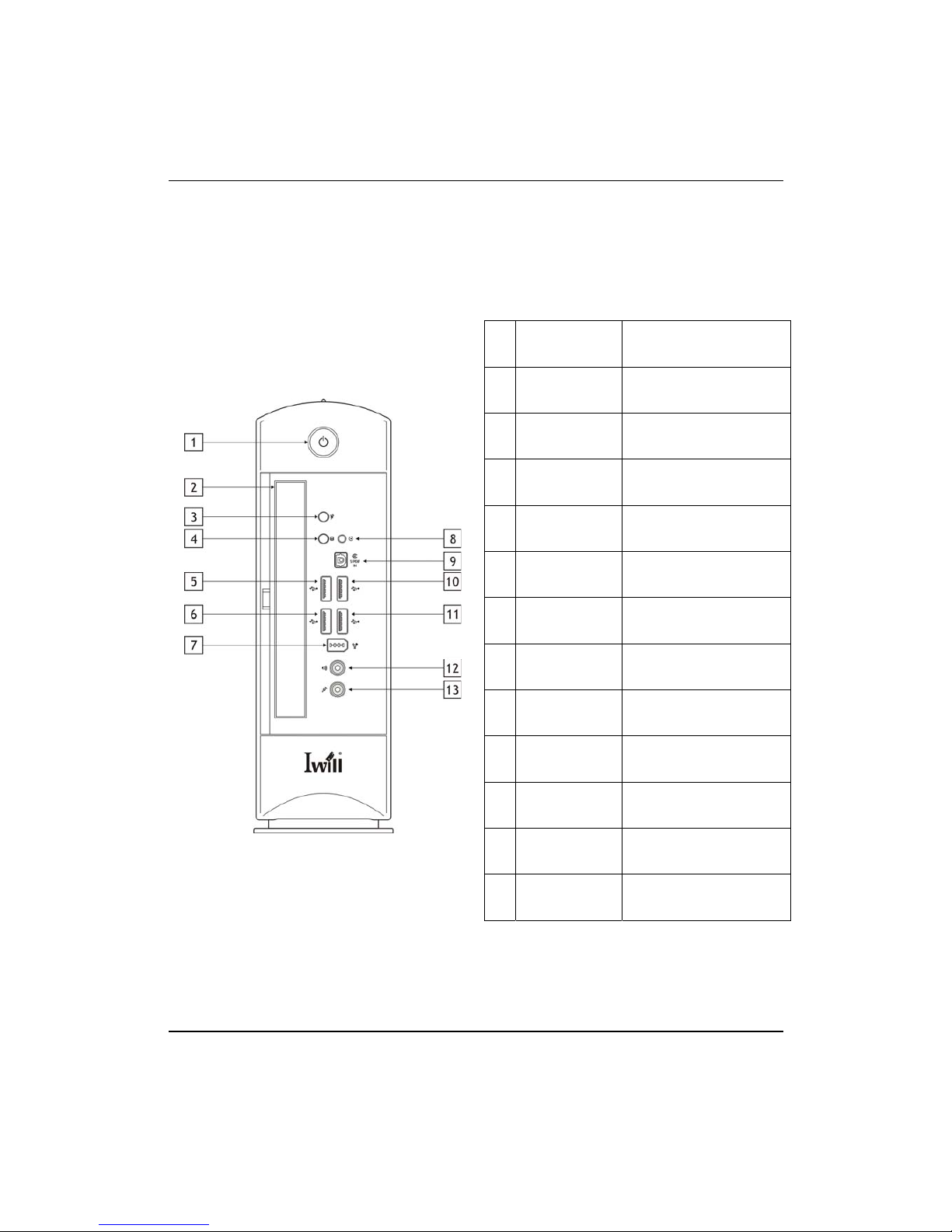
ZPCsp Front and Rear Panel Features:
The front panel of ZPCsp features: a slim line bay for optical disk drive, Microphone, Earphone, SPDIF Out, 6-pin Firewire
jacks, and USB2.0 connectors
1 Power switch Turns the computer on and off..
2 Optical drive Slimline drive bay for optical drive
3 System Indicator The indicator light is amber when the
computer is placed in Stand by mode
4 HDD access indicator Light is amber while reading and writing
data from and to the hard disk.
5 Universal Serial Bus 1 Connections for compatible high/ full/
low-speed USB devices.
6 Universal Serial Bus 2 Connections for compatible high/ full/
low-speed USB devices.
7 6-pin IEEE1394 Connection for a compatible digital
device.
8 System Reset Reset the System
9 SPDIF In Connection for SPDIF Input
10 Universal Serial Bus 3 Connections for compatible high/ full/
low-speed USB devices.
11 Universal Serial Bus 4 Connections for compatible high/ full/
low-speed USB devices.
12 headphone connector Connection for a headphone
13 microphone connector Connection for microphone
The front panel of your ZPC Computer enables access to drives, ports and jacks that enable you to connect compatible
peripheral devices.
Andere Handbücher für ZPCsp
1
Dieses Handbuch passt für folgende Modelle
1
Inhaltsverzeichnis
Andere IWILL Desktop Handbücher


