
PageExpress A620 Bedienungsanleitung
• Before attempting to connect, operate or adjust this product,
please save and read the User Manual completely.
• The style of the product shown in the User Manual may be
different from the actual unit due to various models.
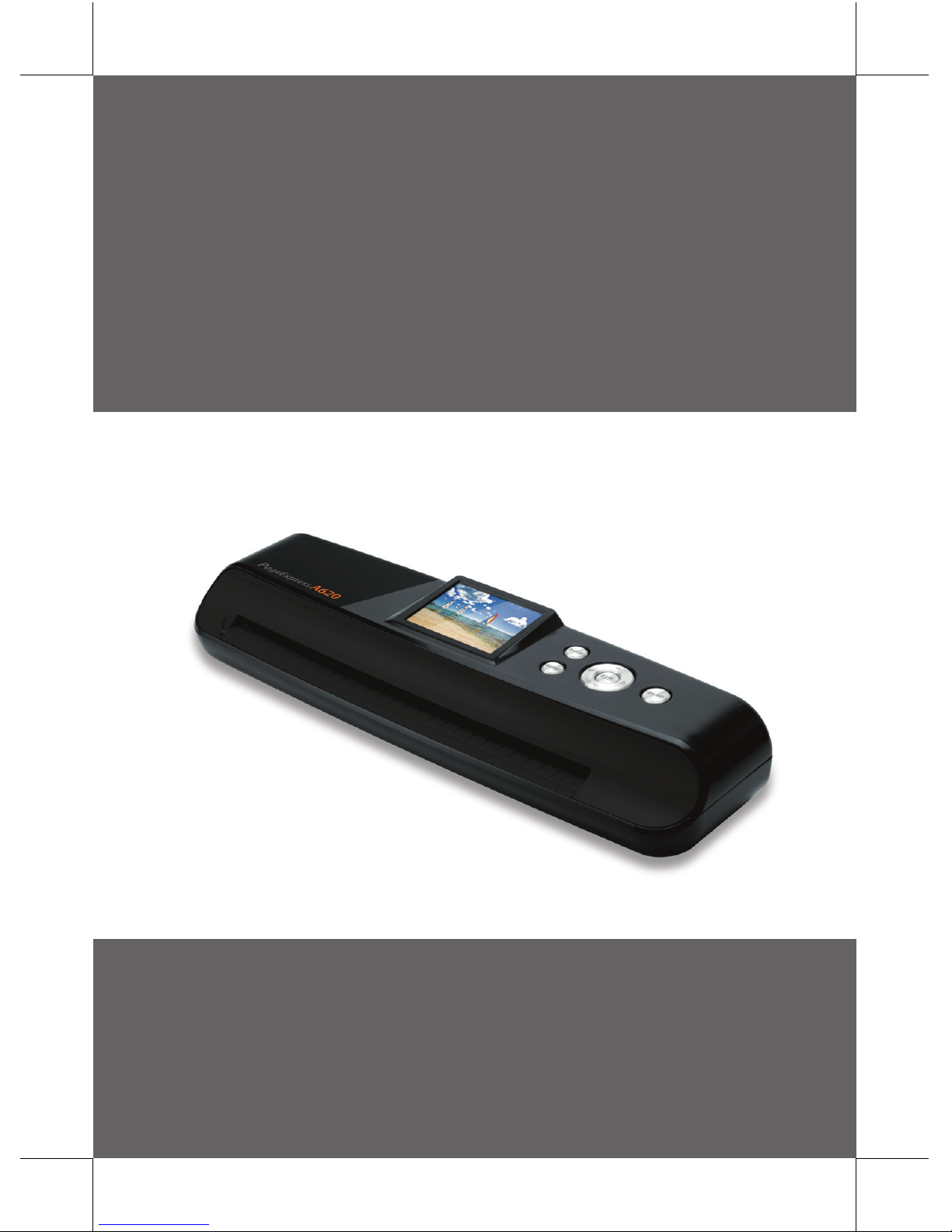
PageExpress A620
Standalone A4 Photo Scanner
User Manual

2
Contents
Safety Information.........................................................3
Package Content...........................................................4
Scanner Parts................................................................5
Preparation...................................................................6
- Connecting to Power.........................................................................6
- Inserting a SD/MMC Card.................................................................7
- Turning the Power on........................................................................7
Scan and Playback........................................................8
- Scanner Setting...............................................................................8
- Using the Photo Protective Sleeve....................................................9
- Scanning Images.............................................................................9
- Playing back and Scanned Images...............................................10
- Zoom.........................................................................................11
- Playback Setting.............................................................................12
Transferring the Scanned Images to PC....................13
- Disconnecting the Scanner from PC...............................................13
Cleaning and Calibrating the Scanner.......................14
Specification...............................................................16
Helpful Hints............................................................16

3
Safety Information
• Keep away from water or moisture and dusty areas.
• Never store in hot and very cold areas.
• Only use attachments/accessories specified by the manufacturer.
• No objects filled with liquids, such as vases, shall be placed on apparatus.
• Avoid dust contamination when the scanner is not in use.
• When left unused for a long period of time, the unit should be disconnected
from the power supply.
• Avoid environments where the scanner would be exposed to direct sunlight (or
any other source of excessive heat) for long periods of time.
• Protect the scanner from potential liquid spills such as soda, coffee, tea, etc.
• Be carefully to keep it without dropping it or strong impact.
• Operate the scanner on a level, well-grounded work surface, free of
excessive vibration.
• Don’t open the scanner case alone without technical support because there
is danger of electrical shock.
• Position the equipment near a power outlet where it can be easily accessed
when plugged in.

4
for purchasing this Standalone A4 Photo Scanner.
With this new standalone scan-and-view technology, there’s no longer
a need to install drivers and operate on a PC for scanning. Ideally you
can view the scanned images directly on the 2.4” display screen, and
then store the scanned images to a MMC or SD memory card. It makes
your scanning experience easier and enjoyable. You can also transfer
the scanned images to your PC via mini USB port. Read the following
instructions for more details.
Power Adapter
B
User Manual
Package Content
Scanner mini USB Cable
Calibration and
Cleaning Paper
Cleaning StickPhoto Protective
Sleeve
Thank you
Quick Guide
Quick Guide

5
Scanner Parts
Top View
Rear View
Names
Descriptions
1Paper guide • Adjustable paper guide makes easy for guiding
paper.
2Feed slot • Feeds the paper or photo for scanning.
32.4” LCD screen • Views the scanned images.
4Power ( MENU )/Menu • Press to turn the power to on or off.
• Long
press for 3~5 seconds to turn off the scanner.
• Press to display the setting menu.
5OK( OK )• Press to make or confirm selections in the menus.
6Down( ) • Moves down in the menus.
• Moves down in the thumbnail mode.
7Right( )• Moves right in the menus.
• Moves to the next scanned image.
8Zoom( )• Zoom the scanned image.
9Left( )• Moves left in the menus.
• Moves to the previous scanned image.
10 Up( ) • Moves up in the menus.
• Moves up in the thumbnail mode.
11 Scan(SCAN )• Press to enter the Scan mode.
12 Mini USB port • Connects to PC for file transfer and power supply.
13 SD/MMC • Accommodates a SD/MMC card.
14 Paper exit slot • Outputs the paper after scanning.
15 DC-IN 5V jack • Connects to the supplied AC power adapter.
1312 14 15
15 7
6
4
2 3
89
10
11

6
Preparation
2. Press Power ( MENU ) button to bring up the USB Mode menu.
Please insert a SD/MMC card!
USB Mode
Mass Storage
USB Power
Connecting to Power
Using AC adapter
Connect one end to the scanner’s DC IN jack, and the other end to a
power socket.
Using mini USB cable
1. Connect the mini USB connector to the scanner, and the other 2
regular USB connectors to laptop or PC.
To DC IN 5V To wall socket
mini USB cable
(supplied)
Laptop

7
Inserting a SD/MMC Card
Insert your SD or MMC card into the card slot with the gold contacts
facing up.
3. Press UP( )/DOWN( ) button to select USB Power, then press
OK(OK ) button.
Rear View
Turning the Power on
Press Power ( MENU ) button to turn on the scanner.
MENU

8
Scan and Playback
Scanner Setting
1. Press MENU(MENU ) button to enter the
scanner setting menu.
2. Press LEFT( )/RIGHT( ) button to
select Scan ( ) or Setup ( ) .
3. Press UP( )/DOWN( ) button to
select an option from the submenus.
Note: Press MENU(MENU ) button
repeatedly to go to the upper level,
or exit the Scan menu.
Menus Sub-menus Descriptions
Scan( ) Color Mode( )Selects a scan mode:
Gray( ), Color( ).
Color Optimum( )This function provides a color
optimization mechanism which
will achieve the best color match
possible based on the actual color
content of the image.
Note 1: Scanning will take longer
than normal with this
setting. Please be patient
and wait until the process is
finished.
Note 2: This setting is set to its
default of “OFF” after the
scanner is restarted.
Setup()Language( ) English, German, French, Italian,
Spanish, Dutch, Portuguese, Polish.
Format( ) Deletes all the data stored in the
SD/MMC card.
Calibration( )Select “OK” to calibrate the scanner.
Note: Refer to page 14 for detailed
procedures.
Factory Default( )Restores the scanner settings to the
default settings.

9
It is recommended to use the supplied photo protective sleeve for
photo scanning. Please place the photo inside the protective sleeve.
Make sure the sealed end goes first into the feed slot for scanning.
Note: Do not place the photo into the protective sleeve if the photo you
wish to scan has been laminated.
Scanning Images
Note: “Please insert a SD/MMC card”. A reminder message will
appear if you did not insert a SD or MMC card to the scanner.
1. Insert the photo, or document facing DOWN into the feed slot, adjust
the paper guide against the edges of the photo if necessary.
Note: To avoid the paper jams, align the photo, or document against
the right side of the feed slot if it is smaller than A4 size.
Using the Photo Protective Sleeve
Paper guide
Photo facing down

10
Note 3: When scanning images with a dark
background , the scanner may
not be able to detect the images,
or may crop the images in an
undesirable way.
Memory Full
3. The scanned image will appear on the screen of the scanner and will
be saved into the inserted memory card.
Note 2: When the memory card is full,
a “Memory Full” warning will
appear.
Note 1: By default the folder \DCIM\100NVtim will be created in the
inserted memory card. All scanned images will be saved in
the 100NVTIM folder. When the counter reaches 9999 it will
be automatically generated another new folder in a sequential
order.
Note: The scanner will enter the playback mode after scanned, or
press OK (OK ) button.
1. Press LEFT( )/RIGHT( ) button to browse forward or backward the
scanned images at a full screen.
2. Press OK(OK )button to enter the thumbnail mode from the browse
mode. All scanned images stored in the SD/MMC card will be
displayed in the thumbnail mode.
Playing back the Scanned Images
1/15
2. Press Scan (SCAN ) button, the photo or document will be rolled through
and scanned.
Note: Do not press any button when the screen is still showing
“ Scanning...” message. Wait until scanning is complete.
Inhaltsverzeichnis


