PI TINA Bedienungsanleitung

TINA
user manual
V1.05
English
User manual compatible with TINA firmware V1.05 or higher!
by PI 2017-2018

Content
1 General..................................................................................................4
1.1 About the manual.............................................................................4
1.2 Requirements to the user.................................................................5
1.3 Use for intended purpose.................................................................5
1.4 Particularities...................................................................................5
2 System requirements.............................................................................6
2.1 Software...........................................................................................6
2.2 Hardware.........................................................................................6
3 Commissioning......................................................................................7
3.1 Web server access..........................................................................7
3.1.1 access via WLAN.......................................................................7
3.1.2 access via LAN..........................................................................8
3.1.3 web interface..............................................................................8
3.2 Bridge interfaces..............................................................................9
3.3 User interaction..............................................................................10
4 web server...........................................................................................11
4.1 start page.......................................................................................12
4.2 recording........................................................................................13
4.2.1 detail view................................................................................14
4.2.2 frame information and settings.................................................15
4.2.3 view filter..................................................................................16
4.2.4 search......................................................................................46
4.2.5 protocol streams.......................................................................47
4.2.6 RTP streams............................................................................48
4.2.7 VoIP connections.....................................................................50
4.2.8 PROFINET-IO connections......................................................51
4.2.9 application protocols................................................................52
4.2.10 save recording........................................................................55
4.2.11 open recording.......................................................................55
manual TINA V1.05 page 2

4.3 monitoring......................................................................................56
4.4 network scan.................................................................................59
4.5 network tools..................................................................................62
4.5.1 resolve IP to MAC....................................................................63
4.5.2 ping..........................................................................................64
4.5.3 traceroute.................................................................................64
4.5.4 resolve NetBIOS name............................................................64
4.5.5 determine NetBIOS name........................................................64
4.5.6 resolve LLMNR name..............................................................64
4.5.7 determine LLMNR name..........................................................64
4.5.8 resolve DNS name...................................................................65
4.5.9 determine DNS name...............................................................65
4.5.10 Wake On LAN - MAC.............................................................65
4.5.11 Wake On LAN - IP..................................................................65
4.6 IP addresses..................................................................................66
4.7 IP connections...............................................................................68
4.7.1 IP changer................................................................................69
4.8 DHCP clients..................................................................................71
4.9 configuration..................................................................................75
4.9.1 password..................................................................................75
4.9.2 LAN-A settings.........................................................................76
4.9.3 WLAN settings.........................................................................77
4.9.4 FTP settings.............................................................................80
4.9.5 SMTP settings..........................................................................81
4.9.6 Bridge settings.........................................................................82
4.10 firmware update...........................................................................85
4.11 log in and out...............................................................................87
5 Technical data.....................................................................................89
page 3manual TINA V1.05

1 General
1.1 About the manual
This manual describes the device TINA (shortcut for German version of
„mobile intelligent network-analyser“) and can be downloaded on the web
page of the product via downloads documentation.
The manual are aimed to the following user groups:
planners
operators
commissioning staff
service and maintenance staff
Before you use this device, you should read this manual.
If you have questions and / or problems you can contact the technical
support from your dealer.
manual TINA V1.05 page 4

1.2 Requirements to the user
The product / system which belongs to this manual should only be used
from qualified staff, which should respect this documentation and the in
this documentation included safety and warn notes.
Qualified staff has the possibilities due their education and experience to
detect risks and possible dangers. Further they have knowledge for the
correct connection of the device.
1.3 Use for inten e purpose
The TINA devices are constructed for the use in weatherproofed indoor
places.
The operating conditions which are named in this documentation have to
be followed. The operation of the device outside its specification can
affect the safety which is given by the device from default.
The TINA device has the possibility to analyze and change the network
traffic which occurs between two network interfaces. Especially for a
change of the network traffic you should take care of the changes to
prevent IP conflicts or something similar. Otherwise your network may
break.
1.4 Particularities
Attention: Avoid condensation!
Sudden temperature fluctuations can cause an condensation. A
condensation can affect the function of the device. So in this case you
should store the device at least 2 hours at the usage place before using
it.
page 5manual TINA V1.05

2 System requirements
2.1 Software
For using and configuring the TINA devices you need the following tools
ans software's:
internet browser (e. g. Microsoft Internet Explorer, Mozilla Firefox
or Google Chrome)
Using the TINA devices is independent of your operating system and
browser.
Important:
For viewing the website correctly you shoul check that JavaScript
isn't isable in your browser.
2.2 Har ware
WLAN interface
24VDC power supply over detachable connector or USB power
supply from PC / Power-Pack
2 x Ethernet cables (LAN)
manual TINA V1.05 page 6

3 Commissioning
The device has one WLAN interface and two LAN interfaces. The WLAN
interface is used that you can connect your PC, tablet or mobile phone
with the device. The LAN interfaces are used for the network analyzing.
But by default the LAN-A interface can also be used to access the web
server of the device.
Important:
This chapter escribes the factory efault of the evice. Via the
configuration other configuration combinations (e. g. a bri ge
between LAN to WLAN) are possible.
3.1 Web server access
The TINA device (and it's web server) can be accessed by either using
the WLAN or LAN-A interface.
3.1.1 access via WLAN
If you want to use the WLAN interface, please make sure the WLAN
interface on you PC, tablet or mobile phone is enabled and open the list
of available WLAN networks.
In the list of the available WLAN networks you should see a network with
the SSID “TINA WiFi”. The network is not encrypted and so you can
connect to it without a password.
All TINA devices are running a DHCP server on the WLAN interface. If
the device from where you want to access the TINA device is configured
as DHCP client you don't have to change any setting. If your device has
an fixed IP address you have to either change your setting to DHCP
client or change your IP address so it matches the subnet
192.168.1.0/24 (IP addresses from 192.168.1.1 to 192.168.1.254). The
IP address 192.168.1.1 can't be used, because it is the address of the
TINA device.
page 7manual TINA V1.05

3.1.2 access via LAN
For using the LAN interface you have to connect the LAN-A interface of
the TINA device with a LAN cable to the network socket of your
computer.
On the LAN-A interface no DHCP server is running by default. This
means that you have to open the network settings of the network card
from your PC and navigate to the IP settings. In the IP settings dialog
you have to configure a fixed IP address from the subnet 192.168.2.0/24
(addresses from 192.168.2.1 to 192.168.2.254). The IP address
192.168.2.1 is already in use by the TINA device and can't be used for
your PC.
3.1.3 web interface
After you are connected to the TINA device you can open a web browser
on your PC, tablet or mobile phone. Now you can enter the IP address
192.168.1.1 (for access via WLAN) or 192.168.2.1 (for access via
LAN-A) in the address line.
At the first use of the device you will see a dialog with some hints and an
input field for the serial number. In this field you have to enter the serial
number of the device (the number can be found on the bottom side of the
device) and click on the button “unlock device”:
manual TINA V1.05 page 8

If the input is correct the device is unlocked and can be used normally.
After the unlocking you will be redirected to the configuration page of the
device (see also web server → configuration). The function release have
to be done only once of course.
Important:
The function release is a security mechanism of the TINA evice to
protect your network ata. The reason therefore is that everyone,
which is within the WLAN range of the evice, can connect to it
without a passwor an view the network ata.
Hint:
The TINA evices are always using the channel 1 for the WLAN
interface by efault.
3.2 Bri ge interfaces
The TINA devices have the possibility to analyze and change the
network traffic. Therefore the devices have two LAN interfaces which are
operating similar to a network bridge. This means all frames which are
received on interface A are sent out on interface B and the other way
around. If settings are set through which the device should change
network frames the frame which was received on the first interface is
different from the frame which is send on the second interface.
If you have problems e. g. with the communication between a PC and a
PLC you can connect the PC via a Ethernet cable to the interface A of
the TINA device and the PLC with another Ethernet cable to the interface
B of the TINA device.
Now you can analyze the communication between the two devices on
the web server of the TINA device and find the cause of the
communication problem.
page 9manual TINA V1.05

Hint:
Both LAN interfaces are supporting the automatically switching of
the sen an receive line pair (auto MDIX). Thus you can use a 1:1
occupie or a crosse network cable.
Even if the LAN-A interface is use for the network analyzing the
interface can still be use for accessing the web server.
3.3 User interaction
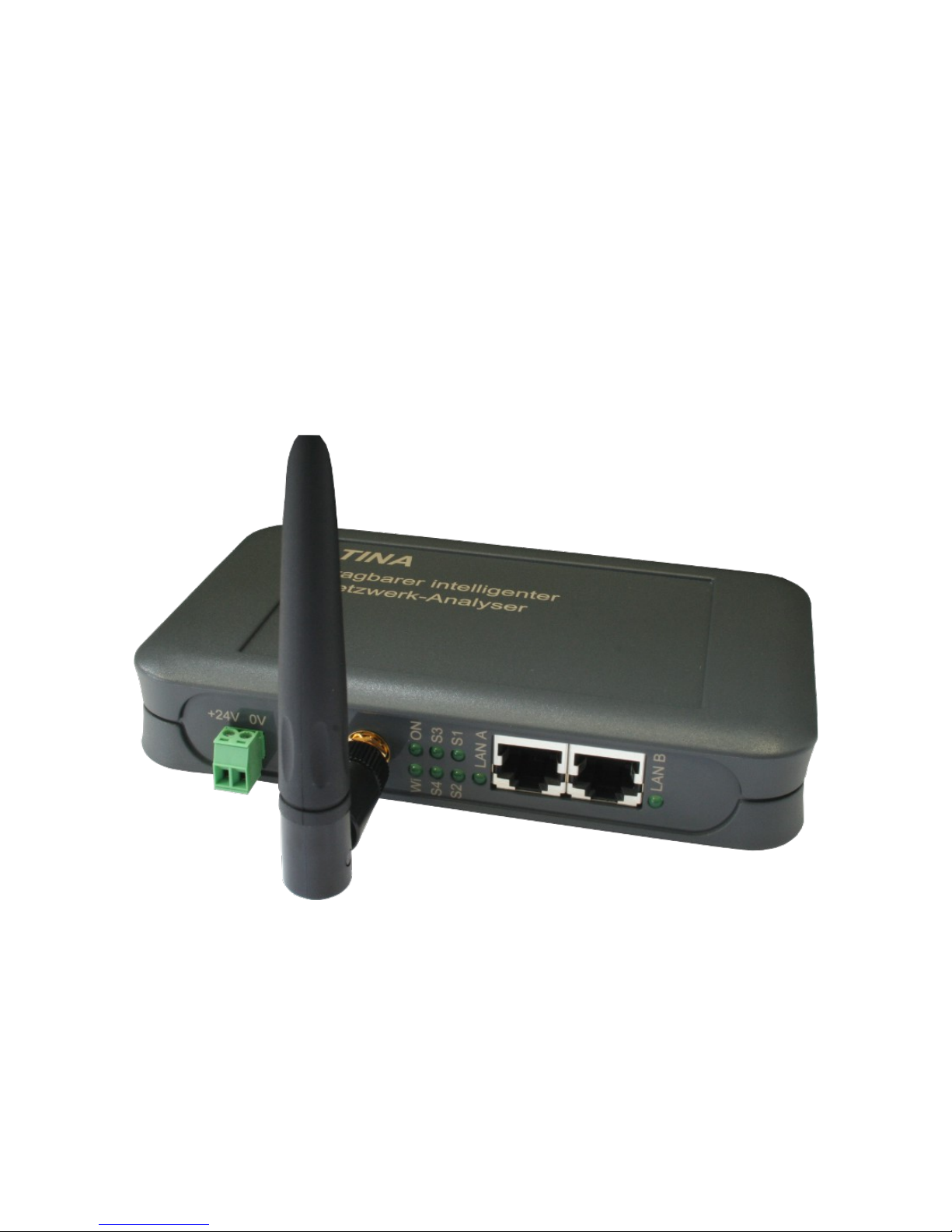
The device has some status LEDs on the front size of the device. The
LEDs have the following meanings:
•ON: lights if the device is powered
•Wi: lights on active WLAN and blinks on data transfer
•S1: currently not in use
•S2: currently not in use
•S3: currently not in use
•S4: currently not in use
•LAN A: lights if the link state on interface A is active and blinks on
data transfer
•LAN B: lights if the link state on interface B is active and blinks on
data transfer
manual TINA V1.05 page 10
Andere Handbücher für TINA
1
Inhaltsverzeichnis
Andere PI Messgerät Handbücher