Pyle PSCNPHO32 Bedienungsanleitung

FILM SCANNER
INSTRUCTION MANUAL
Model: PSCNPHO32
For correct usage please read these instructions carefully and keeps in a safe place for future reference!
* Illustrations are for instructional purposes only,
and may be dierent from the actual product.

2
Safety precautions
Important: Do not expose this product to rain or moisture to preserve the life of your
product.
Caution:Do not disassemble this unit. To prevent the risk of electric shock, do not
remove cover.
Ventilation: The device should be situated so that its location or position does not
interfere with its proper ventilation. For example, the unit should not be
situated on a bed, sofa, rug or similar surface that may block the
ventilation openings.
Heat:The device should be situated away from sources of high heat such as
radiators or stoves.
Cleaning: We strongly suggest using a clean, dry, non-alcohol cotton swab to clean
the glass surface periodically to produce a clear image.
Non use period:The USB cord for the device should be unplugged from the computer
when the unit is left unused for a long period of time.
USB overloading: Do not overload the USB connections on your computer. If you have
too many devices connected to your computer such as a wireless
mouse, media player, mobile phone or other USB powered devices.
There may not be enough power for the film & photo scanner to
operate properly.
Servicing:The user should not attempt to service the device beyond those means
described in the operating instructions. All other servicing should
be referred to qualified person.
Film Holder: The design of the film holder follows ISO standard. In some cases the holes
on the film will not match exactly to the alignment of the holder. This is caused by a
non-standard camera. In this case there will be a small black line on the edge of the frame
that can easily be cropped out using photo editing software.
ISO-- International Organization for Standardization
For environmental protection and energy conservation, besides in PLAYBACK and USB
mode, the device will be powered off automatically without any operation in 30 minutes of
inactivity.

3
Package contents
◆Film scanner
◆Negative Adapter
◆Slide Adapter
◆110 lnsert
◆Super8 lnsert
◆Video cable
◆USB cable
◆AC/DC adapter
◆Brush
◆User’s Manual
Please remove the adaptor from the mains when not in use.
Operation Guide
Home/MODE: Main menu
①Language mode
②USB mode
③Capture mode
④Playback mode
⑤Film Type
⑥Resolution
①
②
③
④
⑤
⑥

4
Home/MODE: No memory card
If there is no memory card inserted into the device, a warning icon will be
shown on screen when entering the main menu
1: Capture
or
After the welcome page, the above menu will appear. User can press
LEFT/RIGHT button for desired menu, then press OK button to confirm the
selection.
1.1 Adjust brightness and color of image
You can adjust brightness and color of image in capture mode.
When enter into capture mode, press OK button, following picture will show on:
EV means brightness;R means red; G means green; B means blue.
Press OK button to switch, press LEFT/RIGHT button to adjust data
Press SCAN button back to image preview mode
1.2 Capture: Mirror/Flip(Hard Key)
If any image requires for Mirror or Flip before capture, press LEFT/RIGHT
No memory card indicator

5
button for Mirror/Flip function, the live view will be adjusted accordingly (This
step can be used to correct a misplaced the film/photo; either upside down or
flip). Mirror and Flip function can only be used while in the live view mode.
Press LEFT button to change image left to right
Press RIGHT button to upside down image
1.3 Capture mode
Once entered capture mode, there will be an indicator on the left top
corner to indicate it is in live view mode.
User can also press OK button, then press LEFT/RIGHT button to adjust
EV value, press SCAN button again to confirm and back to live view mode.
1.4 Capture: Edit Menu
①Save: save captured image
②Cancel: cancel any editing with this image
③Home: back to main menu
Mirror
Flip
Capture
②
①
Selected image
③
live view indicator

6
1.5 Live view Capture/Edit menu
Once press SCAN button in live view, the edit menu will appear. When
user press OK button, the current image will be saved to internal memory or
memory card when there is a memory card inserted, the display will return to
live view again.
1.6 Capture: Save
Once user press SCAN button, preview (live view) image will be selected
and shown on the TFT which will take between 1~2 second with 2 icons shown
on the left side of the screen. Save icon will be highlighted for user to confirm
by OK button, after the above step, the display will go back to live view mode
(preview)
1.7 Capture: Cancel
Select Cancel icon with LEFT/RIGHT button and press OK button to
cancel any editing step with present selected image and the display will return
to live view mode (nothing will be saved)
1.8 Capture: Home
SCAN
OK
Save
Selected image

7
Select Home icon with LEFT/RIGHT button, then press OK button or
press MENU button on top of the device anytime to return to main menu
1.9 Exit from Edit mode back to Capture mode (live view)
Once user press OK button for save or cancel option, the display will
return to capture mode/live view. Then user can move the film holder to next
target film or change another photo to capture.
1.10 Memory full
Once the images in internal memory or memory card is full, a memory full
icon will be shown on screen when press SCAN button. User has to download
the images to PC or replace another memory card for continue capture.
2: Playback
or
Press LEFT/RIGHT button to playback mode when power on the device or
access the main menu by Home icon/MENU button anytime. Press OK button
to confirm the selection.
2.1 Playback: Auto Slide Show
Once user enter playback mode (default to slide show), TFT will auto
display all images stored in internal memory or memory card with 2 seconds
Slide show mode
Memory full indicator

8
interval from previous captured image. User can also stop the slide show by
press OK button (Only the images captured by the film & photo scanner are
available in playback mode)
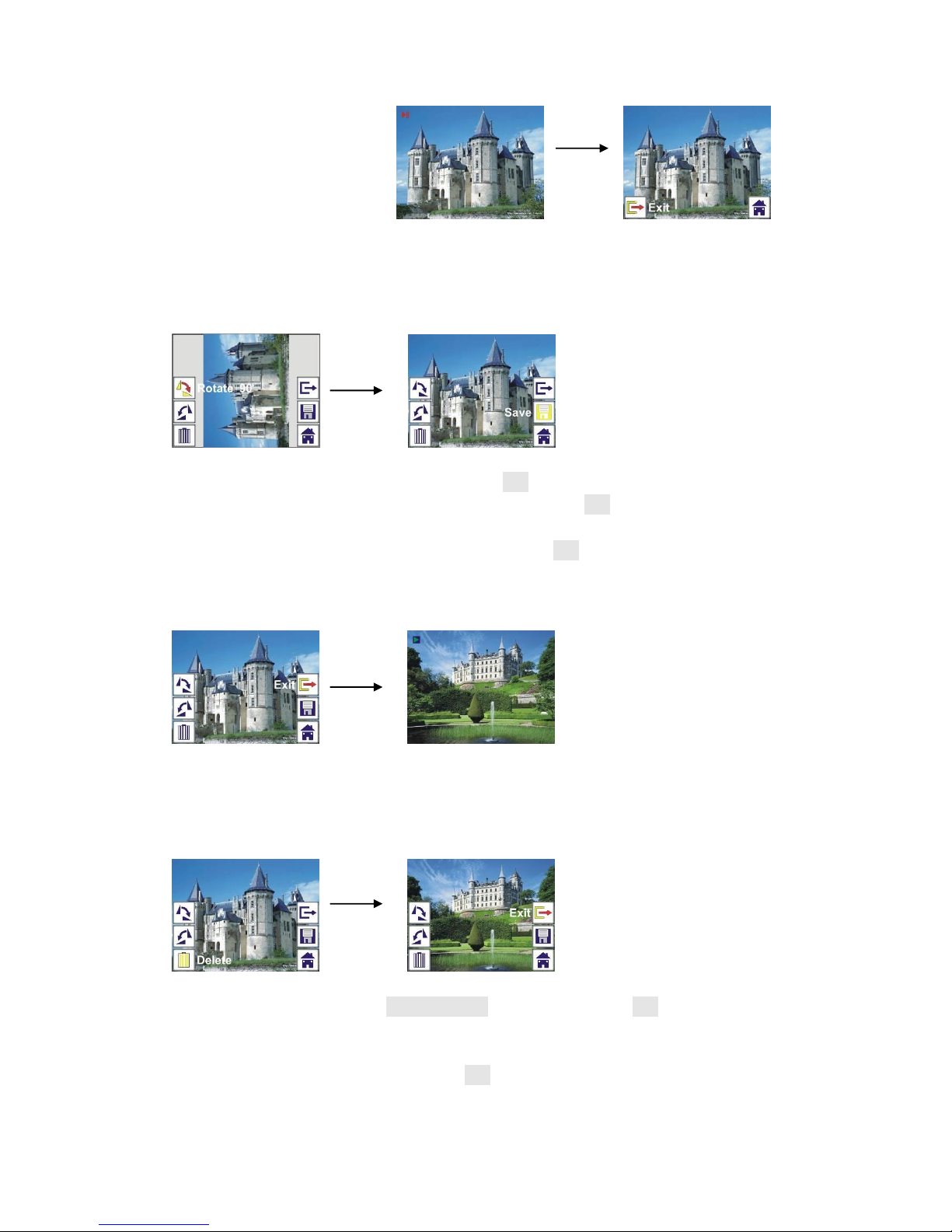
2.2 Playback: Edit Menu
①Rotate +90: captured image rotate +90 degrees
②Rotate –90: captured image rotate –90 degrees
③Delete: delete this picture stored in internal memory or memory card
④Exit: return to Slide show mode
⑤Save: save the modified image to internal memory or memory card
⑥Home: return to main menu
2.3 Playback: Slide show Single picture Edit mode
User can interrupt (stop) slide show mode to stand alone playback mode
(single picture playback) by press OK button. (Pause slide show) Then user is
able to scroll each picture by LEFT/RIGHT button. Once user select the picture
stored in internal memory or memory card which intended to be modified,
press OK button again to bring out the edit mode for modification.
If there is no memory card inserted or no image in internal memory, TFT
will auto display 20 frames stored in internal memory when enter playback
mode, but they will not be edited anytime.
①
②
③
④
⑤
⑥
OK
OK
Slide show mode
Single picture mode
Use LEFT/RIGHT button
to scroll picture
Edit mode
OK

9
2.4 Playback: Rotate/Save
If user wants to rotate +90 degrees by OK button, the image will be rotated
+90 degrees and cursor will remain at Save. Press OK button again to save
modified result and next picture will be shown. For continuously rotate +90
degrees, move cursor to rotate again and press OK button. (Same for Rotate
–90 function)
2.5 Playback: Exit
Once user select Exit function in edit menu, the display will go back to
slide show starting with the current picture without any change
2.6 Playback: Delete
Select delete icon with LEFT/RIGHT button then press OK button, that will
delete the present selected picture and next picture will be shown. Cursor will
remain at Exit icon. If user intend to process continuously delete, just move
cursor to delete icon again and press OK button to confirm.
OK
OK
OK
OK

10
2.7 Playback: Home
Select Home icon with LEFT/RIGHT button, then press OK button or
press MENU button on top of the device anytime to return to main menu
2.8 Playback: No Picture
If there is no picture when enter playback mode, a No picture symbol will
show on screen
Using the Adapter Plates
Once you’ve set your scanner to the correct film type, be sure to choose
and use the proper adapter for the job. lncluded are 2 adapter plates and 2
adapter inserts, each precisely cut to accommodate a particular type of film:
◆#1:Slide Adapter
◆#2:Negative Adapter
◆#3:Super8 lnsert
◆#4:110 lnsert
Inhaltsverzeichnis
Andere Pyle Scanner Handbücher