Swann iFly Micro Lightning Bedienungsanleitung

iFly Micro Lightning
Helicopter
MIFLYML010811E
SWTOY-IFLYML-GL

2
The Helicopter
iOS controller interface
Upper Rotors
Balance Bar
Lower Rotors
Charging socket (far side) Power ON/OFF
Flight control
Transmitter
ON/OFF
Trim control
Flips the
screen to use
the controller
rotated 180
degrees
Toggles Motion Tilt
Control on/o (which
uses the mobile
device’s tilt function
to control the
helicopter)
Band Selector: shows
the current transmission
channel.
Return to
helicopter select
screen
Throttle control
Tail rotor
Congratulations on purchasing your licence to have fun! You always knew your mobile device
could do almost anything. Now you can add one more cool thing to the list. With this iFly
chopper from Swann, you can take to the skies using the remote control or by using your iOS
device (iPhone, iPod Touch, iPad) as the control panel with the included iFly IR transmitter. Your
chopper is probably already on the helipad waiting to take ight so let’s get to it.

3
Quick Start Guide - iOS
Quick Start Guide
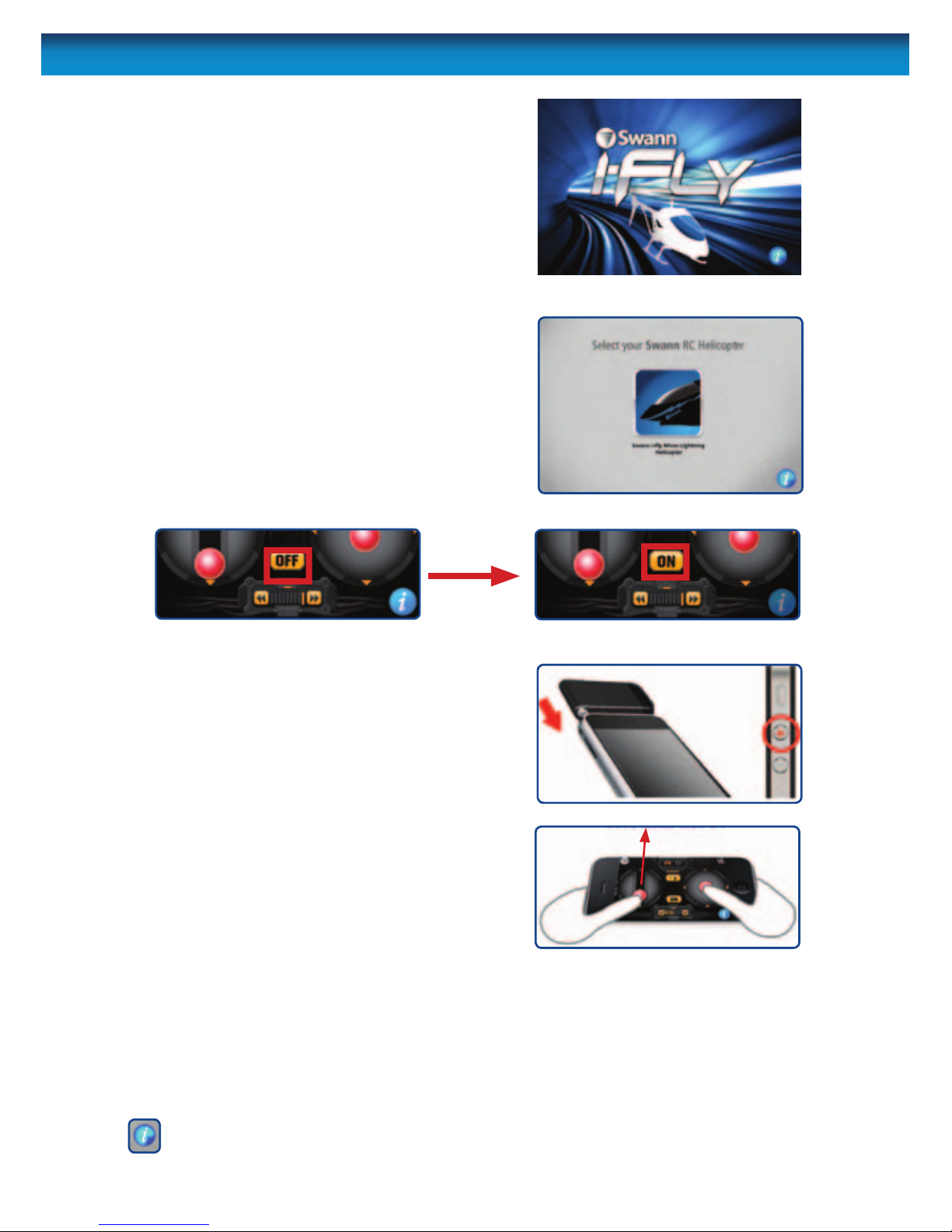
1. Fully charge the iOS transmitter (see page 4)
and the helicopter (see page 5).
2. Go to the Apple iTunes App Store.
3. Search for the app called “Swann iFly”.
Download and install the app. At the time of
writing, the app is free to download but you
will need an iTunes account.
4. Tap the Swann iFly icon to run the app.
5. Tap “Go”to start the app.
6. Turn on the helicopter.
7. Choose your helicopter by tapping the Swann
iFly Micro Lightning shown on the screen.
8. Tap “OFF” to toggle the transmitter control
interface to “ON.”
9. Plug the transmitter into the headphone jack
of your iOS device.
10. Turn up the volume on your mobile device to
maximum. The display should indicate you
are turning up the ‘headphones’ volume (NOT
the ringer or speaker volume). If this is not
done, a warning will prompt you to turn your
headphones volume to maximum.
11. Move the throttle control slowly up to send
power to the helicopter. The controller will
automatically nd a channel for the helicopter.
If more than one helicopter is within range,
make sure they are o or make sure you
have chosen a dierent channel to any other
helicopter.
12. Adjust the trim control if needed to ensure the
helicopter ies straight
13. Use the ight control to control the direction of
the helicopter.
(i) INFORMATION: If you need additional help, you can tap the (i) button in the
bottom right of the screen to get more information.
89
10
7

4
Charging the Transmitter
Quick Start Guide - Remote Control
Charging the transmitter
• Plug the transmitter charging plug into the
charging port on the transmitter labelled“CHG”
and the USB end into a compatible USB port.
NOTE: The transmitter uses a dierent charging
cable to the helicopter. When charging, the
red light on the transmitter will glow. When
charging is nished, the light will stop glowing.
• When connected to a mobile device and the
transmitter is turned on from the control
interface, a blue light will glow on the
transmitter. If the blue light begins to ash, the
transmitter is low on power and needs charging
with the USB cable.
• The transmitter will not charge through the
mobile device, even if the mobile device is
plugged into a power source.
Fitting the transmitter to your device
• Install the transmitter by plugging it into the
headphone socket of your mobile device as
shown in the picture on the right. Make sure it
is properly seated and pushed in all the way or
you may not get a proper connection.
• When controlling the chopper, ensure the infra-
red LEDs are facing towards the chopper at all
times.
WARNING: Do NOT y near eyes or face.
!
To use the remote control as the controller, you will rst need to install batteries.
Replacing Batteries in the Controller: The battery compartment is located on the
rear of the controller. Undo the screw with a precision screwdriver and open the battery
compartment. Install 6x AA alkaline batteries. Don’t mix old and new batteries. For more
information on battery usage and safety, consult page 13.
IR LEDs

5
Charging the helicopter
Charging the helicopter using the USB cable
Before you can take ight, you need to charge the battery in the helicopter using the supplied
USB charging cable. NOTE: The helicopter uses a dierent charging cable to the transmitter.
• Ensure the helicopter is turned OFF before attempting to charge it.
If left ON, it won’t charge.
• Plug the charging plug into the charging port marked‘CHA”
on the left side of the helicopter and the USB end into a
compatible USB port. The connector only plugs into the
helicopter one way. Check the orientation of the power
cable carefully when connecting it to the helicopter. If it
feels tough to insert or you need to use force, it’s probably
upside down!
• When charging, the red light on the USB plug will NOT glow.
When charging is nished, the RED light WILL glow.
IMPORTANT NOTE: When charging from a USB port, always connect the USB plug to a USB
port without connecting the helicopter. Ensure the red light in the USB plug lights up. When
you connect the helicopter, this light will turn o. If it does not go out, this indicates that
the helicopter is not being charged - check that the helicopter is turned o, and check the
integrity of the connection.
Note:
• It will take about 45-60 minutes to fully charge. Don’t over-charge the helicopter by leaving
it connected to a charger for more than ninety (90) minutes.
• On a full charge with no wind, you should get over 8 minutes ight time.
• If the helicopter has trouble lifting o the ground or does not y as high as normal, it
means the battery is running low and needs recharging.
• The range of the transmitter and helicopter is about 18ft/6m. Avoid ying the chopper
outside this range since you may lose control of the helicopter.
Charging the helicopter using the remote control
• Open the charging lead compartment located on the
underside of the remote control, and extend the charging
lead.
• Turn the remote control ON.
• Plug the charging plug into the charging port marked
‘CHA” on the left side of the helicopter.
• The RED/ORANGE charging LED on the remote control will
glow whilst the helicopter is charging. The GREEN LED will
glow when charging is complete.
• If the LED is ashing, then pair the remote, as described on
“Pairing the Remote” on page 6, and it will then
read accurately.

6
Pairing the remote control
Pairing the Remote
Before you can y, you need to ‘pair’ the helicopter and remote together. To do this:
• turn on both the helicopter and remote
• select a frequency using the band selector switch. If ying multiple helicopters, ensure
each is on a dierent band
1. slide the throttle
control to minimum
2. aim the controller’s IR transmitter at the helicopter
3. move the throttle from minimum to maximum (bottom to
top) and back again. The helicopter will now be paired to
that controller.
Band Selection
This is a two channel IR helicopter. This means that two helicopters can be used at the same
time, provided they are paired to dierent bands.
The switch in the upper centre of the controller selects bands. You can choose either BAND A
or BAND B.
If using two helicopters at once:
• Ensure that one controller is set to BAND A and the other set to BAND B.
• Pair the helicopters very carefully. For best results, pair each helicopter in separate rooms.
• Ensure that they aren’t within line of sight of one another when pairing.
• If you’re only using one helicopter, you can use either BAND A or BAND B.
• If the controller is interfering with any other devices, or other devices are interfering
with the helicopter, try changing control bands.
Flight Control
Rotational Trim Control
IR Band Selector
IR Transmitter LEDs
Power Switch
Power
Indicator LED
Throttle

7
Using the Controller
Up/Down (Ascending/Descending)
The height of the helicopter is controlled by the throttle which varies the speed of the
spinning rotors.
Ascend: Slide the throttle up to increase
the spinning speed of the rotors and make
the helicopter ascend.
Descend: Slide the throttle DOWN to
reduce the speed of the spinning rotors
and make the helicopter descend.
Note: To get good results, be gentle and subtle. Small adjustments made slowly and carefully
are the best way to get the helicopter to y well. Be careful when easing o the throttle – if the
helicopter stalls (that is, doesn’t have enough lift to stay in the air) it’ll fall, and might not be
able to recover in time, even if you jam the throttle back on.

8
Forward, Backwards
The ight control on the controller aects the helicopter’s direction.
Forwards: Sliding the ight control up will
pitch the nose of the helicopter down and
move the helicopter forward.
Backwards: Sliding the ight control down
will pitch the nose of the helicopter up and
move the helicopter backwards.
Using the Controller

9
Turning/Rotating left/right
Rotate/Turn Left: To make the helicopter
turn to the left, slide the ight control to the
left.
Rotate/Turn Right: To make the helicopter
turn to the right, slide the ight control to the
right.
Using the Controller

10
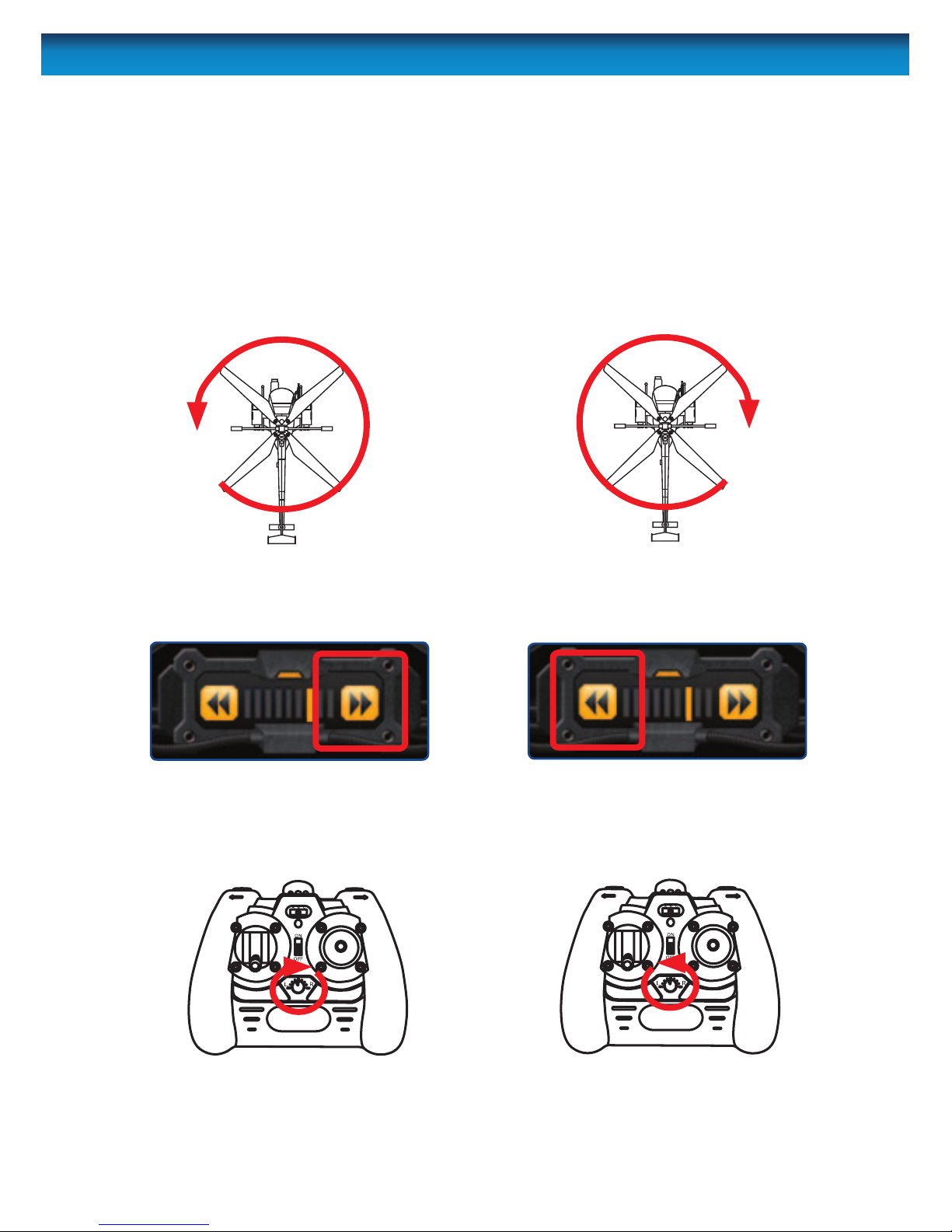
Trim (Rotation)
Drifting right: While hovering, if the
helicopter is rotating clockwise:
• Tap the LEFT trim control -or-
until the helicopter stops drifting to the
right.
Drifting left: While hovering, if the
helicopter is rotating counter-clockwise:
• Tap the RIGHT trim control - or-
until the helicopter stops drifting to the
left.
What is trim (rotation)?
If you nd that the helicopter is turning slowly left or right when you’re not using the ight
control, then you’ll need to adjust the trim. The trim control is located in the centre of the
controller, between and just below the primary controls.
You’ll probably have to do this every couple of ights, but it only takes a moment. Basically, the
trim‘ne-tunes’the speed of the rotor blades, and will help keep the helicopter ying straight.
• Rotate the trim control clockwise • Rotate the trim control counter-
clockwise
Inhaltsverzeichnis
Andere Swann Spielzeug Handbücher

Swann
Swann Black Bedienungsanleitung

Swann
Swann Air Duel Bedienungsanleitung

Swann
Swann Crimson Eye Bedienungsanleitung

Swann
Swann Air Force Bedienungsanleitung

Swann
Swann Missile Strike Bedienungsanleitung

Swann
Swann Sky Duel Bedienungsanleitung

Swann
Swann Xtreem Micro Attack Bedienungsanleitung

Swann
Swann Micro Lightning remote control model... Bedienungsanleitung

Swann
Swann Sky Eye Bedienungsanleitung