
Tactacam Reveal XB SK Bedienungsanleitung

INSTRUCTION MANUAL
REVEALCELLCAM.COM
2
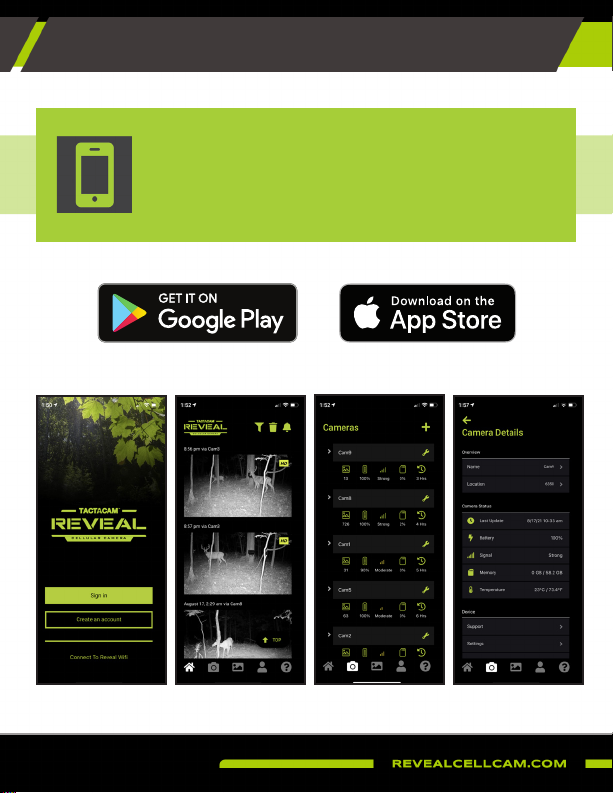
REVEAL APP DOWNLOAD
VISIT YOUR APP STORE TO DOWNLOAD
DOWNLOAD THE
TACTACAM REVEAL APP
3
TABLE OF CONTENTS
INTRODUCTION
Front View
Bottom View of Camera
Internal and Side View of Camera
QUICK START
What is in the Box?
Setting up the Camera
Downloading the App
Adding Camera to the Web Portal or App
SETTINGS & SPECIFICATIONS
BEST PRACTICES
Proper Camera Placement
Camera Stops Taking Images or Won’t Take Images
Night Vision Flash Range Doesn’t Meet Expectations
PRODUCT CARE
WARRANTY
3
4
4
4
4
5
5
6
7
8
11
13
13
15
15
16
17
TABLE OF CONTENTS

4
1
5
2
6
10
14
18
3
7
11
15
19
20
4
8
12
16
9
13
17
INTRODUCTION
Lens
XB Antenna/SK has Additional on right
IR LEDs
Camera Working Status Indicator (Red)
Device Status Indicator Light (Green/Blue)
SD Card Indicator (Red/Green)
SIM Slot (DO NOT REMOVE)
Power Switch (ON/SETUP/OFF)
PIR Motion Sensor
WiFi Indicator Light (Blue)
Microphone
Battery Level Indicator
4G Signal Indicator
SD Card Slot
Test Button
Battery Eject Button
Reset Button
External Battery In/DC Port
USB Port
Tripod/Mount Attachment
12
13
10
14
11
9
16
15
1
2
3
4
5
6
7
8
18
19
20
17
5
• (1) Trail Camera
• (1) Instruction Manual
• (1) Mounting Strap
• (1) Antenna - XB=1 SK=2
• (1) Verizon & AT&T
SIM’sCard
•
• SK ONLY
• SK Lipo pack
• SK Solar charger
• SK adjustable mount
• SD Card - Class 10, U3, 16GB-32GB
• Recommended Brands: Tactacam,
Lexar, SanDisk
(Other brands of lower end SD cards are
incompatible with the Reveal X and will yield
unexpected results)
• XB will need 12 AA Batteries
QUICK START GUIDE
WHAT IS IN THE BOX? WHAT YOU WILL NEED
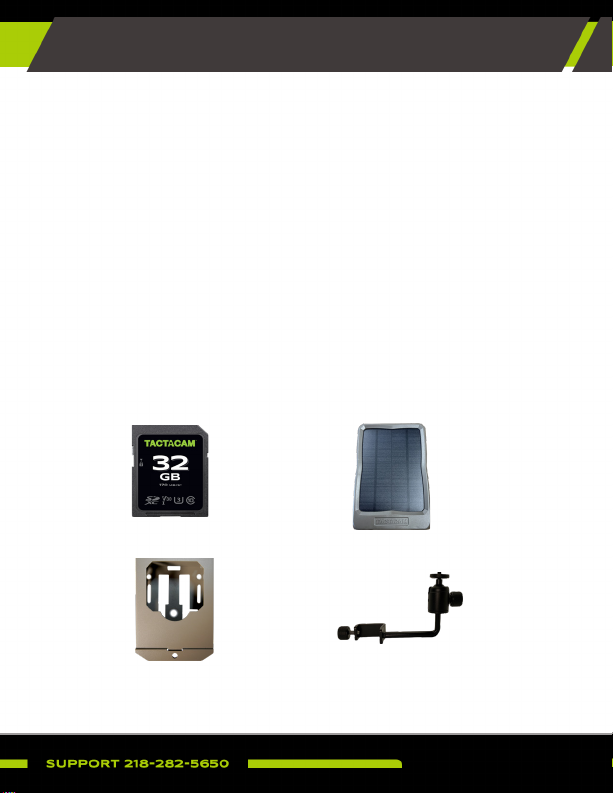
RECOMMENDED CAMERA ACCESSORIES (NOT INCLUDED)
SD Card Solar Panel
T-Post MountLockable Security Box
VIEW AND PURCHASE ALL ACCESSORIES AT REVEALCELLCAM.COM
6
1. Install camera’s antenna.
2. Install a Class 10 U3 SD card
(16GB or 32GB).
3. XB = Install 12 AA batteries.
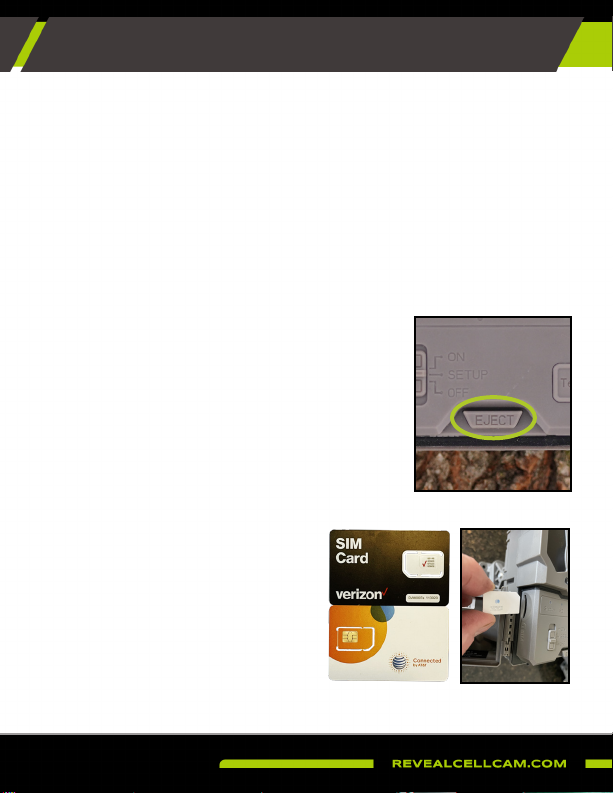
4. Verizon or AT&T SIM Card install
Locate the Verizon and AT&T Sim
card located in the white envelope
included in your package. Remove
the desired SIM Verizon or AT&T from
its holder and install into the Sim
slot of your camera. When activating
the camera you will need to select
Verizon or AT&T depending on which
Sim you selected for your camera.
SETTING UP THE CAMERA
QUICK START GUIDE
• Tighten securely to prevent
internal moisture/condensation
inside the lens.
• To eject the battery tray or SK-Lipo Pack,
press the EJECT button on the Reveal. If
install AA batteries correctly orientat + and -
on the front and back of the tray.
• SK Lipo Pack will need to be charged with
a USB C cord befor use. You will see a red
charging light on thwhen charging. the red
light will go off when cfully charged.
• See battery details on page 13 under Best
Practices.
• Recommended brands are: SanDisk, Lexar and Tactacam
7
QUICK START GUIDE
In your Apple or Google Play Store, download the Tactacam
Reveal app and sign in using the same email and password you
created on the website.
If you already have a Reveal account with ACTIVE cameras, you
can simply login to your app and add your camera following the
instructions below.
5. Turn the power switch to SETUP
• Check the indicator LED status lights; you will see all green when the camera
is ready. Only the WiFi indicator light will be blue.
• If the SD card indicator light is not green, the SD card is bad and needs to
be changed. Be sure to always use a formatted SD card.
• Next to the SD indicator light is the WiFi indicator light. This will be slowly
ashing blue, meaning it is in pairing mode.
• Default camera WiFi SSID is Reveal_****
• Default camera WiFi password is Reveal2021
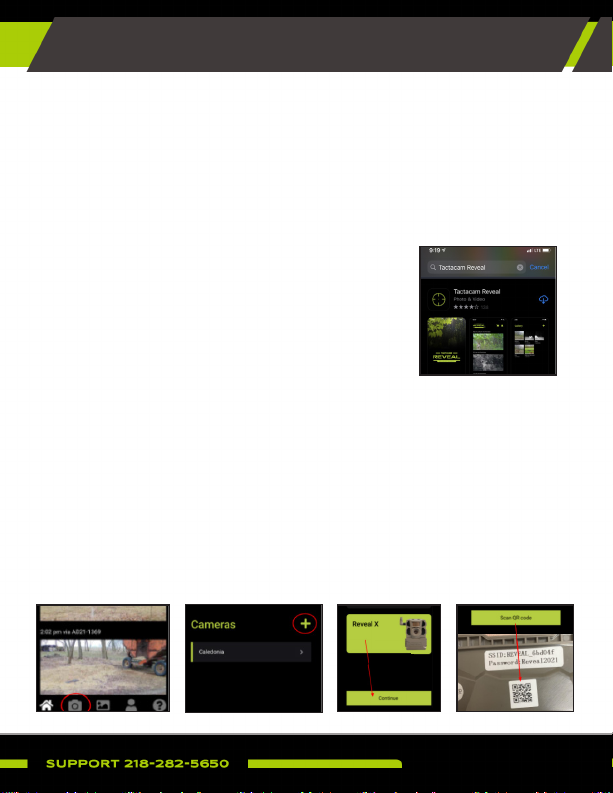
DOWNLOADING THE APP
1. Click the camera icon at the bottom of the screen
2. Click the + in the upper right hand corner
3. Select Reveal X and Continue
4. Using your phone, scan the QR code located inside the door of the camera
5. Camera activation can take a couple minutes, then you will be prompted to give
your camera a name and location.
If this is your rst Reveal that you are activating, please visit the Reveal Web Portal
at https://account.revealcellcam.com to set up your account. Once you have
created your account, and set up your data plan, it is time to activate your camera
in the app:
8
QUICK START GUIDE
If this is your rst Reveal that you are activating, please visit the
Reveal Web Portal at https://account.revealcellcam.com/activation
to set up your account.
SET UP CAMERA THROUGH WEB PORTAL
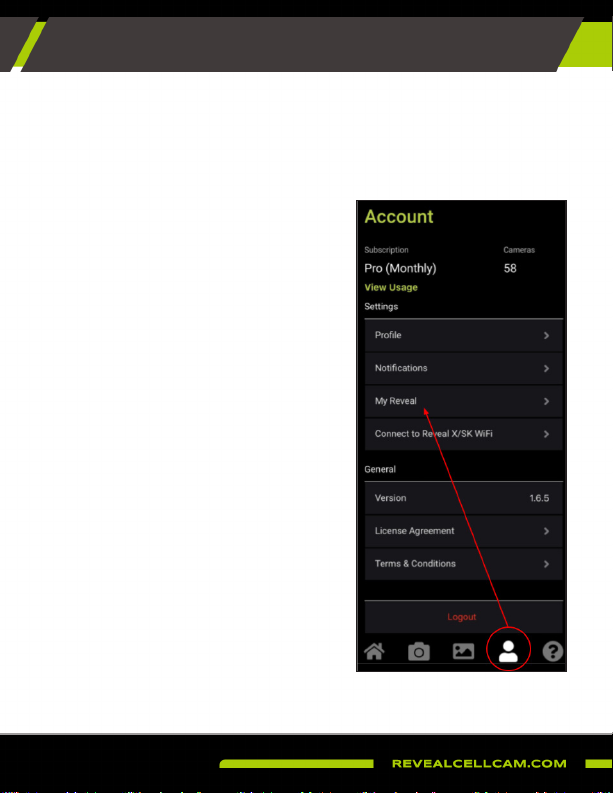
You can also access the Web Portal
directly from your app, by clicking My
Reveal on this screen in the app:
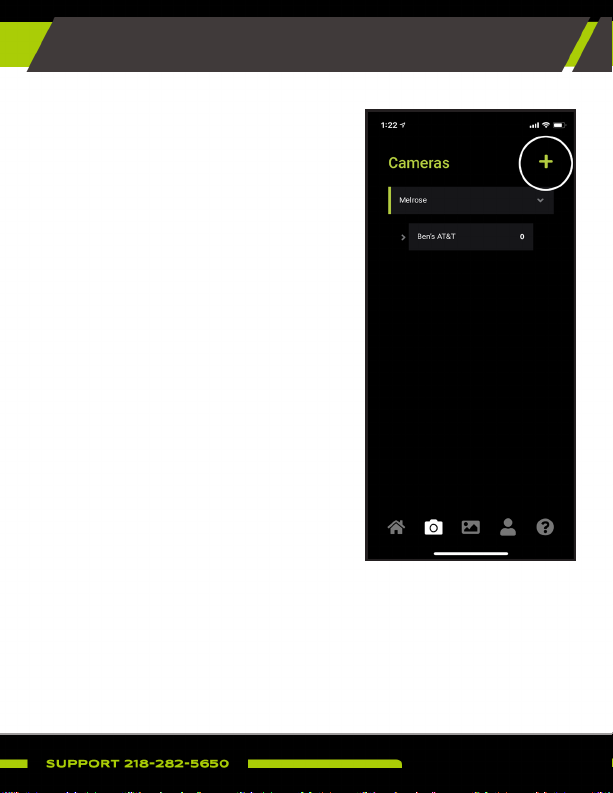
1. Open the Reveal App.
2. Click the camera icon at the
bottom of the screen.
3. Click the (+) in the upper right
corner to select a data plan and
add your rst camera.
4. Follow the prompts to connect
your camera.
5. On the camera, scan the QR
code on the inside of the door to
activate your camera.
6. After your camera is activated, you
will see the signal status indicator
searching, and then connect
showing the signal strength.
ADD CAMERA TO THE APP
9
QUICK START GUIDE
• You can also remotely change
the camera settings from the
App, it will take up to 24 hours for
settings to be applied.
7. You can automatically change and
apply the camera settings when
your phone is connected to the
camera’s WiFi. This will not work
unless you are next to the camera.
ADD CAMERA TO THE APP (CONTINUED)
1. Allow the camera to connect to 4G
signal. The LED signal indicator
light will be constant green.
SENDING A TEST PICTURE
• After your camera is activated,
you will see the signal status
indicator searching, and then
connect showing the signal
strength.
• After the camera has connected, push the test button to send a
photograph.
• You will see the status light blinking as the image is sending.

10
1. While your camera is connected to your phone with WiFi, you will be
able to access a live preview to help with camera setup and proper
placement.
2. Ensure that the antenna is securely tightened.
3. Wipe down the seal, removing any dirt or debris.
4. Turn the camera to the ON position.
5. Format your SD card in the App.
6. As long as your phone picks up a signal, be sure a motion detected
picture is sent to your phone via the App.
LEAVING YOUR CAMERA IN THE FIELD
START USING THE REVEAL X
SENDING A TEST PICTURE (CONTINUED)
• When the test picture sends successfully, the status light will
turn green.
• If the status light turns red there may have been an issue
trying to send the test photo. This is usually caused by signal
strength.
2. Refer to the app to be sure the picture is successfully sent.
3. While your camera is connected to your phone with WiFi, you will be
able to access a live preview to help with camera setup and proper
placement.
4. Allow the camera to connect to 4G signal. The LED signal indicator
light will be constant green.
Inhaltsverzeichnis
Andere Tactacam Scouting-Kamera Handbücher


