bem wireless BM0100 Bedienungsanleitung

Bēm Wireless Entertainment Goggles
Your dedicated private-screen TV
Instructions
Model: BM0100
Dear Entertainment Goggles User:
Thank you for purchasing the Bēm Wireless Entertainment Goggles! We sincerely hope that our products
can bring you convenience and happiness! To make better use of Entertainment Goggles, please read the
instructions carefully and keep them handy for future reference.

1. Read Instructions
Before using the equipment, please read all safety and operating instructions.
2. Cautions and Warnings
Improper usage of the product may cause an electric shock or fire. Please follow the instructions to
operate the product to achieve the best results.
3. Clean
Before cleaning, unplug the power adapter of this product from the wall power outlet. Use a dry cloth to
wipe the product casing. Do not use liquid or aerosol cleaners as it may cause damage to the product.
4. Install
Do not place this product on an unstable cart, stand or table. It may fall, causing serious damage.
Please place the included accessories and equipment plastic packaging materials out of children’s reach,
otherwise bags may cause suffocation.
5. Power
Please use supplied power adapter for charging and power supply. (Note: Using a 5V / 2A power adapter
to charge this product is required, common power adapters and computer USB jacks are not suitable for
charging this device)
6. Maintenance
Do not attempt to repair this product by yourself. Professional and technical personnel can be
commissioned to do so.
7. Component Replacement
If you need to replace components of the product, be sure to use replacements specified by the
manufacturer. (Important: Unapproved substitutions may result in fire, electric shock or other hazards.)
8. Change in Temperature
If the product is moved from a cold temperature to a warm temperature, do not power on and operate
immediately. Since the products have experienced this change in temperature, moisture may have
condensed on the lens and internal key components. To prevent damaging the product, when the
temperature changes dramatically, you should wait at least 2 hours before powering on and using the
unit.
9.Attention
While watching Entertainment Goggle videos, it is possible for the user to be so fascinated as to ignore
environmental and safety issues. Please pay attention and take good care of your personal property
security and personal safety during usage. The manufacturer is not responsible for the loss or damages
caused by the user's own negligence of security or property.
1

Accessory List
1. In-ear earphones
2. Wireless Mouse
3. Flannel bags
4. 5V / 2Apower adapter
5. USB Charging Cable which supports 5V/2Apower adapter (one end Standard USB,the other port for
Micro USB)
6. User’s Manual
7. Warranty Card
1. Technical Specifications
1.1 CPU: Rock chip RK3188 4-core 1.6GHz
1.2 1GB memory, 4GB Flash storage capacity
1.3 Built-in Android 4.2.2 system: Supports online upgrades, WIFI, PC Whole functionality (online/off
line)
1.4 Supports authorized mobile IPTV by use of WIFI.
1.5 Android game: supports built-in authorized game APK
1.6 Miracast / DLNA: intelligent connectivity with the smart phone to watch videos, photos, and play
music anytime, anywhere.
1.7 Resolution 854x480, screen contrast ratio 16: 9
1.8 Supports 1080p HD video, photo, MP3 and other displays and play functions can be fully recognized
1.9 Supports external TF card, maximum capacity can be expanded to 32GB
1.10 Wi-Fi: Built-in 802.11b / g / n
1.11 Bluetooth 4.0
1.12 Interface picture shows: battery status, Wi-Fi signal strength, etc.
1.13. Built-in Battery: 4000 mAh
2

2. The Key Positioning and Functions:
Each key position is shown below:
2.1 Power: Pressing and holding for 4 seconds or more will power on/off Entertainment Goggles
2.2 Home: Short press to return to the main screen
2.3 Vol +: Short press to increase the volume
2.4 Vol -: Short press to reduce the volume
2.5 Reset: Compulsorily stop the system and perform shutdown
2.6 Touch Pad: Move the mouse to operate the System
2.7. USB (Host): can connect a mouse or a keyboard and other standard USB devices
2.8 Micro-USB Port: When connected with the supplied power adapter and the Micro USB charging
cable charging will charge the unit
2.9 TF: external SD card can be added to expand memory capacity, maximum support 32G (Micro SD
card)
2.10 Earphone: Connect to a standard 3.5mm headset or other audio device
2.11 Power Indicator: When product is in use, the front light bar indicator will display green;
2.12 Charging Indicator: During Charging, the front light bar indicator will display red. When the
Entertainment Goggles are fully charged, the red light bar indicator will turn off. In a situation where the
Entertainment Goggles are being operated while charging, the front light bar indicator will display
yellow.
3

3. Function Operation
3.1 Touch Pad Operation
(1) Selection on the Touch Pad: to perform the selection, slide the cursor up and down, left and right, to
move the cursor to the selected symbolic icon or words. Then click on the cursor or the selected
symbolic icon on the touch pad surface.
(2) Page Turning on the Touch Pad : Double-click on the middle of the touch pad screen, after the
second touch keep the finger pressed on the screen, then slide up or down to switch to the next or the last
interface .
(3) Close the Multi-view window: When set to a small window, double-click on the touch pad, after the
second touch hold on for 2 seconds until the Close icon appears, and then click the Close icon
3.2 Mouse Operation
(1) The left mouse button function: Click the left mouse button to confirm
(2) The right mouse button functions: Click the right mouse button to return to another interface
(3) The middle mouse button functions: slide the middle button up and down for page turning
3.3 Power on
Press and hold the Power Button for 4 seconds and the system will start. 3 seconds later the indicating
animation will display, as shown below
About 15 seconds later the main screen interface is shown, the following image will appear
4

3.4 Shutdown
Press and hold the Power Button for 4 seconds, the system enters the shutdown process, which will be
indicated on the screen.
3.5 WIFI connection
3.5.1 Online surfing by connecting the USB (Host) port with the mouse (recommended), or by operating
on the touch pad screen.
3.5.2 Select “Settings”on the main screen interface by sliding operation on the touch pad or by using the
mouse
3.5.3 Slide the WIFI “Off / On”to “On”to open WIFI function. When WIFI is turned on, the WIFI
switch will display blue, as shown below
5

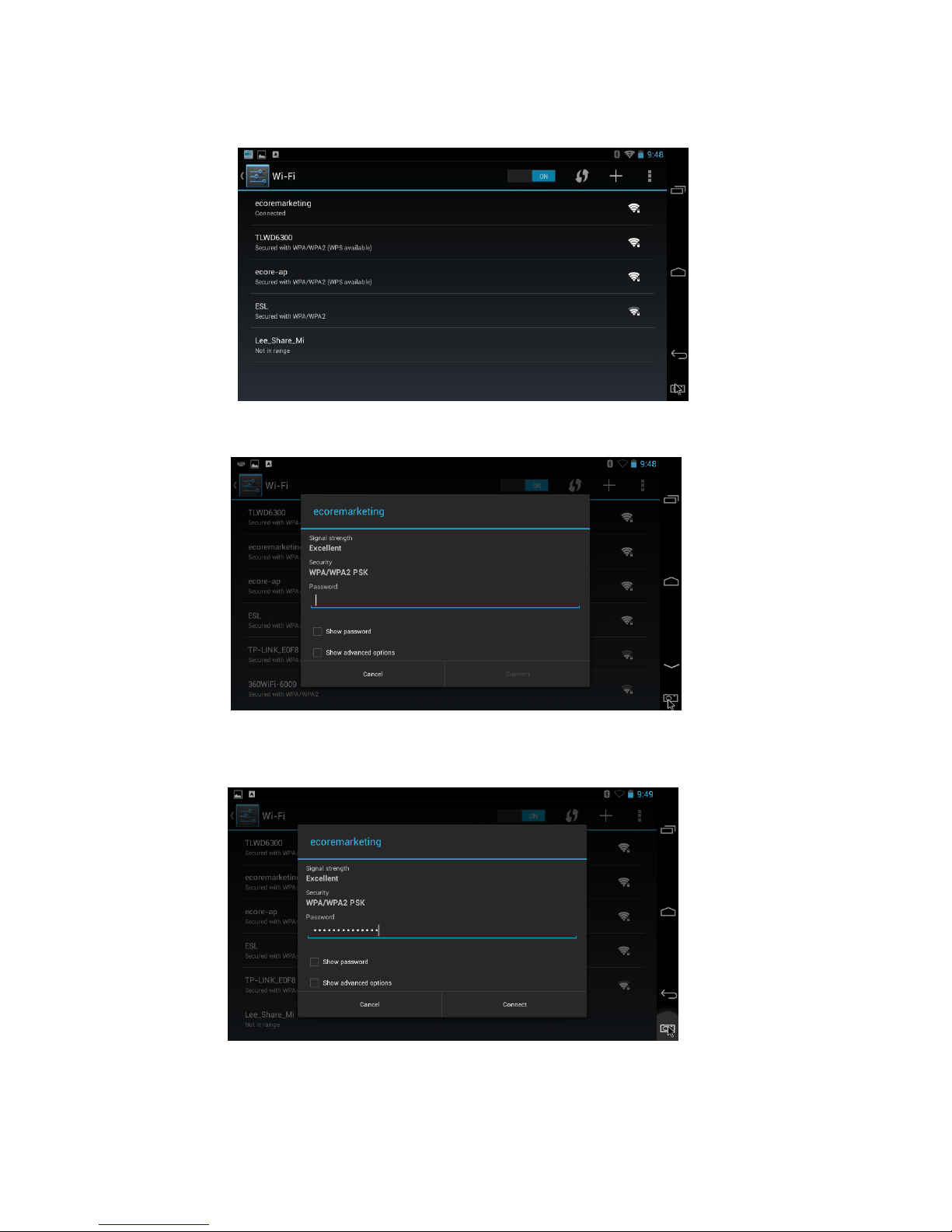
3.5.4 Click “Wi-Fi” to enter into the network search interface. The system will automatically search for
and display all the WIFI networks that can be received, as shown below
3.5.5 Click on the workable network to enter the password settings interface, as shown
3.5.6 Click the Password field to enter the password input interface, you are allowed to choose “Show
password”. As shown below
6

3.5.7 Click on the touch pad or use the mouse to enter the password, click the upper “Done” icon or the
below “Done”button to confirm the password. After confirmation it will switch to the network
connection interface, as shown below
3.5.8 Click the “Connect” button, the system will perform a network connection, if the connection is
successful the icon will indicate connected, as shown below
3.5.9 Click the icon on the right which represents the return function, or press the return button
on the pad to leave the network settings interface and return to the main interface.
4. Browse the web
4.1 Click on any application icon , click the network connection icon , to enter into the default
Web site “Bēm Wireless” http://www.Bemwireless.com.
7

4.2 To connect to another site, click on the address bar and enter into the keyboard interface, enter the
full domain name and then click GO graphic on the bottom right corner of the keyboard to navigate the
site.
5. Bluetooth Pairing connection settings
The Entertainment Goggles audio signal, such as music, can be sent to and displayed on a Bluetooth
speaker/Earphone/Headset which has been paired via Bluetooth.
5.1 Click on the Settings icon
5.2 Click the Bluetooth switch on the right side, if in the open state, the button displays blue, as shown
below
8

5.3 Click on Bluetooth to enter the Bluetooth device search interface, as shown below
5.4 Click on the device name to enter pairing operating interface
5.5 Click the “Pairing” button for pairing connection. To ensure that your device has successfully
paired please make sure the icon is listed next to the device.
9
Inhaltsverzeichnis