-6-
2.2 Recording
When the HDD overwrite function is activated, this device will overwrite 8GB data from the oldest for continuous
recording without notice.
1) Continuous Recording Icon
When the DVR is properly connected with camera, you can see the icon “ ” (recording) on the screen.
2) Event Recording Icon
When the motion / alarm detection is activated, once motion or external alarm happens, you will see the icon
“ ” (motion) or “ ” (external alarm) on the screen.
3) Timer Recording Icon
When the timer record is activated, you will see the icon “ ” (timer) on the screen.
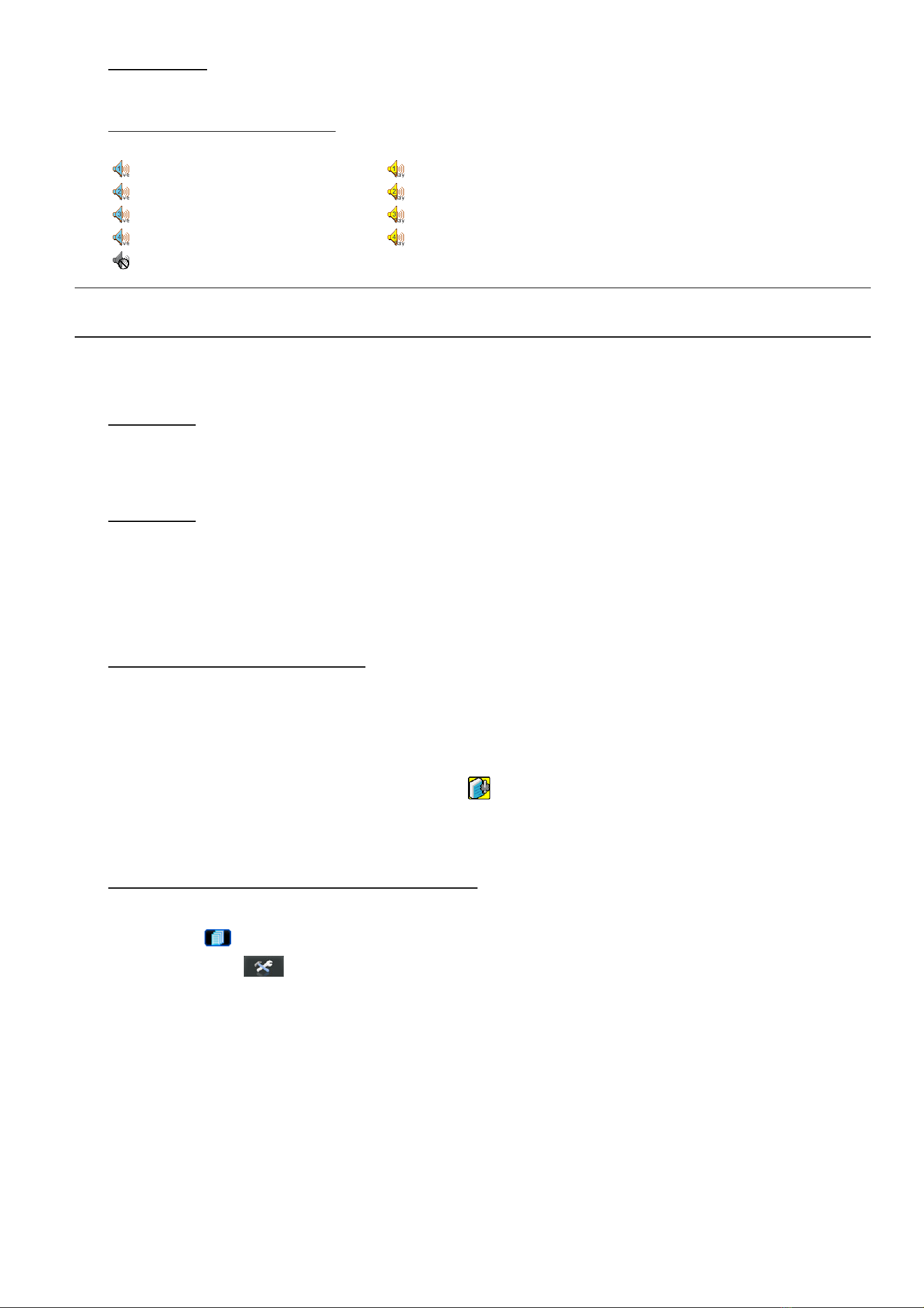
Note: The audio source connected to the “Audio 1” will be recorded with the video of the “CH1”.
The audio source connected to the “Audio 2” will be recorded with the video of the “CH2”.
The audio source connected to the “Audio 3” will be recorded with the video of the “CH3”.
The audio source connected to the “Audio 4” will be recorded with the video of the “CH4”
Note: A new log will be added in the system log when the HDD data is overwritten or the recording starts
after DVR reboots.
4) HDD Overwritten Icon
The HDD overwritten function can be set to ON / OFF. When this function is enabled (ON), the icon will display
on the monitor screen.
2.3 Playback
Press “PLAY” on the DVR control panel, and the device will playback the latest recorded video.
Note: There must be at least 8192 images of recorded data for playback to work properly. If not, the
device will stop playback. For example, if the IPS is set to 30, the recording time should be at least
273 seconds (8192 images / 30 IPS) for the playback to work properly.
Note: The playback at the local site might not be so smooth if there’s any remote surveillance
simultaneously going on.
1) Fast Forward / Fast Rewind
You can increase the speed for fast forward and rewind on this device. In the playback mode:
Press “FF” once to get 4X speed forward and press twice to get 8X speed, etc. And the maximum speed is 32X.
Press “REW” once to get 4X speed rewind and press twice to get 8X speed, etc. And the maximum speed is 32X.
Note: During playback, the image size of the recording (FRAME, FIELD or CIF) will be shown on the
screen.
2) Pause / Image Jog
Press “PAUSE/+” to pause the playback.
In the Pause mode:
Press “FF” once to get one frame forward.
Press “REW” once to get one frame rewind.
3) Stop
Press “STOP” under playback mode, and the screen will return to live monitoring mode.