
Hunt HNR-3016GN Bedienungsanleitung

Network Video
Surveillance System
User Manual
Contents of this user manual are protected under copyrights and computer program laws.
NVR : NVR
1st Edition : 17 Sep. 2013
Thank You!
Before operating the system, please read this User Manual and retain it for future reference.

WARNING
TO REDUCE FIRE OR SHOCK HAZARD,
DO NOT EXPOSE THE UNIT TO RAIN OR MOISTURE.
The installation should be made by a qualified service person
and conformed to all local codes.

3
Cautions
Read Before System Operation
Follow these details to prevent material damage or personal injury.
Signs of Caution and Warning
Warning: This sign indicates that the user could die or be seriously wounded if not used or installed
properly.
Caution: This sign indicates that the user could be wounded or could expect property damage if not
used or installed properly.
Warning: Do not expose the product to fog, rain or too much humid to decrease danger from electric shock
or fire.
General Warning
Warning
1. Use the power cord, which is supplied or recommended by the supplier, or
it may cause fire.
2. Do not disassemble or reassemble the product.
It may cause malfunction or fire.
3. Enquire to your vendor for repair.
It may cause electric shock or fire if the repair is not done properly.
4. Do not touch the product with wet hands.
It may cause malfunction or electric shock.
5. Product installation must be ensured to a professional for product installation, or
it may cause malfunction, electric shock or fire.
6. Ground applies to video products equipped with a 3-wire grounding type plug having a third (grounding) pin.
This plug only fits into a grounding-type power outlet.
If grounding is not done, it may cause malfunction or electric shock.
7. Ground connection must not touch gas pipe, water pipe or telephone line.
If grounding is not done properly, it may cause electric shock.
8. Prevent metallic foreign substance from going inside the product.
It may cause malfunction or electric shock.
9. Do not spray insecticide or flammable spray while driving.
It may cause fire.
10. Place the system in a open place where air ventilation is guaranteed, or
it may cause over-heating and seriously damage the system to be fired.
11. Prevent water from instilling inside electrical parts.
Clean with a dry towel or malfunction or electric shock could result.

Caution
1. Use the power cord, which is supplied or recommended by the supplier.
The internal fan rotates at high speed and may cause an accident.
2. Do not drop, give strong vibration, or shock to the product.
It may cause malfunction.
3. The air inhaler of the front panel and air outlet of the back panel must not be blocked during installation.
The internal temperature of the product would be greater than allowable and could cause malfunction or
fire.
4. Do not touch the product or the power cord when there is thunder.
It may cause electric shock.
5. Do not install the product near or on top of heating source.
The internal temperature of the product would be greater than allowable and could cause malfunction or
fire.
6. Do not install the product on inclined or unstable location or where vibration could be committed.
It may cause malfunction.
Cautions about the Power
Warning
1. Must use the outlet of the grounding to connect the power cord, or
it may cause fire.
2. Do not connect on the middle of power cord or use extension cord.
It may generate heat or cause fire.
3. Do not touch the power cord with wet hands.
It may cause electric shock.
4. Keep power cord dry and protect from humidity.
It may generate heat or cause fire. The power cord is not waterproof.
5. Hold the body of the plug while removing the power plug.
Do not pull the power cord. Damage to the power cord may generate heat or cause fire.
6. Check the power plug regularly.
Humidity and moderation in smoking may cause fire.
7. Remove power cord from outlet when product is not used for a long time.
It may cause short-circuit or electric shock.
Caution
1. Do not turn off the power by removal of the power plug.
To turn off the power, click the power button from the front panel.
When the system stops abnormally, the power button might not work. Click power button for 5 full seconds to turn
power off.
2. Do not cut off the power artificially, or give shock or vibration to unit while the hard disk is activating.
It may cause hard disk failure or loss of data.
Remarks
Pictures and buttons are subject to be changed or modified up to different models.
Function or configuration is subject to be changed or modified without prior notice for improvement of the product.

5
Contents
1. GETTING STARTED ............................................................................................................................................................................. 1
1.1 CHECKING SUPPLIED ITEMS....................................................................................................................................................................1
1.2 SYSTEM STARTUP ...................................................................................................................................................................................2
1.3 SYSTEM SHUTDOWN ...............................................................................................................................................................................3
2. OPERATION ........................................................................................................................................................................................... 4
2.1 USE LOG-IN.............................................................................................................................................................................................4
2.2 LIVE DISPLAY MODE ..............................................................................................................................................................................5
2.3 SEQUENCE...............................................................................................................................................................................................8
2.4 ZOOM ......................................................................................................................................................................................................9
2.5 FREEZE MODE.........................................................................................................................................................................................9
2.6 ADD BOOKMARK ....................................................................................................................................................................................9
2.7 IP CAMERA INFORMATION....................................................................................................................................................................10
2.8 PTZ CONTROL ......................................................................................................................................................................................10
2.9 PLAYBACK RECORDED IMAGES ............................................................................................................................................................11
2.10 QUICK BACKUP DURING PLAYBACK.....................................................................................................................................................11
2.11 SEARCH RECORDED IMAGE ..................................................................................................................................................................12
2.12 DST SETTING AND IMAGE PLAYBACK..................................................................................................................................................17
3. SETTING................................................................................................................................................................................................ 18
3.1 SYSTEM ..............................................................................................................................................................................................18
3.2 DEVICE..................................................................................................................................................................................................28
3.3 RECORD ................................................................................................................................................................................................34
3.4 NETWORK .............................................................................................................................................................................................38
3.5 BACKUP ................................................................................................................................................................................................47
3.6 QUICK SETUP ........................................................................................................................................................................................49
4. Q&A ........................................................................................................................................................................................................ 50


1
1. Getting Started
1.1 Checking Supplied Items
Make sure that you have following items supplied with your NVR. If any of these items is missing or
damaged, notify your vendor immediately. Keep the packing utilities for moving or storage purposes
afterwards.
Items
Photo
Quantity
User Manual and
Remote Software
(*) Quick Manual and CD
1 Set
48V D/C Adaptor and
Power Cable
1 Set
IR Remote Controller
1 Set
Terminal Block
and Rubber Mount
.
1Pair(2 Pieces)
1 Set(4 Pieces)

2
1.2 System Startup
This NVR System receives the data of IP cameras based on ONVIF and stores it and transfers it to
other devices.
After connecting all peripheral devices, connect power cord to the NVR for system startup.
Input USER and PASSWORD for login after turning on the system. The factory default of user and
password are “ADMIN” and “1234” respectively. Admin user is to fully control the entire NVR system.
.
Note
1) Do not forget the administrator’s password that was set for the first time. In case the
password is forgot, contact your local dealer for help.
2) Refer to the “Section 3.1.2 User” for AUTO LOGIN and AUTO LOGOFF.
Caution
It may take a few minutes to startup the system after turning on the power, in case that
user sets the network configuration as DHCP mode but there is neither DHCP server in
user’s network nor physical network connection.
3
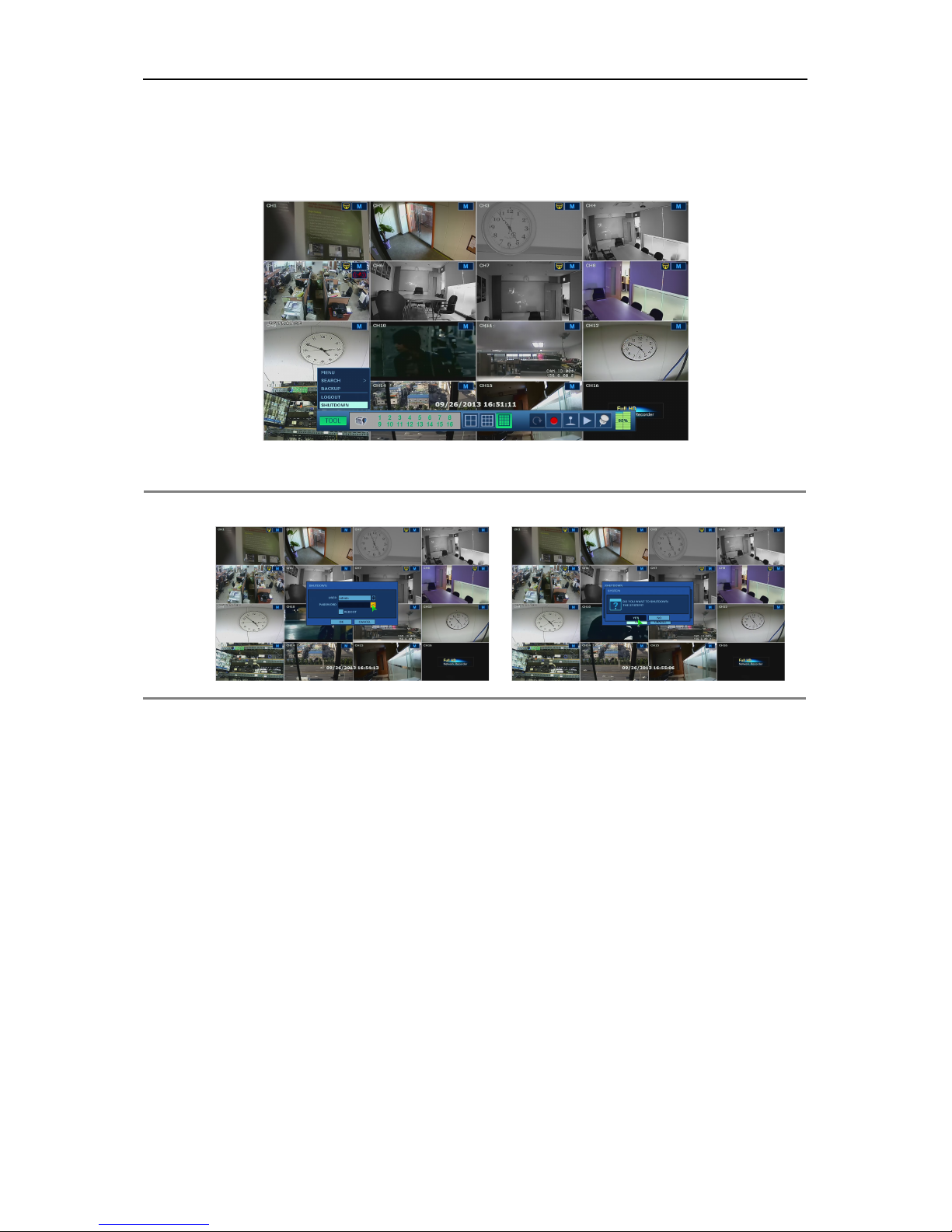
1.3 System Shutdown
When mouse point moves to bottom of the screen, the menu bar is shown.
To turn off the power, click “TOOL” button and then click “SHUTDOWN” in the GUI software as below.
Do not pull off the power by pulling the power plug.
When the system asks User & Password, input them which has the rights to system shutdown.
Note
User can put password by virtual keyboard, or front numeric buttons. (if available)

4
2. Operation
2.1 Use Log-in
Check the power connection.
After checking power on, User can log-in
Note
1) LOGIN Window will be permanently displayed in monitor as above picture until user logs
in with correct ID and Password.
2) If NVR is set as AUTO LOGIN, login process isn’t necessary.
Please refer to the “Section 3.1.2 User” for details.
Inhaltsverzeichnis
Andere Hunt DVR Handbücher


