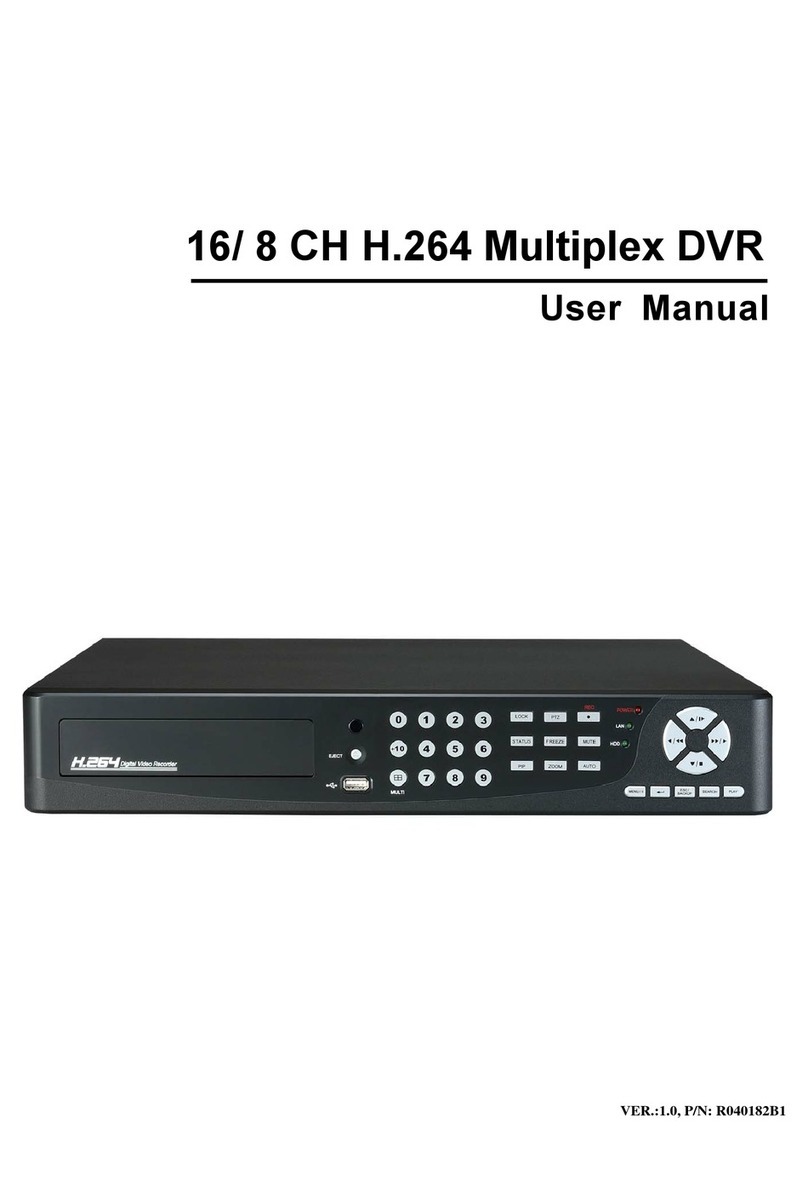
netZeye 4-CH DVR Bedienungsanleitung

Quick Start Guide
4-CH DVR


4-CH DVR Quick Start Guide
1
1. Install Hard Drive &DVD Writer
1.1 Install Hard Drive
Notice: 1. Support two SATA hard drives. Please use the hard drive the manufacturers
recommend specially for security and safe field.
2. Please disconnect the power before being connected to other devices. Don't hot plug in/out
Step 1: Unscrew and Open the top cover to connect the power and data
cables. Place the HDD onto the bottom case as Fig 1-1.
Step 2: Screw the HDD as Fig 1-2.
Fig 1-1 Connect HDD Fig 1-2 Screw HDD
Notice: 1. For the convenience to install, please connect the power and data cables firstly,
and then screw to fix.
1.2 Install DVD Writer
Step 1: Unscrew and Open the top cover to connect the power and data
cables. Place the DVD writer onto the bottom case as Fig 1-3.
Step 2: Screw the DVD writer as Fig 1-4.
Fig 1-3 Connect the DVD Writer Fig 1-4 Screw the Writer
2. Rear Panel Instruction

4-CH DVR Quick Start Guide
2
1
Alarm outputs, connect to external
alarm
8
Audio inputs
2
Alarm inputs for connecting sensors
9
HD SDI video inputs
3
Connect to speed dome
10
Connect to high-definition display device
4
Connect to keyboard
11
VGA output, connect to monitor
5
CVBS output
12
Network
6
Audio out, connect to sound box
13
Connect external USB devices like USB flash
drive, HDD
7
Talk, connect to microphone
14
DC12V
3. Startup & Shutdown
3.1 Startup
Step1: Connect to cameras and monitor.
Step2: Connect with the source power.
Step3: The device will boot and the power indicator will display blue.
Step4: A WIZZARD window will be pop-up.
3.2 Shutdown
You can shut down the device by using IR remote controller and mouse.
By IR remote controller:
Step1: Press Power button. This will bring up a shutdown window. The unit will
shut down by clicking “OK” button.
Step2: Disconnect the power.
By mouse:
Step1: Enter into Menu and select “Shut Down” icon. This will take you
to a shutdown window.
Step2: Click OK. Then the unit will power off after a while.
Step3: Disconnect the power.
4. Setup Wizard
After the device starts, a setup wizard pops up. You can set up time,
network , record and disk management.

4-CH DVR Quick Start Guide
3
Click Device name box to popup a keyboard as follows:
It supports digits, alphabets and symbols as inputs. Click Shift button to input
Capital letters and symbols; click Shift button again to return.
Click „Next‟ button to bring up a network setup window.
The default HTTP port is 80. The default server port is 6036. You can check
„Obtain an IP address automatically‟ to acquire network information or input IP
address, subnet mask, gateway, preferred/alternate DNS server manually. This
function is used to monitor DVR through internet (See Section 10 for details).
Click „Next‟ button. This will take you to record setup window.
Select resolution, fps, encode, quality and max bitrate. The higher the value is,
the clearer the recorded picture is. Of course, more space of HDD will be taken

4-CH DVR Quick Start Guide
4
up.
Click „Next‟ button. This will take you to the HDD management window.
You can check your HDD information through this tab. If your HDD was
recently installed, select the HDD from the list to format it.
Click „Next‟ button. This will let you to see your DVR status. And then
Click „Finish‟ button to end this wizard.
You can also refer to the complete setup steps from the relevant sections of
DVR User Manual. If you don‟t want to setup Wizard, please click Exit button to
exit.
5. Login
After you exit the wizard setup, you can login to the DVR.
Notice: This DVR can only display options on either VGA/HDMI monitor or CVBS
monitor at a given point of time, if there is live image display without menu
options,please check if there is display on other device/monitor, or long press
ESC/Stop key to wait for login dialog box to appear. Long press ESC/Stop key can
switch the output between CVBS and VGA/HDMI.
Press the MENU button which will bring the LOGIN dialogue box and enter the
user name: admin and password: 123456
Login
6. Main menu setup
Click right mouse, or press ENTER button on the front panel to enter into the
main menu. Then click Setup to enter into Setup interface as shown in Fig 4-2.

4-CH DVR Quick Start Guide
5
Main menu setup
Basic configuration: Users can set video system, menu language, audio,
time and authorization check.
Live configuration:Users can set name/time display, picture color and hide
cameras.
Record configuration:Users can set record quality, frame rate, resolution,
time stamp and recycle.
Schedule configuration: Users can set schedule for timer, motion detection,
and sensor alarm respectively.
Alarm configuration: Users can set sensor type, alarm trigger and buzzer
alarm.
Network configuration: Users enable network function, and configure IP
address, DDNS, transmission video parameters here.
User configuration: Administrator can add, delete users, and change their
authorization
PTZ configuration: Users can set protocol, baud rate, address, presets and
auto cruise track here.
Advanced configuration: Users can reboot the device and import & export
data into or from mobile storage medium.
7. Recording Setup
A user needs to install and format a HDD, and set all the recording parameters
before recording. There are four kinds of record modes.
7.1 Manual Recording
A user can press REC button on the front panel after quitting system setup.

4-CH DVR Quick Start Guide
6
Press this button again to stop recording.
Or press REC button on remote controller. Click it again to stop.
Or click REC button on the tool bar with mouse. Click it again to stop.
7.2 Schedule Recording
To Setup Schedule Recording:
Step1: Enter into MenuSetupSchedule tab. Refer to the following picture.
Step2: Click “ ” button to add a certain day schedule; click “ ” button to
delete the selected schedule;
Step 3: You can also double-click the grid to pop up a week schedule window.
Select day and then click „Add‟ button to setup the start time and end time.
Then select other days and click „Copy‟ button to save the setting to other days.
Finally, click „OK‟ button to save week schedule.
Step 4: Select other channels and set timeline for them or select „Apply
Settings To All Channel and click “Copy” button to set the same settings for all
channels.
7.3 Motion Based Recording
Motion detection based recording: when there is a motion event detected, the
camera will be triggered to record.
To Setup Motion Based Recording:
Step 1: Enter into MenuSetupScheduleMotion tab. The setup steps for
schedule for motion based recording are similar to normal schedule setup. You
can refer to 7.3 Schedule Recording for details.

4-CH DVR Quick Start Guide
7
Step 2: Enter into MenuSetupAlarmMotionMotion tab as shown
below.
Step3: Enable motion alarm (Please specify to channel) and click „Apply‟ to
save settings.
Step4: Click „Setting‟ button under the Area to set Sensitivity and Detection
area. Left click the grid and drag to delete the area. Drag again to add area.
You can drag slide bar to set the sensitivity value (1-8). The higher the value is
the more sensitive it is to motion. Since the sensitivity is influenced by color
and time (day or night), you can adjust its value according to the practical
conditions. Click icon to set the whole area as detection area. Click
icon to clear the set detection area. Click icon to test the sensitivity as per
the local conditions. Once motion is sensed, it displays a figure icon. Click
icon to save the setting. Click icon, exit current interface.
Step 5: Enter into MenuSetupAlarmMotionSchedule tab to bring up
schedule settings for motion alarm. The setup steps are similar to normal
schedule setup. You can refer to 7.3 Schedule Recording for details.
Note: The timelines of the two schedules must match, otherwise you cannot
get the record in some time.
7.4 Sensor Based Recording
To Setup sensor Based Recording:

4-CH DVR Quick Start Guide
8
Step 1: Enter into MenuSetupScheduleSensor tab. The setup steps for
schedule for sensor based recording are similar to normal schedule setup. You
can refer to 7.3 Schedule Recording for details.
Step 2: Enter into MenuSetupAlarmSensorBasic tab as shown below.
Step 3: Enable sensor alarm (Please specify to channel), select senor type and
click „Apply‟ to save settings.
Step 4: Enter into MenuSetupAlarmSensorSchedule tab to bring up
schedule settings for sensor alarm. The setup steps are similar to normal
schedule setup. You can refer to 7.3 Schedule Recording for details.
Note: The timelines of the two schedules must match, otherwise you cannot
get the record in some time.
8. Playback
This unit supports four kinds of playback
8.1 Live Playback
Click Play button on the main menu bar to playback the record. User can
do concrete operation by clicking the buttons on screen.
Inhaltsverzeichnis
Andere netZeye DVR Handbücher