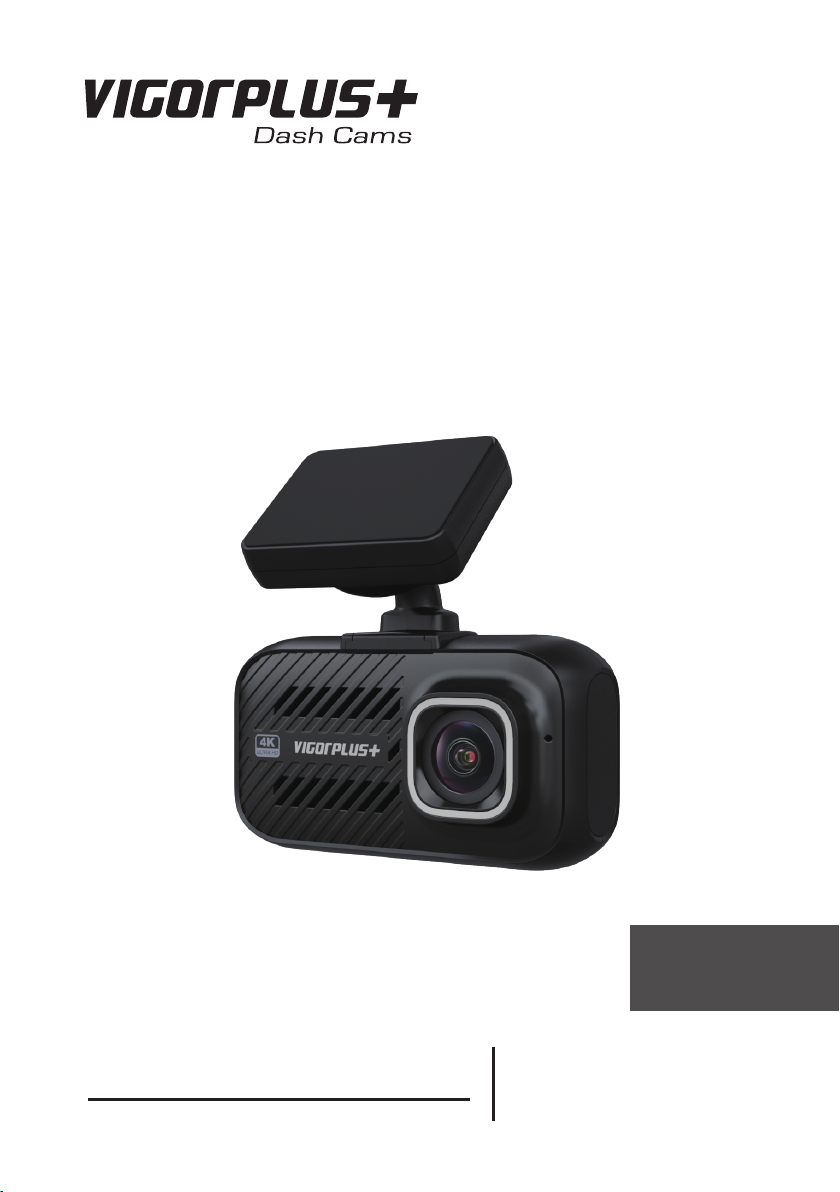
VIGORPLUS+ V26 Series Bedienungsanleitung

Instruction Manual
English
Professional
V26X Series High Definition Car DVR

2
English
Contents
PRECAUTIONS.............................................................................................................................................................2
PRODUCT SPECIFICATIONS ......................................................................................................................................3
PACKAGE CONTENTS.................................................................................................................................................5
PRODUCT FEATURES.................................................................................................................................................6
CONTROLS...................................................................................................................................................................7
INSTALLATION .............................................................................................................................................................8
INSERTING THE MEMORY CARD .......................................................................................................................8
INSTALLING IN VEHICLES ...................................................................................................................................9
VIDEO MODE..............................................................................................................................................................13
NORMAL RECORDING .......................................................................................................................................14
EMERGENCY RECORDING (FILE PROTECTED).............................................................................................14
AUTO REPAIR .....................................................................................................................................................14
PLAYBACK MODE ......................................................................................................................................................15
PLAYING VIDEOS ...............................................................................................................................................15
VIEWING PHOTOS..............................................................................................................................................16
MENU AND SETTINGS...............................................................................................................................................17
MENU OPTIONS .................................................................................................................................................17
UPDATING THE FIRMWARE ..............................................................................................................................19
PC CONNECTION ......................................................................................................................................................20
REVIEWING VIDEOS WITH GPS LOG...............................................................................................................20
My_Vcam APP (iOS) ...................................................................................................................................................22
My_Vcam APP (Android).............................................................................................................................................32
TROUBLESHOOTING ................................................................................................................................................42
PRECAUTIONS
Please read this manual carefully before operation and keep it for future reference. It will be helpful should you
encounter any operational problem.
WARNING: Do not expose this product to rain, moisture or water under any circumstances, doing so may result
in the risk of electric shock of re.
CAUTION: To reduce the risk of electric shock, do not perform and servicing other than that contained in the
instruction manual unless you are qualied to do so.
• Have the unit serviced by a qualied service technician if; The Unit has been exposed to rain
or water.
• The unit does not seem to operate normally.
• The unit exhibits a marked changes in performance.
LCD: A Liquid Crystal Display (LCD) screen is a multilayer complex component, containing 691,200
pixels. Pixels can however fail during normal product life. 1 pixel = 0.00014% failure rate, and one
pixel failures per year of operation is considered normal and not a cause for concern.
WEEE:
Disposal of Waste Electrical and Electronic Equipment and/or Battery by users in private
households in the European Union.
This symbol on the product or on the packaging indicates that this can not be dispose of as
household waste. You must dispose of your waste equipment and/or battery by handing it over to
the applicable take-back scheme for the recycling of electronic equipment and/or battery. For more
information please contact your local household waste disposal oce
DO NOT ATTEMPT TO SERVICE THE UNIT BY YOURSELF!
THE DEVICE WILL BECOME HOT DURING OPERATION. PLEASE AVOID
TOUCHING THE LENS DIRECTLY DURING OR AFTER USE.

2 3
English
PRODUCT SPECIFICATIONS
Chip
• V263(W)-NT96670
• V262(W)-NT96670
• V26R-NT96671
CMOS Sensor
• V263(W): IMX415 8M
• V262(W): IMX335 5M
• V26R: IMX307 2M
Video Resolution
• V263(W):
Single Channel Dual Channel
4K/30fps 4K/30fps+1080P/30fps
2K/30fps 2K/30fps+1080P/30fps
1080P/60fps 1080P/30fps+1080P/30fps
1080P/30fps
720P/60fps
720P/30fps
• V262(W):
Single Channel Dual Channel
2K/60fps 2K/30fps+1080P/30fps
2K/30fps 1080P/30fps+1080P/30fps
1080P/60fps
1080P/30fps
720P/60fps
720P/30fps
• V26R:
Single Channel
1080P/30fps
Screen 2.0 inches screen
Video Code / Format H.264/MP4 or TS
Audio Built-in Microphone/Speaker
Memory Card Capacity MicroSD card, support up to 256GB (Not included in package)
G-Sensor Supported
Parking Mode Supported (Hardwire kit not included in package)
Loop Recording Supported:1/2/3/5 minutes per segment
Backup Power Source Super capacitor (No lithium battery)
(Ensures all videos are written to the memory card on power failure)
Working Temperature -10°C ~ 60°C

4
English
External Power Supply 5V 1.5A
Voltage / Current
• V263 (without Wi-Fi):
Single Channel Dual Channel
Voltage: 5V
Current: 430~490mA
Voltage: 5V
Current: 800~850mA
• V263W (with Wi-Fi):
Single Channel Dual Channel
Voltage: 5V
Current: 570~640mA
Voltage: 5V
Current: 950~1010mA
• V262 (without Wi-Fi):
Single Channel Dual Channel
Voltage: 5V
Current:
Voltage: 5V
Current:
• V262W (with Wi-Fi):
Single Channel Dual Channel
Voltage: 5V
Current:
Voltage: 5V
Current:
Size • 75mm x 40mm x 25mm (without GPS bracket)
• 75mm x 40mm x 75mm (with GPS bracket)
Net Weight 60 g

4 5
English
PACKAGE CONTENTS
Please check the contents of your Dash Cam product package. The actual products might appear slightly dierent
from the pictures shown below.
Dash Cam
(Front camera)
Car charger with Type-C
adapter
USB data cable Quick start guide
V263W
2A
Quick Start Guide
V26X Series
12
GPS bracket with attached
3M adhesive sticker
Window Stickers (x2) 3M Adhesive Sticker
NOTE:
• Car charger with Type-C adapter is used for supplying power from the 12-24Vdc outlet of your vehicle.
• USB data cable is used for connection to a laptop/computer.
Optional accessories
Hardwire kit Rear View Camera with 6m / 8m(optional, available in
some regions only) rear camera cable (V26R)
NOTE:
Hardwire kit is used for power connection to the fusebox instead of the 12-24Vdc outlet of your vehicle, which
supports the Parking Mode function and car battery protection circuitry.

6
English
PRODUCT FEATURES
Thank you for purchasing this VIGORPLUS™ Dash Cam product. In this section, we will outline some of the features
available with this camera.
2.0” LCD Colour Screen
Large screen for ease of use for the camera congurations and viewing the playback of both videos and photos.
140° Ultra-Wide Angle Lens
Ultra-wide angle lenses paired with the new Sony IMX415 (V263(W)) or IMX335 (V262(W)) Starvis sensors for
superior night time video quality and reduced motion blur on views.
High Quality Recording Capability
The video resolution varies depending on the model number.
Model Number Single Channel Resolution Dual Channel Resolution
V263(W)
• 4K/30fps
• 2K/30fps
• 1080P/60fps
• 1080P/30fps
• 720P/60fps
• 720P/30fps
• 4K/30fps+1080P/30fps
• 2K/30fps+1080P/30fps
• 1080P/30fps+1080P/30fps
V262(W)
• 2K/60fps
• 2K/30fps
• 1080P/60fps
• 1080P/30fps
• 720P/60fps
• 720P/30fps
• 2K/30fps+1080P/30fps
• 1080P/30fps+1080P/30fps
V26R • 1080P/30fps
Combined with WDR Technology
V26X dash Camera balances bright and dark areas, displaying objects in consistent and accurate video or images,
even in low-light environments. The camera is suitable for wide range-contrast environment.
G Sensor / File Protection
In the event of an impact, the camera will automatically ‘protect’ the recording, stopping the le from being
overwritten. Individual les can also be ‘protected’ when viewed within playback mode.
You can also press the red ( ) button to manually start the ‘protected’ recording.
More information about File Protection/Emergency Recording:
• If the le protection/emergency recording starts at the beginning 15 seconds of recording le, both current le
and previous recording le will be protected.
• If the le protection/emergency recording starts at the nal 15 seconds of recording le, both current le and
next recording le will be protected.
Automatic Start / Stop Technology
As soon as the vehicle ignition is turned on, the camera will start to record automatically. When the ignition is turned
o, the camera will perform an automatic shutdown process.
Optional Hardwire Kit with Parking Mode Function
With this function, the camera automatically starts recording when it is triggered by the G-Sensor, keeping your car
safe when parked.
Built-in Microphone & Speaker
Record audio to compliment the video recordings.

6 7
English
CONTROLS
V263W
OK
27
6
39
4
8
10
11
5
12
13
14
1
1. MICROPHONE
Integrated microphone for audio recording.
2. CAMERA LENS
Wide angle 140º.
3. SPEAKER
Integrated speaker for audio playback.
4 LED INDICATOR
• Red = power on
• Red ashing = recording
5. MENU ( )
• Press to open the OSD menu.
• Long press to enter the Wi-Fi mode.
6. UP ( )
• Recording Mode: Enter the Playback mode.
• Playback Mode: Move to the next le.
• Video Playback Mode: Rewind playback.
• In the Menus: Navigate up within menus.
7. SOS FILE PROTECTION ( )
‘One touch button’ to protect current le in event an
emergency situation.
8. DOWN ( )
• Recording Mode: Take a snapshot.
• Playback Mode: Move to the previous le.
• Video Playback Mode: Fast forward playback.
• In the Menus: Navigate down within menus.
9. OK ( )
• Video Mode:
- Short press to switch the screen display mode.
- Long press to manually turn on/o the camera.
• Playback Mode: Conrm the selection.
• In the Menus: Conrm the selection.
10. GPS BRACKET
Install the bracket to the mounting socket.
11. DUST COVER
USB port and memory card slot located under the
dust cover. It helps to keep the components free of
dust or other contaminants.
12. USB TYPE-C PORT
Connect the USB cable or the USB cable of the Rear
View camera here.
13. SD CARD SLOT
Insert microSD memory card here.
14. USB TYPE-C PORT
Connect the car power cable here.

8
English
INSTALLATION
INSERTING THE MEMORY CARD
Remove the dust cover. Then insert the memory card with the gold contacts facing to the front of the camera. Make
sure to push the memory card until it clicks into place.
NOTE:
• Do not remove or insert the memory card when the camera is turned on. This may damage the memory card, or
recordings within.
• The microSD card is sold separately. The microSD card must have a Class-10 or UHS-1 rating or better, and a
capacity between 16GB and 256GB.
Recording Time
The camera supports microSD card up to 256GB.
Card
Capacity
Mode & FPS
4K @30fps 2K @60fps 2K @30fps 1080P
@60fps
1080P
@30fps
720P
@60fps
720P
@30fps
32G 2H 2H 15Min 4H 35Min 3H 45Min 6H 40Min 9H 20Min 17H
64G 4H 4H 30Min 9H 10Min 7H 30Min 13H 20Min 18H 40Min 34H
128G 8H 9H 18H 20Min 15H 26H 40Min 37H 20Min 68H
256G 16H 18H 36H 40Min 30H 53H 20Min 74H 40Min 136H
Card
Capacity
Mode & FPS
4K/30fps+1080P/30fps 2K/30fps+1080P/30fps 1080P/30fps+1080P/30fps
32G 1H 30Min 2H 35Min 3H 15Min
64G 3H 5H 10Min 6H 30Min
128G 6H 10H 20Min 13H
256G 12H 20H 40Min 26H

8 9
English
INSTALLING IN VEHICLES
To securely mount the camera on the windshield, do the following:
1 Attach the GPS bracket to the camera. Slide it into the mounting socket until you hear a click.
2 Wipe clean the chosen area of the windshield with a dry cloth. Then attach
the window sticker onto the windshield.
3 Peel o the adhesive cover layer from the GPS bracket. Then place and
press down the bracket rmly onto the attached window sticker.
4 Adjust the camera position is necessary.
Ensure that the road ahead is at the centre of the image and clearly visible on
the camera screen.

10
English
Installing the Rear View Camera
NOTE:
V26X dash cam can only work with V26R.
1 Wipe clean the chosen area of the rear window with a dry cloth. Then attach
the window sticker onto the rear window.
2 Peel o the adhesive cover layer from the mounting bracket. Then place and press
down the bracket rmly onto the attached window sticker.
3 Connect one end of the USB cable to the USB port of the Rear View camera
(V26R).
Make sure the remaining cable routing is properly secured in your vehicle.
4 Connect the other end of the USB cable to the USB port of the camera.
Dieses Handbuch passt für folgende Modelle
5
Inhaltsverzeichnis


